My iPhone storage keeps filling up even after I delete apps, photos, and old messages. System data seems to grow again on its own, and now I can’t update iOS or save new pictures. I need help figuring out what’s using the space and how to stop my iPhone storage from filling up so fast.
Why iPhone storage seems to grow by itself
I ran into this on my own phone, and it looked random at first. It usually isn’t. When your iPhone storage jumps for no clear reason, some part of iOS or one of your apps is piling up files in the background.
The usual stuff eating space
Photos and videos are the big one. Every photo, screenshot, screen recording, Live Photo, and video stays there until you remove it. A lot of people think they only took a few pics, then they open the library and it’s 40 near-identical shots from one dinner, one trip, one kid soccer game. I did this with concert clips once, total mess.
Apps do it too. Social apps, streaming apps, and chat apps keep cache files so they load faster next time. At first it’s small. Later it’s 2 GB here, 4 GB there. Offline downloads stack up the same way. Movies, saved playlists, podcast episodes, random app assets, all of it adds up quietly.
Messages gets overlooked a lot. Old threads keep photos, GIFs, voice notes, and videos sitting on the phone long after you stop thinking about them. A few large clips in one group chat can eat a stupid amount of storage.
Then you have System Data. This part annoys a lot of people, me included. It covers logs, cache, temp files, iOS update leftovers, and other junk the system keeps around. Some movement there is normal. Still, I’ve seen it climb way more than expected. Apple doesn’t give you a clean wipe button for it, which is… yeah.
First place to check
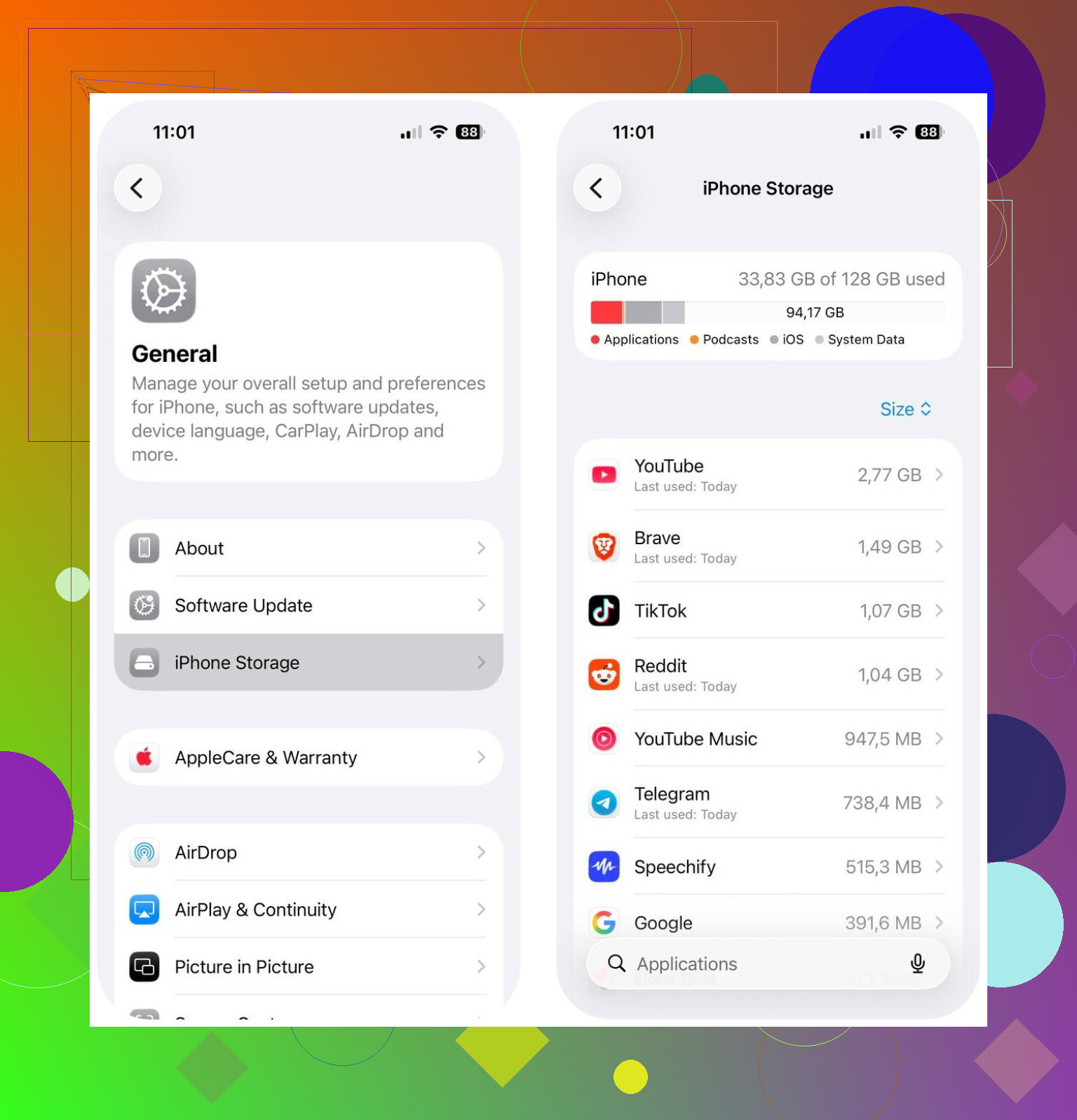
Go to Settings > General > iPhone Storage.
Start there. It shows what category is taking the most space, so you stop guessing and deal with the biggest problem first.
If Photos is the main problem
If Photos is near the top, cleaning your library usually gets the fastest result.
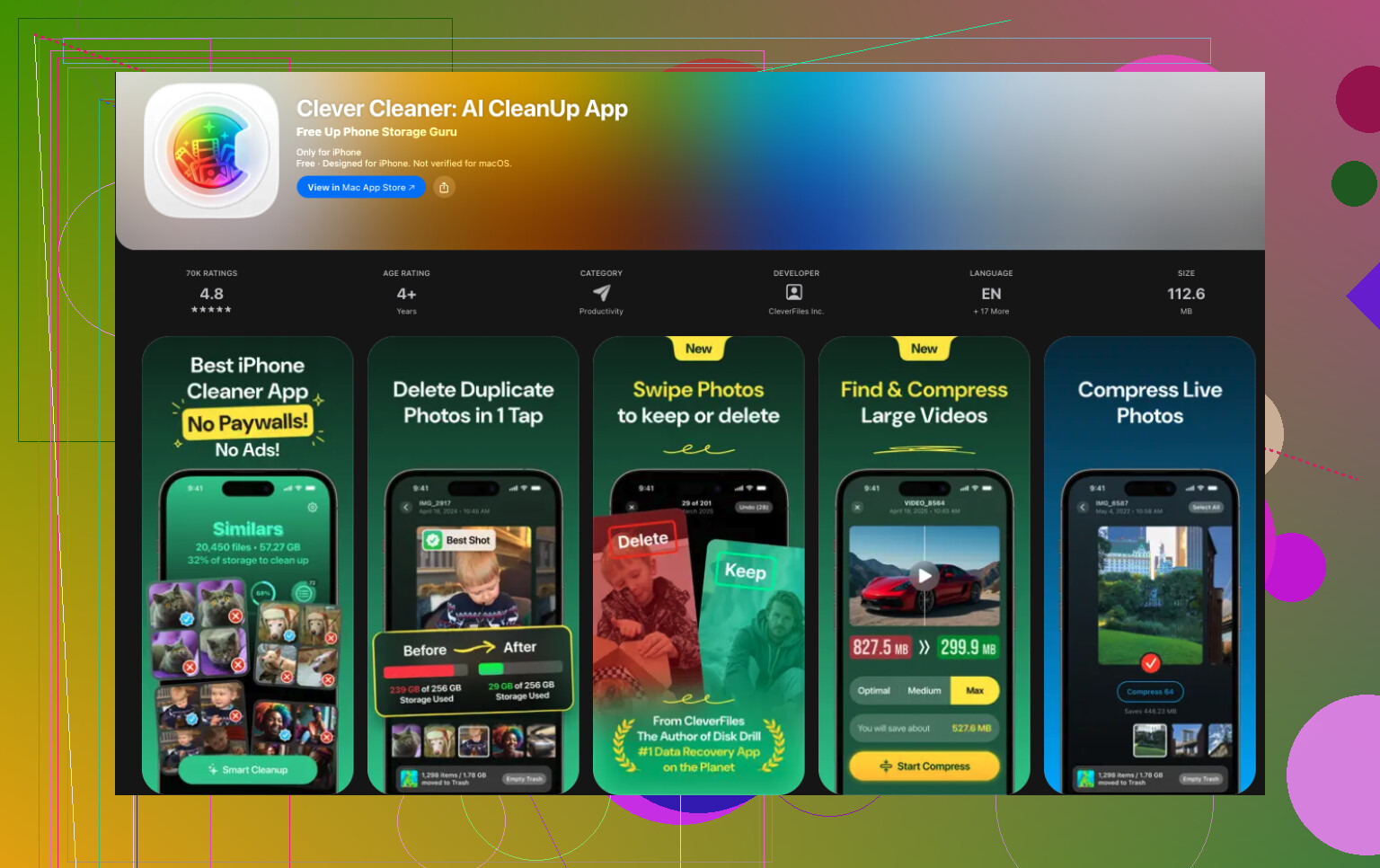
I had better luck with Clever Cleaner than with the built-in Photos cleanup tools, mostly because Apple’s Duplicates album only catches exact copies. A lot of wasted space comes from similar photos, not true duplicates. Think five almost-matching selfies, burst shots, blurred retries, or ten photos of the same receipt.
What stood out for me:
- It finds similar photos and picks a likely best shot
- It surfaces large photos and videos fast
- It groups screenshots so you can wipe them in batches
- It turns Live Photos into regular photos, which trims storage
I’ve seen people report getting back around 10 GB to 30 GB after clearing similar photos, screenshots, and Live Photos. That sounds about right from what I saw.
Other places worth checking after photos
Once photos are under control, I would go down this list:
- Large apps inside iPhone Storage
- Downloads inside streaming apps
- Message attachments
- Downloads in the Files app
- Safari and other browser cache
What this usually means
Most of the time, your storage isn’t filling because the phone is damaged. It’s old files piling up. Photos. App cache. Offline downloads. Message attachments. System junk. It creeps up until iOS finally throws the low-storage warning and makes it look sudden.
A quick pass through iPhone Storage, then a photo cleanup with something like Clever Cleaner, is often enough to recover a lot of space without wiping stuff you care about.
8 Likes
If System Data keeps growing back, I’d stop focusing only on photos and apps. @mikeappsreviewer covered the common stuff well, but System Data bloat is often tied to failed iOS updates, Safari cache, message indexing, and app logs.
Try this order.
- Restart the iPhone. Boring, but it clears temp files more often than people think.
- Delete any half-downloaded iOS update in Settings > General > iPhone Storage.
- Turn off Safari history and website data. Safari cache sometimes eats 1 GB to 3 GB.
- Check Files app, Downloads folder, and “On My iPhone.” People miss this alot.
- Sync your phone to a Mac or PC once. iOS sometimes rebuilds storage categories after a sync.
- Turn off Messages forever storage. Set it to 1 year or 30 days.
- Offload and reinstall bloated apps like TikTok, Instagram, Spotify, Chrome. Deleting the app often removes hidden cache better than offload.
If none of that sticks, do an encrypted backup, erase the phone, restore backup. Annoying, yes. Effective, also yes. It’s one of the few fixes for runaway System Data.
For photos, Clever Cleaner is worth a look if your library is messy.
Also, if you want a solid video on cleaning phone junk, watch best YouTube guide for cleaning up storage and junk files.

I’d actually push back a little on @mikeappsreviewer and @boswandelaar here. They’re right that caches, photos, downloads, and System Data are the usual suspects, but if storage keeps refilling right after you clean it, that often means something is actively re-creating data, not just “leftover junk.”
A few things people miss:
- Mail app: giant attachments and “recently viewed” cache can get stupidly big
- Voice Memos: forgotten recordings add up fast
- Podcasts: auto-download is sneaky as hell
- WhatsApp/Telegram: their in-app storage can be massive even if iPhone Storage looks vague
- Photo syncing bugs: iCloud Photos can temporarily balloon local storage while syncing
What I’d do is this:
- Turn off automatic app updates and automatic downloads for a day or two
- Check Mail, Podcasts, Voice Memos, and chat apps from inside the apps, not just Settings
- Make sure Recently Deleted is emptied in Photos and Files
- Open Photos and let iCloud sync finish on Wi-Fi if it’s stuck
- Check analytics logs: Settings > Privacy & Security > Analytics & Improvements > Analytics Data. If you see tons of crash logs, yup, that can hint at runaway junk
- If free space is under 5 GB, iPhone starts acting extra weird, so try to keep more headroom than that
For photo cleanup, Clever Cleaner is honestly useful if your library is full of similar shots, screenshots, or giant videos. Apple’s built-in cleanup is kinda mid tbh.
Also worth reading: how to stop iPhone storage full alerts for good
If System Data keeps growing after all that, backup, erase, restore is usually the real fix. Annoying? yes. Effective? also yes.
One angle I think @boswandelaar, @himmelsjager, and @mikeappsreviewer only partly touched: storage accounting can lie for a while. iPhone sometimes shows deleted stuff as still used until background cleanup finishes, especially if Low Power Mode is on, battery is low, or the phone hasn’t been locked and charging on Wi-Fi overnight.
What I’d add:
- Check Settings > App Store and disable Offload Unused Apps temporarily. I actually disagree with relying on offloading too much. It can make space look better short term without fixing bloated app data habits.
- Look at Books, GarageBand, iMovie, and other Apple apps. These can hide huge downloaded content packs.
- In Files, sort by size, not just folder name. That exposes old ZIPs, video exports, PDFs, and downloads way faster.
- If you use cloud drives, verify whether files are marked downloaded offline.
- Leave the phone plugged in overnight after deleting a lot. iOS cleanup is sometimes delayed.
For photos, Clever Cleaner is decent if the problem is duplicate-ish clutter.
Pros: finds similar shots, screenshots, and large files quickly.
Cons: you still need to review results carefully, and it won’t fix true System Data bugs.
If storage keeps reappearing at the exact same rate, I’d suspect one app syncing junk back, not iOS alone. That pattern matters.