I’m trying to figure out if there’s a way to clear app data on my iPhone the same way I can on my Android phone, without fully deleting and reinstalling the app. Some apps are taking up a lot of space and acting buggy, and on Android I’d just clear cache/data to fix it. Is there any similar option or workaround in iOS to reset an app’s data or cache without removing the app completely?
Short answer for iPhone is no, there is no Android-style “Clear data” button for each app. iOS does it different and it is a bit annoying.
Here are the main options you have:
-
Offload the app
Settings > General > iPhone Storage > pick the app > Offload App
• This removes the app itself.
• It keeps your documents and data.
• When you reinstall, the data comes back, so this does not fix buggy data or huge cache in many cases. -
Delete and reinstall
This is the closest thing to “Clear data” on Android.
• Long press app icon > Remove App > Delete App.
• Then reinstall from the App Store.
This wipes local data. Some apps sync to cloud accounts, so once you log in again, they pull data back. For apps with local junk, this helps. -
Clear data from inside the app
Some apps have their own cache or reset options.
• Open the app.
• Check Settings or Profile inside the app.
• Look for options like “Clear cache”, “Reset”, “Sign out and clear data”.
This depends on each developer. No system-level force. -
Safari and system caches
Safari
Settings > Safari > Clear History and Website Data.
This frees web cache and cookies.
System-wide content
iOS also clears cache when storage gets low, but it does it silently and not on demand. -
Use a cleaner app for photos and files
This does not wipe internal app data, but it frees space in other areas so your phone runs smoother.
If a lot of space is eaten by duplicate photos, bursts, similar pics, old videos, try a cleaner.
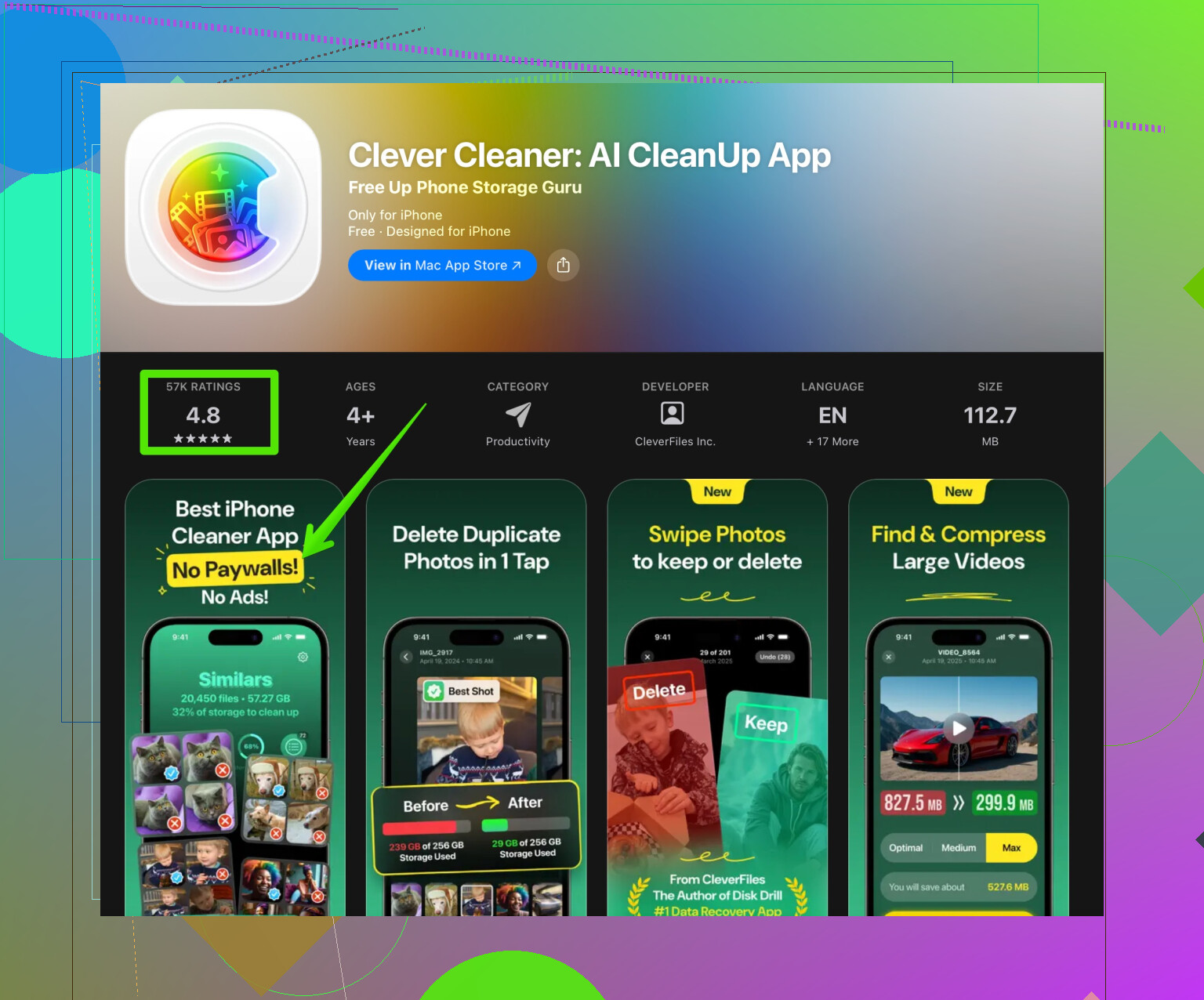
For example, the Clever Cleaner App helps remove duplicates, similar photos, big videos, and useless screenshots. If you want something simple, check this link:
clean up iPhone storage with Clever Cleaner -
Extra tricks
• iMessage and WhatsApp
Go to each app’s settings and clear big media chats or disable “Save to Photos”.
• Mail
Remove and re-add email accounts to flush cached mail in some cases.
• Streaming apps
Most streaming apps have a “Delete downloads” or “Clear offline content” option in their own settings.
If an app feels buggy, the most effective method is still delete and reinstall. If the issue stays after that, the bug is in the app code or on the server side, not only in your stored data.
7 Likes
On iPhone there isn’t a true Android-style “Clear data” button, and yeah, that’s super annoying. @andarilhonoturno already covered the official paths pretty well (offload, delete/reinstall, in‑app options), so I’ll add some stuff around the edges and a slightly different angle.
First, little reality check: iOS is designed so each app lives in its own sandbox and iOS manages a lot of cache cleanup automatically when space is low. That sounds nice in theory, in practice it means you don’t get control and apps bloat over time.
A few things you can try that aren’t just “delete the app” again:
-
Force a “soft reset” of the app’s state
This does not nuke the data like Android’s Clear Data, but sometimes clears temp junk and corrupted state.- Fully kill the app from the app switcher.
- Turn Airplane Mode on, wait 20–30 seconds, then off.
- Open the app again and log out / log back in if the app has accounts.
I’ve seen chat apps and social apps calm down a bit from this when they’re glitchy but not fully broken.
-
Use iCloud settings as a pseudo reset
For apps that sync via iCloud Drive or iCloud data:- Go to Settings > your name > iCloud.
- Look under “Apps using iCloud” and toggle the problematic app off, then choose to delete data from iPhone if it asks.
- Open the app again, log back in, then turn iCloud back on if you actually need it.
This is a bit of a hack, but for some apps it really does clear a chunk of synced junk that keeps reappearing.
-
Nuke specific content instead of the whole app
Some apps don’t expose a “clear cache” button but do let you bulk-remove what’s actually eating the space:- Messaging apps: go into each big conversation and delete media / large files only. You keep the chat history but free gigs of space.
- Notes / document apps: sort by size or attachments and delete the big items first.
- Social apps: remove downloaded/offline content, saved posts, or internal downloads (e.g. internal browser downloads).
-
Trigger iOS’s auto-cleaning behavior
Slight disagreement with @andarilhonoturno here: iOS can be nudged a bit. It still won’t behave like Android, but:- Get storage somewhat close to full (like within a few hundred MB).
- Plug into power, lock the phone, leave it on Wi‑Fi for a while.
iOS tends to sweep more aggressively when it thinks the device might run out of space. You don’t see a “cache cleared” notice, but certain app sizes in Settings > General > iPhone Storage quietly shrink.
-
Target media bloat outside the buggy app
A lot of “app using 10 GB” problems are actually photos, videos, or duplicates being referenced/saved everywhere. Trimming that can indirectly fix slowness and random bugs because iOS has more breathing room.
If your Camera Roll is a disaster of duplicates, similar photos, screen recordings, and half-watched clips, something like the Clever Cleaner App is honestly useful. It specializes in spotting duplicate and similar images, massive videos, and junk screenshots so you can free up storage fast without digging through thousands of files manually. If you want to streamline this, try clean up your iPhone storage with Clever Cleaner and get a chunk of space back in a few minutes. -
Last resort “big reset” that’s not per-app
This is extreme and I wouldn’t do it casually, but it’s the closest thing iOS has to clearing tons of cruft everywhere:- Backup your iPhone to iCloud or computer.
- Settings > General > Transfer or Reset iPhone > Erase All Content and Settings.
- Set up as new iPhone instead of restoring a backup.
This wipes all local app data and system junk, but you also lose old settings, message history (unless in iCloud), etc. It’s like formatting a PC. You only do this if your whole phone is acting cursed, not just one app.
To your core question: no, there’s no 1:1 Android “Clear data” button on iOS without deleting the app. The closest “per app” solutions are:
- In‑app reset / clear cache (if the dev gives you that)
- Toggling app’s iCloud data off/on when applicable
- Or, yeah, the boring but effective delete + reinstall
Everything else is basically working around Apple’s choices rather than replacing that missing button.
Short version: on iOS you’re always working around Apple’s design, not replacing Android’s “Clear data” button. A few extra angles that sit next to what @andarilhonoturno and the other reply already covered:
-
When “Documents & Data” is huge but you want some state kept
If an app is bloated mainly because of offline stuff (downloads, maps, podcasts, music), sometimes you can do a partial reset by:- Turning off cellular data for that app in Settings so it cannot keep refilling its cache instantly.
- Going into the app and manually removing offline content, downloaded playlists, map regions, etc.
- Then leaving the phone locked on Wi‑Fi for a bit so iOS trims cached leftovers.
It is not perfect, but it stops the app from immediately re-bloating while you clean.
-
Background refresh as a “behavior choke”
For apps that constantly regenerate temp files:- Settings > General > Background App Refresh > turn it off just for the worst offenders.
This will not clear what is already there, but it does reduce how fast they fill back up after any cleanup or reinstall. People skip this and then wonder why storage jumps again in a day.
- Settings > General > Background App Refresh > turn it off just for the worst offenders.
-
Different take on iCloud
I slightly disagree with using iCloud toggles as a general pseudo-reset for everything. For apps that store important end‑to‑end encrypted data or fragile sync states, toggling them off in iCloud can cause weird “ghost data” conflicts or partial resyncs.
I only do this for:- Apps where the cloud data is clearly disposable (clipboard tools, temporary notes, simple to‑do apps).
- Apps that explicitly say in their settings that toggling iCloud will resync cleanly.
If it is a password manager, secure notes, or anything where integrity matters more than a few gigs, I leave iCloud alone and do a clean reinstall instead.
-
System‑wide indexing bloat
Spotlight and Siri suggestions index app data. When the phone feels sluggish or searches stall:- Settings > Siri & Search > pick the misbehaving app > disable “Show App in Search” and “Show Content in Search.”
- Reboot.
That sometimes calms buggy behavior that feels like app data corruption, especially with big note or file apps, because iOS stops constantly poking their databases.
-
Where a full device restore actually makes sense
The nuclear “Erase All Content and Settings” path that was mentioned is only really worth it if:- Multiple unrelated apps are misbehaving.
- “System Data” in iPhone Storage is enormous and never shrinks.
In that case, I’d disagree slightly with the “set up as new” advice as a blanket rule. A practical compromise: - Make an encrypted backup to a computer.
- Erase the phone.
- Restore the backup, but do not immediately reinstall your heaviest third‑party apps. Add them back slowly and watch which ones start bloating again.
This way you do not lose all your settings, but you still flush a ton of cached junk.
-
Storage cleanup tools around the problem
A lot of “I need to clear app data” complaints are really “Photos, videos, and chat media are killing my storage, so everything else feels buggy.” For that angle, something like the Clever Cleaner App is actually useful as a supporting tool rather than an app‑data reset:Pros of Clever Cleaner App:
- Good at surfacing duplicate / similar photos and giant videos that are buried in your library.
- Faster than manually scrolling a massive camera roll or message attachments.
- Can quickly free several GB so iOS has enough free space to do its own automatic cache cleanup more aggressively.
Cons of Clever Cleaner App:
- It does not directly clear per‑app data like Android’s “Clear data” button, so it will not fix a single misbehaving app by itself.
- You still have to review what it wants to delete, which takes a bit of time and attention.
- If you are low on trust for third‑party cleaners in general, you might not love granting it photo access, even though that is how it works.
Used correctly, it solves the “overall storage pressure” problem so other fixes have room to work. It is best seen as a complement to offloading or reinstalling specific apps, not a magic iOS cache button.
Bottom line:
- For one broken app: look for an in‑app reset, disable background refresh, trim its offline content, then reinstall if needed.
- For general bloat and weirdness across the phone: free global space with photo / media cleanup (where something like Clever Cleaner App helps), tame Spotlight and iCloud a bit, and reserve full‑device wipes for when multiple things are clearly wrong.