KernelPro USB over Ethernet suddenly fails to connect to a previously working remote USB device. The client shows the device but can’t establish a session, even after reinstalling drivers, restarting services, and disabling the firewall. I need help figuring out what might be blocking the connection and what specific logs or settings I should check to get this working again.
Had this exact headache with KernelPro a few months ago. Device showed up on the client, looked “ready,” but every attempt to connect just hung or silently failed. Here’s the stuff that actually mattered, not the usual “reinstall & reboot” dance.
1. Check if the server really exports the device
On the machine physically connected to the USB device:
- Open KernelPro server UI
- Make sure the device is actually in “Shared” state
- Unshare it, unplug the USB, plug it back, then share again
- If it refuses to share or randomly unshares, your issue might be at the driver layer, not the client
Also confirm nothing else is grabbing the device (vendor tools, VM software like VirtualBox or VMware, RDP redirection). Close or disable any “helper” apps that talk to that device.
2. Verify connectivity and ports
KernelPro can get blocked by firewalls even on LAN.
- Ping the server IP from the client
- If ping works, check that KernelPro’s service ports are open in Windows Firewall on both sides
- Temporarily disable firewall on both ends just to test
- If it suddenly starts working, add a proper inbound/outbound rule for KernelPro instead of leaving the firewall off
If you changed network adapters or moved to VPN, check that the IP used in the client matches the actual server IP and is reachable.
3. Kill stale sessions
Sometimes the server thinks the client is still attached.
- In the server console, remove any active session or “in use” state for that device
- Restart the KernelPro service from Services.msc
- Then attempt a new connection from the client
If you see multiple “ghost sessions” or the device flips between available and unavailable, that is usually a KernelPro bug, not your hardware.
4. USB stack & power quirks
Windows loves to save power at the worst time.
- In Device Manager, for every USB Root Hub, uncheck “Allow the computer to turn off this device to save power”
- Disable USB selective suspend in Advanced Power Options
- Try a powered USB hub if the device is borderline on power
Also test the device locally on the server with KernelPro fully stopped. If it is flaky even locally, fix that first.
5. Version mismatches and corrupted drivers
Make sure the same KernelPro version is installed on client and server. Mixing versions quietly breaks things.
If needed:
- Uninstall KernelPro on both sides
- Reboot both machines
- In Device Manager, enable “Show hidden devices” and remove any orphaned virtual USB network devices from KernelPro
- Reinstall the latest compatible version on both client and server
6. When it is just KernelPro being KernelPro
In my case I wasted hours doing all the above and the root cause was KernelPro randomly stopping to handle sessions after a Windows update. No clear logs, nothing. The driver simply would not create a stable virtual USB channel anymore.
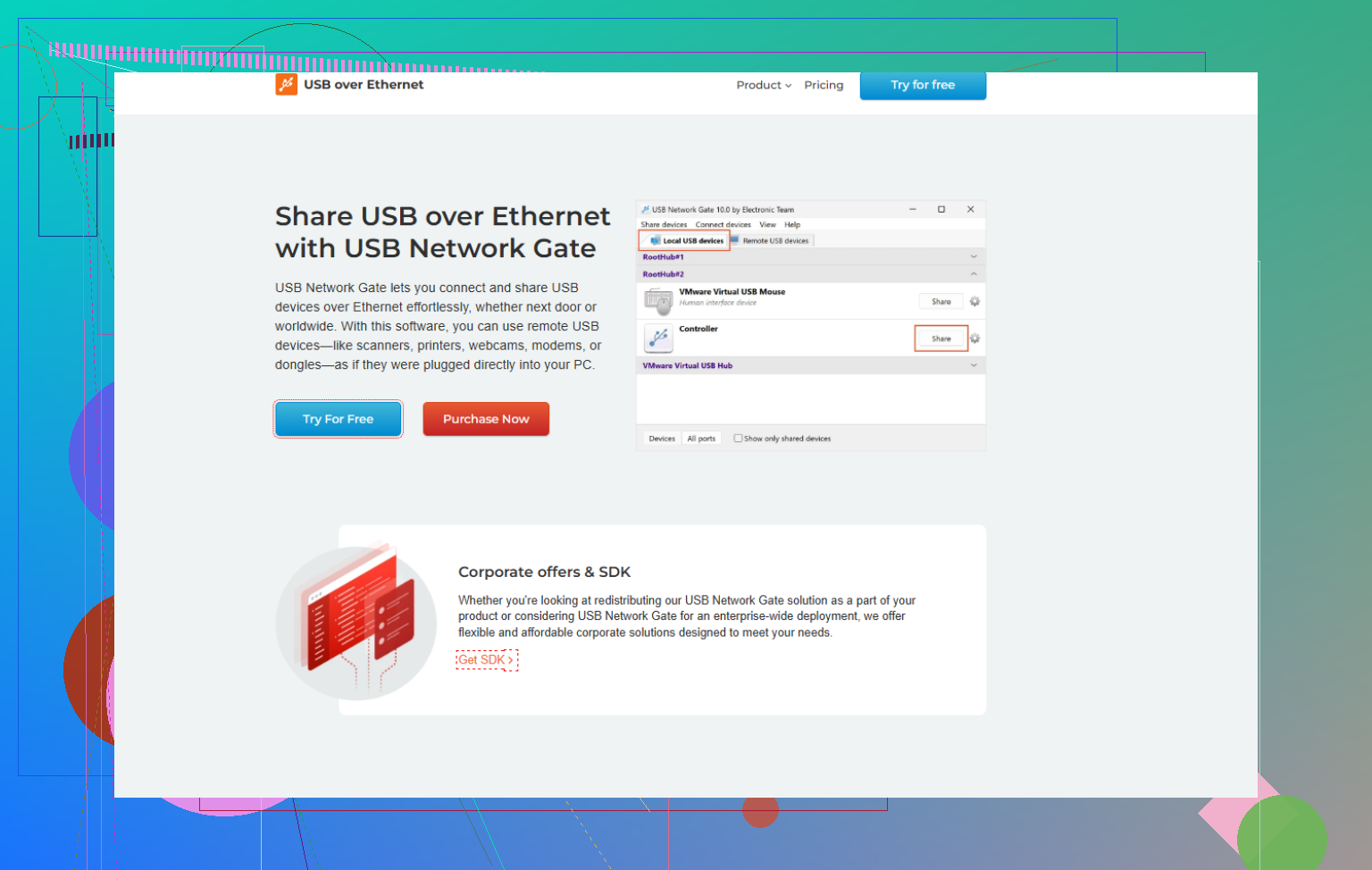
I ended up switching to USB Network Gate. It does the same “USB over network” thing, but the driver stack was a lot more stable and it handled reconnects and sessions way better on mixed Windows builds. If you want an in depth walk through on setting up a stable USB over network workflow and why I swapped tools, this article helped a ton:
how I finally stabilized remote USB sharing on Windows
That piece is basically a real world USB over Ethernet tutorial: covers how to choose the right port configuration, deal with drivers, secure the connection, and avoid the exact “shows up but won’t connect” limbo you are hitting.
7. Quick checklist to try in order
- Confirm device works locally on the server
- Re share device and kill old sessions
- Test without firewall, then add rules
- Disable USB power saving
- Match KernelPro versions, clean out old drivers
- If it still randomly refuses to connect, stop burning time and try USB Network Gate instead. It handles most of this stuff out of the box and is a lot less temperamental with Windows updates.
Had this happen to me after it had been working flawlessly for months, so yeah, KernelPro can just decide “nope” one day.
@mike34 already covered most of the sane stuff. I’ll throw in a few other angles that bit me that weren’t as obvious:
1. Check if the wrong NIC is being used
KernelPro sometimes latches onto a specific network interface. If your machine got:
- A new VPN adapter
- Wi Fi vs Ethernet switch
- A new virtual adapter from Docker/Hyper V/etc
the server might still be bound to an old interface or IP.
On the server:
- Open KernelPro server settings.
- Look for something like “bind to interface / IP” or “listen on” and make sure it is either set to “all interfaces” or the actual LAN IP you are using.
- On the client, remove the old server entry and re add it using the server’s current IP.
Symptom when this is wrong: device list still appears (cached), but new sessions never actually establish.
2. MTU / VPN / “it works locally but dies over WAN”
If you’re trying this over VPN or a more complex routed network:
- Some VPNs fragment or block certain traffic patterns.
- Large USB packets can choke or time out if MTU is weird.
Quick tests:
- Try connecting client and server on the same LAN segment (no VPN). If it suddenly works, your VPN / router / MTU is the real villain.
- On VPN adapters, experiment with lowering MTU (e.g. 1400) and retest.
Logs won’t always say “MTU problem,” they just silently fail sessions.
3. Check for conflicting USB virtualization drivers
Stuff like:
- VirtualBox USB filters
- VMware USB arbitration service
- Remote desktop USB redirection
- Vendor specific “USB over IP” tools that came with the device
can hook the same device stack as KernelPro and create a “looks available but can’t actually attach” situation.
Try:
- Stopping services from virtualization tools.
- Temporarily uninstalling any other USB sharing software.
- Then rebooting and retrying KernelPro.
I’ve seen vendor dongle drivers that quietly inject their own mini filter and completely break third party USB over Ethernet tools.
4. Check Windows Event Viewer & KernelPro logs properly
KernelPro’s GUI won’t always scream when stuff breaks, but:
- Look under Windows Logs → System and Application for driver or service errors right when you attempt to connect.
- If KernelPro has its own log folder (usually in ProgramData or install dir), crank logging to verbose and reproduce the issue.
Things to look for:
- “Access denied”
- Driver not loaded or failed to start
- Filter driver conflicts
If the driver is failing to attach to the virtual USB bus, the UI will still pretend everything is fine.
5. User context & elevation weirdness
On some builds, the client will only attach the device correctly if:
- You run the client as Administrator
- And the service is allowed to interact with desktop / that user session
Try:
- Right click the client → Run as Administrator.
- If you use multiple user accounts or RDP, test from a local console session with an admin user.
I’ve seen this especially with license dongles that require low level access.
6. Brutal clean of leftover KernelPro junk
I do slightly disagree with just a basic uninstall/reinstall. When KernelPro really corrupts its stack, you often need a deeper cleanup:
- Uninstall KernelPro on both machines.
- Reboot.
- Open Device Manager → View → Show hidden devices.
- Under:
- Network adapters
- USB controllers
- Non Plug and Play drivers (if visible)
remove anything clearly related to KernelPro / virtual USB / its miniports.
- Open
regeditand search for the KernelPro driver name/service (only if you’re comfortable doing registry edits). Remove leftover services that refer to non existent drivers. - Reboot again and reinstall the same version on both ends.
If your old drivers survived upgrades or rollbacks, sessions will fail in exactly the “shows device but won’t connect” way.
7. At some point, consider switching tools
Not to pile on, but I ended up in the same situation: after a Windows update, KernelPro would randomly stop accepting sessions. No meaningful error, nothing in UI, just dead.
I finally switched to USB Network Gate. The virtual USB driver stack has been more stable for me and reconnects after network blips are way less flaky.
If you want to try that route, you can grab it here:
download USB Network Gate for reliable USB over network sharing
That solved the “client sees device but cannot establish session” problem entirely in my setup, using the exact same hardware and network.
If you want a minimal test path:
- Stop all VPNs, connect client and server on same LAN.
- Make sure server binds to the correct IP / interface.
- Remove other USB virtualization tools.
- Do a deep cleanup of KernelPro drivers, reinstall same version on both sides.
- If it still fails, try USB Network Gate. If that works immediately, you can safely blame KernelPro’s stack rather than your device or network.
13 Likes
One angle I haven’t seen mentioned yet: credentials, policies, and environment drift. Kernel-level tools are very sensitive to subtle Windows changes that look unrelated.
1. Check if this is a permission problem in disguise
If your setup used to work and stopped after:
- joining a domain
- changing group policies
- enabling new security software
then the service account KernelPro uses might have lost rights.
Try on both client and server:
- Run the GUI as a local Administrator.
- In
services.msc, open the KernelPro service → Log On tab.- If it is set to a specific account, temporarily switch to Local System and restart the service.
- Attempt the connection again.
If it suddenly works, your domain / GPO / AV might be blocking the previous service account from creating the virtual USB bus or from opening a raw TCP socket.
2. Security tools silently blocking the driver
Not just firewall. Some EDR / AV suites hook drivers:
- CrowdStrike, Defender ATP, SentinelOne, etc. can silently block filter drivers.
- KernelPro’s driver might be flagged heuristically after an update.
Quick test:
- Put both machines in the AV’s “audit only” or “bypass” policy for a moment, or use a temporary exclusion for the KernelPro program folder and its drivers.
- Restart and retry.
If it works then breaks again once protections are restored, create permanent exclusions for both the executable and the driver files.
3. Time sync & certificate / driver signing edge cases
If the system clocks drift a lot or there was a rollback:
- Unsigned or test signed drivers can fail to load on one side.
- The GUI will still show devices from cache but sessions never really start.
Check:
Win + R→eventvwr.msc→ System log at the minute you attempt to connect.- Look for entries about driver load failure or code integrity.
If you see anything about blocked or unsigned drivers, you may need:
- Latest KernelPro build that matches your Windows patch level.
- To remove test signing / secure boot conflicts if you previously had them.
This is subtly different from what @cazadordeestrellas suggested about generic driver cleanup; here you are verifying that Windows is actually willing to load the driver at all.
4. Accounting for RDP and multi session weirdness
If you connect to the client or server through Remote Desktop:
- RDP redirection can “steal” USB or present a different session context.
- Some USB over IP drivers misbehave when the controlling user logs off.
Try this reproducible test:
- Log in at the physical console of both machines (or at least the server).
- Ensure no other users are logged in via RDP.
- Start KernelPro there and attach.
If it works only on the console, you may need to disable RDP USB redirection and ensure your scheduled tasks or auto start for KernelPro run in the right session.
5. Registry-level reset of KernelPro network bindings
@mike34 covered NIC and MTU, but sometimes KernelPro also persists dead interface bindings in the registry even after you switch to “all interfaces” in the GUI.
If you are comfortable editing the registry:
- Export a backup.
- Search for KernelPro specific keys that store IP or adapter GUIDs.
- Clear outdated entries so that only “auto” or the correct interface remains.
Then restart the service and readd the server in the client. This goes deeper than simply toggling the interface option in the UI and can fix cases where the cached config completely ignores your new NIC.
6. When you are evaluating alternatives
Both @cazadordeestrellas and @mike34 ended up moving away from KernelPro after similar ghost session failures. If you are at the “my time is more valuable than one more registry pass” stage, trying another driver stack is reasonable.
USB Network Gate is one of the more popular replacements in this space.
Pros:
- The client/server versions are kept in sync and tend to handle mixed Windows builds better.
- Session handling is usually more resilient to brief network drops.
- The UI gives clearer feedback when the driver or service is not actually attaching, which helps avoid the “device shows but never connects” limbo.
- Plays relatively nicely with VPNs and complex routing in many setups.
Cons:
- Licensing can get pricey if you need a lot of endpoints.
- Still a kernel-level driver, so not immune to security suite friction or Windows update breakage, just less temperamental in many reports.
- Advanced features (encryption, multi user sharing, etc.) can add complexity you might not need if you only have one dongle or one device.
If USB Network Gate connects to the same USB device and network environment on the first try, that is a very strong signal the problem really was in KernelPro’s driver / service stack rather than your hardware, firewall or cabling.
If I were in your situation now:
- Do a quick permission / AV check as above.
- Try from console sessions only, no RDP, with AV relaxed.
- If it still presents the device but refuses to open a session, test USB Network Gate on the same hosts.
- If that works consistently, call it a KernelPro issue and stop burning hours on driver archaeology.