My older iPhone has gotten noticeably slower after recent iOS updates, and I’m trying to figure out which settings actually improve performance. I’ve seen tips like turning off Background App Refresh, reducing motion, clearing storage, and disabling widgets, but I’m not sure what really helps versus what’s outdated advice. What settings are worth changing to speed up an old iPhone without causing problems?
Old iPhones usually aren’t “done” just because they feel slow. A lot of the time, you can get a decent amount of speed back by turning off a few heavier iOS features and freeing up storage. Restarting helps for a minute, but it doesn’t fix the stuff that’s actually dragging the phone down.
A reboot clears some temporary junk and can stop a process that got stuck. That’s useful, but older iPhones usually slow down for two bigger reasons: iOS is running features the hardware was never great at handling, and the storage is so full that the system has no room to work properly.
The first place I’d start is settings.
Turn off Background App Refresh under Settings > General > Background App Refresh. You can disable it completely, or leave it on only for apps that really need it, like messaging apps. Background activity still uses CPU and battery even when you’re not actively using the app, and older chips feel that more.
Then enable Reduce Motion in Settings > Accessibility > Motion. After that, go to Display & Text Size and turn on Reduce Transparency. This makes iOS look a little flatter, but it cuts down on the blur effects and animations that can make older phones feel sluggish.
Also check Low Power Mode. If you leave it on all the time, the phone is intentionally limiting performance to save battery. That’s fine if battery life matters more, but if you’re trying to make the phone feel faster, turn Low Power Mode off.
Battery health matters too. Go to Settings > Battery > Battery Health. If maximum capacity is under 80%, iOS may be applying performance management to stop the phone from randomly shutting down. At that point, a battery replacement can make a bigger difference than any setting change.
Storage is the part a lot of people overlook. iOS needs free space for temporary files, indexing, updates, and normal system work. Once the phone gets around 90% full or worse, everything can start feeling heavier. Apps open slower, the camera can lag, and the phone may run warm because it’s constantly fighting for space. On an older iPhone, keeping roughly 10% to 20% free is more of a requirement than a nice bonus.
There are a few quick wins. Clear Safari data in Settings > Safari > Clear History and Website Data. Offload apps you don’t use from Settings > General > iPhone Storage. But for most people, photos and videos are where the real storage is hiding.
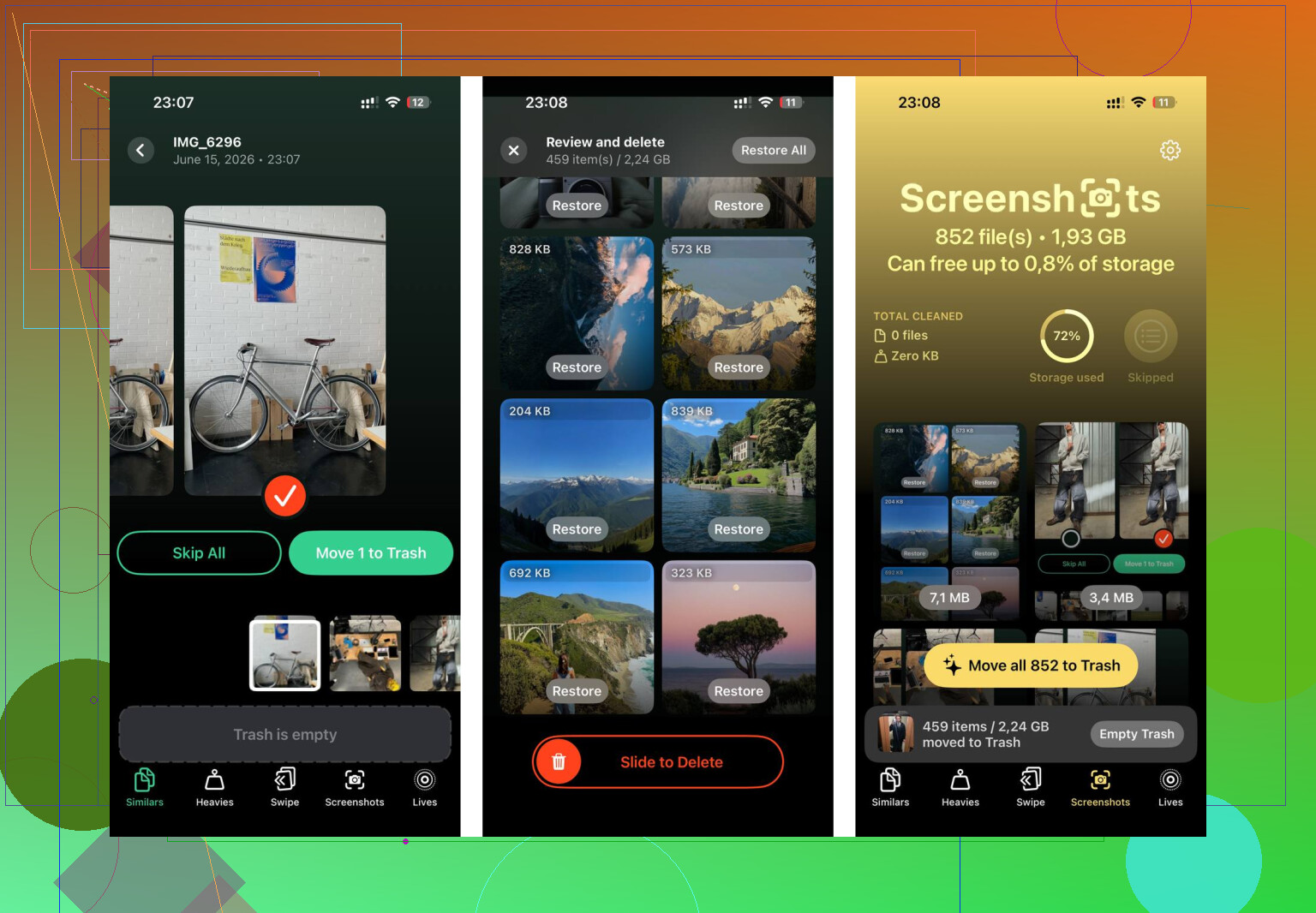
Manually sorting through thousands of photos is awful, especially if you’re trying to find giant videos, screen recordings, or ten copies of the same shot. Clever Cleaner makes that part much easier, and it’s free with no ads or subscription.
The Heavies section shows your biggest files first, with the exact file sizes. That’s where old 4K videos and screen recordings usually stand out. Deleting just a few of those can free up more space than deleting a pile of regular photos.
The Similars section groups near-duplicate photos and picks the sharpest one from each set. So instead of checking every version of the same picture one by one, you can clear out the extras much faster.
It also shows file sizes on screenshots before you delete anything, which helps because screenshots can quietly add up to several gigabytes over time.
The scan and cleanup happen on the phone itself. Nothing gets uploaded or sent out during the process.
After clearing about 30GB this way, with the settings changes done first and the storage cleanup after, the phone felt noticeably better. Apps opened faster, the camera launched without hanging, and the phone stopped getting warm during normal use. That heat was basically the phone working too hard because storage was packed and the system had no breathing room.
The settings tweaks help. The storage cleanup usually helps more. Doing both is probably the best free way to make an older iPhone feel usable again.
20 Likes
Don’t expect settings to fix a worn battery or a nearly full phone. I agree with the storage point above, but I’d be more skeptical about Background App Refresh making the phone feel faster while you’re actually using it. It can help battery and heat, sure, but it’s not magic. The settings that usually make the most visible difference are Reduce Motion, Reduce Transparency, fewer widgets, fewer live notifications, and removing junk apps that run services in the background. After a big iOS update, give the phone a day or two plugged in on Wi-Fi too, because Photos, Spotlight, and app updates can make it feel awful while they re-index. If it is still slow after that, check battery health and Apple’s explanation of iPhone battery performance management. A bad battery will beat any settings tweak.
You can make an old iPhone feel less annoying, but you probably won’t make it feel new again. The setting people overrate is constantly force-closing apps, since iOS usually handles that better than the user does and reopening everything can be slower. The settings I’d actually touch are Search suggestions for apps you don’t use, notification permissions for noisy apps, widgets on the Lock Screen/Home Screen, and automatic downloads if the phone always seems to lag right after updates. I’d leave Background App Refresh off for junk apps, but not expect miracles from it. If typing, camera launch, or app switching are still bad with free storage and decent battery health, that’s usually the hardware showing its age, not a hidden toggle you missed.
Don’t chase the newest iOS update the second it drops on an old phone. That’s the mistake nobody upthread called out. Once you install it you usually can’t go back, and Apple stops signing the older version fast. So if a point update makes your specific model crawl, you’re stuck. On anything a few generations back I sit on the update for a couple weeks and read what people with the same model are saying before tapping install.
@sterrenkijker nailed the force-quit thing. People swipe away every app like it’s helping, and it mostly just makes the next launch slower because iOS has to cold-start everything again. Leave them alone. The storage advice is solid too, and Clever Cleaner is fine for the boring part of hunting down fat videos and screenshot piles, but clearing space fixes a full-disk problem, not a tired-CPU problem. Don’t expect a clean drive to undo years of heavier software.
Honestly the piece I’d weigh more than any toggle is the battery, same as @nachtdromer said. If capacity is low and performance management has kicked in, you can flip every setting in the phone and it’ll still feel throttled. A battery swap is cheap next to a new phone and it’s the one change that actually lifts the ceiling instead of just tidying up around it. Do that first, then bother with Reduce Motion and the rest.