I accidentally formatted an external hard drive that had years of family photos, work documents, and videos on it. I stopped using the drive right away because I read that adding new data can make file recovery harder. I need help finding the best hard drive recovery software in 2026 that can recover files from a formatted drive safely and actually works.
I did this once with a backup drive and my stomach dropped the second I noticed the wrong volume name. First move, stop. If the drive is still connected, disconnect it. If it is your system disk, shut the machine down. Every write after the format chips away at your recovery odds.
A lot of people make it worse in the first ten minutes. They install recovery apps onto the same formatted disk, move files around, run repair tools, or let the OS keep using the drive in the background. Bad idea. New data lands on old sectors, and once those sectors get reused, your old files are done.
What a format usually changed
I think the easiest way to picture it is like this. The files are often still on the drive, but the index pointing to them got cleared.
With a quick format, the drive often looks empty because the file table was reset. The bulk of the file data may still be sitting there untouched.
With a full format, especially on older Windows setups, the system often writes across the disk and checks sectors. Recovery after this is much worse, sometimes flat-out impossible.
So yes, the kind of format matters a lot.
Drive type changes the odds
If your formatted disk is a mechanical HDD, I’d feel somewhat better. Those tend to give recovery tools more to work with, assuming you stopped using the disk fast enough.
If it is an internal SSD, things get rough. TRIM kicks in on many systems and tells the SSD to clear blocks marked as free. Once that happens, recovery gets ugly fast. External SSDs over USB are a weird middle ground. TRIM does not always pass through the same way, so sometimes you get lucky.
What I would do first
Before spending money or spiraling, check your cloud stuff. I’ve seen people recover half their panic by logging into OneDrive, Google Drive, or iCloud and finding Desktop or Documents syncing in the background the whole time. Five minutes, worth doing.
If local recovery is still needed, I’d use software before I’d think about a lab. Recovery labs are expensive, often well over $1,500, and I would save that for family photos, business records, legal stuff, things like that.
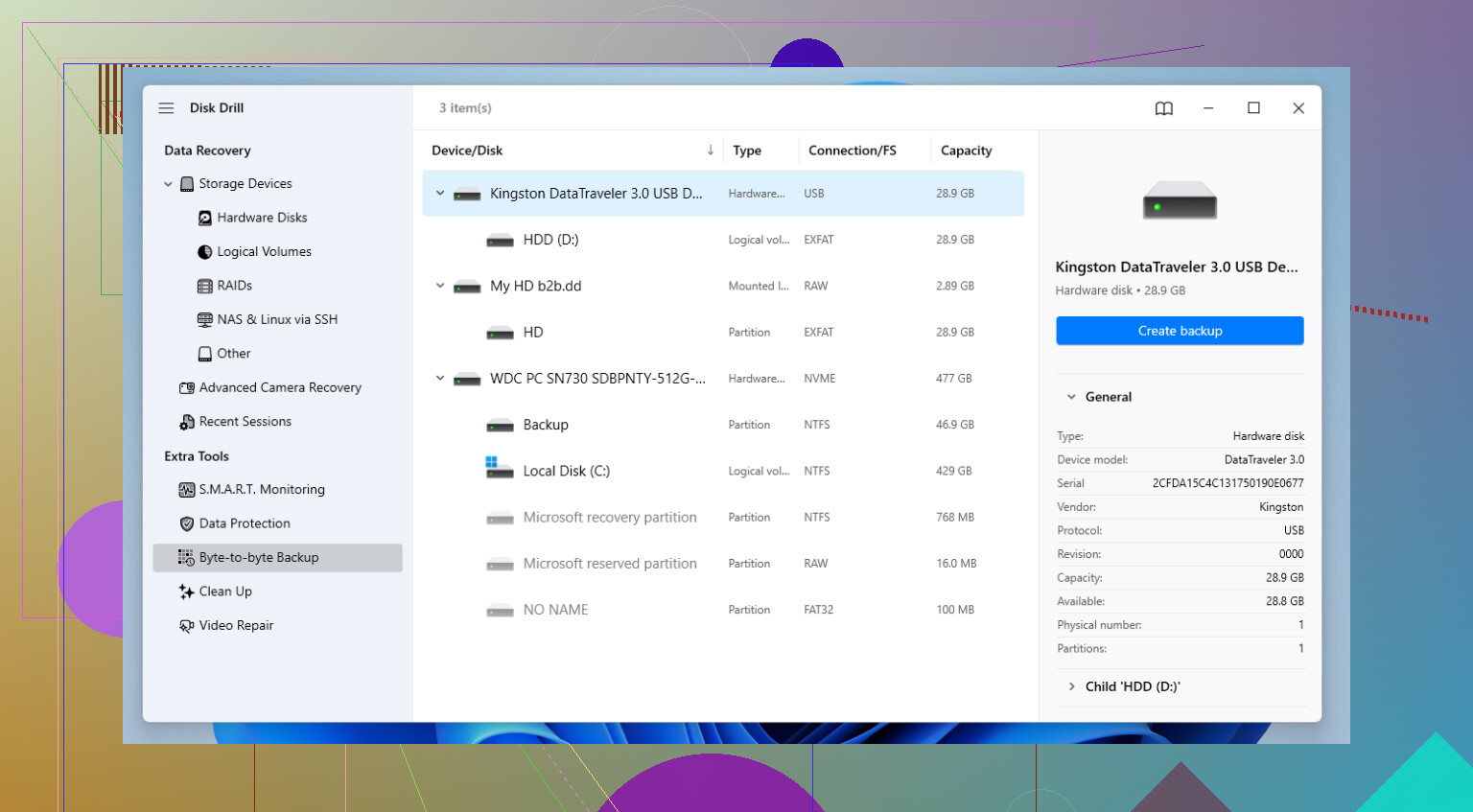
For normal people trying to recover a formatted drive, Disk Drill is one of the easier ones I’ve used. I liked it because I did not need to fight the interface to get moving. It reads common file systems like NTFS, FAT32, and APFS, and it does a decent job pulling files back even when names and folders are gone.
The safer way to scan
If the tool offers a byte-to-byte image option, use it. I learned this the hard way after scanning a flaky drive directly for hours. Make an image first, then scan the image. You reduce stress on the original disk, and if the hardware is unstable, you get one clean shot to preserve what is there.
Basic recovery steps
Here’s the plain version.
Install the recovery software on another drive, not the formatted one.
Connect the formatted drive and scan it.
Sort results by type if names are missing. Photos with photos, docs with docs.
Use preview before recovery. If a photo opens or a document shows readable text, your odds are good for that file.
Save recovered files to a different disk. Do not restore them back onto the source drive.
Preview matters more than people think. I’ve had scans spit out thousands of filenames, half useless. Preview cut through the mess fast.
If you want a free option
PhotoRec is the usual answer. It works. I’ve used it. I did not enjoy it. You get file carving by signature, which means it finds data based on file patterns, not your old folder layout. So yes, it pulls stuff back, but you often end up sorting a giant pile of files named things like f12345.jpg. If you are okay with command-line tools and manual cleanup, it is solid.
My blunt take
If you quick-formatted an HDD and stopped using it right away, your odds are decent. If you full-formatted it, or it was an internal SSD with TRIM active, I’d lower expectations fast.
Whatever you do next, keep the source drive untouched. Scan it, image it, recover from it, but do not write to it. That one rule saves more data than any app does.
Hope it works out. I know this part sucks.
3 Likes
If the drive still mounts and does not click, I’d start with software, not a lab. I agree with part of what @mikeappsreviewer said, but I’m less sold on PhotoRec for family stuff. It pulls files, sure, but the mess after recovery is brutal.
My short list for a formatted external drive in 2026:
-
Disk Drill
Best balance of scan quality, preview, and ease of use. Strong for photos, videos, docs. Good if you want results fast and don’t want to fight menus. -
R-Studio
Better if the file system is damaged badly or the partition map got mangled. More technical. Better for power users. -
UFS Explorer
Great tool, ugly interface. Strong recovery logic. Costs more. -
Recuva
Only worth trying if the format was light and the drive is simple. I would not trust it first for years of photos.
What I’d do in your spot:
Make an image of the external drive first.
Scan the image with Disk Drill.
Recover previews first, JPG, PNG, MP4, DOCX, PDF.
Save output to a different drive, not the formatted one.
One thing ppl skip. Check SMART health before a long scan. If health is bad, clone first and stop stressing the disk.
For a clean walkthrough, this step by step guide to recover files from a formatted hard drive is easier to follow than random blog posts.
If this was an HDD and you stopped right away, your odds are still decent. If it was an SSD, odds drop fast.
I’d put one thing above the software list: figure out whether the format changed the file system. That part gets glossed over a lot. If the drive was exFAT before and got reformatted to NTFS, or vice versa, some tools handle the old metadata way better than others. That’s where I kinda part ways with @mikeappsreviewer and @viajantedoceu a bit. Preview and ease of use matter, sure, but metadata reconstruction matters more if you want old filenames/folders back instead of a giant junk drawer of recovered files.
For that reason, I’d test in this order:
- Disk Drill
- R-Studio
- DMDE
Yeah, DMDE is uglier than sin, but on formatted HDDs it can sometimes find the old partition/file system structures when prettier apps miss them. Not fun, but effective. Recuva would not be on my serious list for this job tbh.
Also, if these are irreplaceable family photos, do not spend 20 hours rescanning the physical drive over and over. Make one image or clone, then experiment on the copy. Huge diff.
For a solid roundup of the best data recovery software for formatted hard drives, compare how each handles formatted HDDs specifically, not just deleted files.
If it’s an external spinning HDD and you stopped imediately, your chances are still pretty decent. If it’s an SSD, that’s where I’d stop being optimistic real fast.
I’d add one angle the others only touched lightly: check whether the “format” was actually just a partition table rewrite. On some externals, the old volume is still mostly intact and a tool that can detect previous partitions will recover way cleaner than pure file carving.
That’s why I would not jump straight to PhotoRec unless everything else fails. @viajantedoceu and @suenodelbosque are right that imaging first is the safest move, and @mikeappsreviewer is right to care about previews, but for years of family photos I care just as much about getting folders and filenames back.
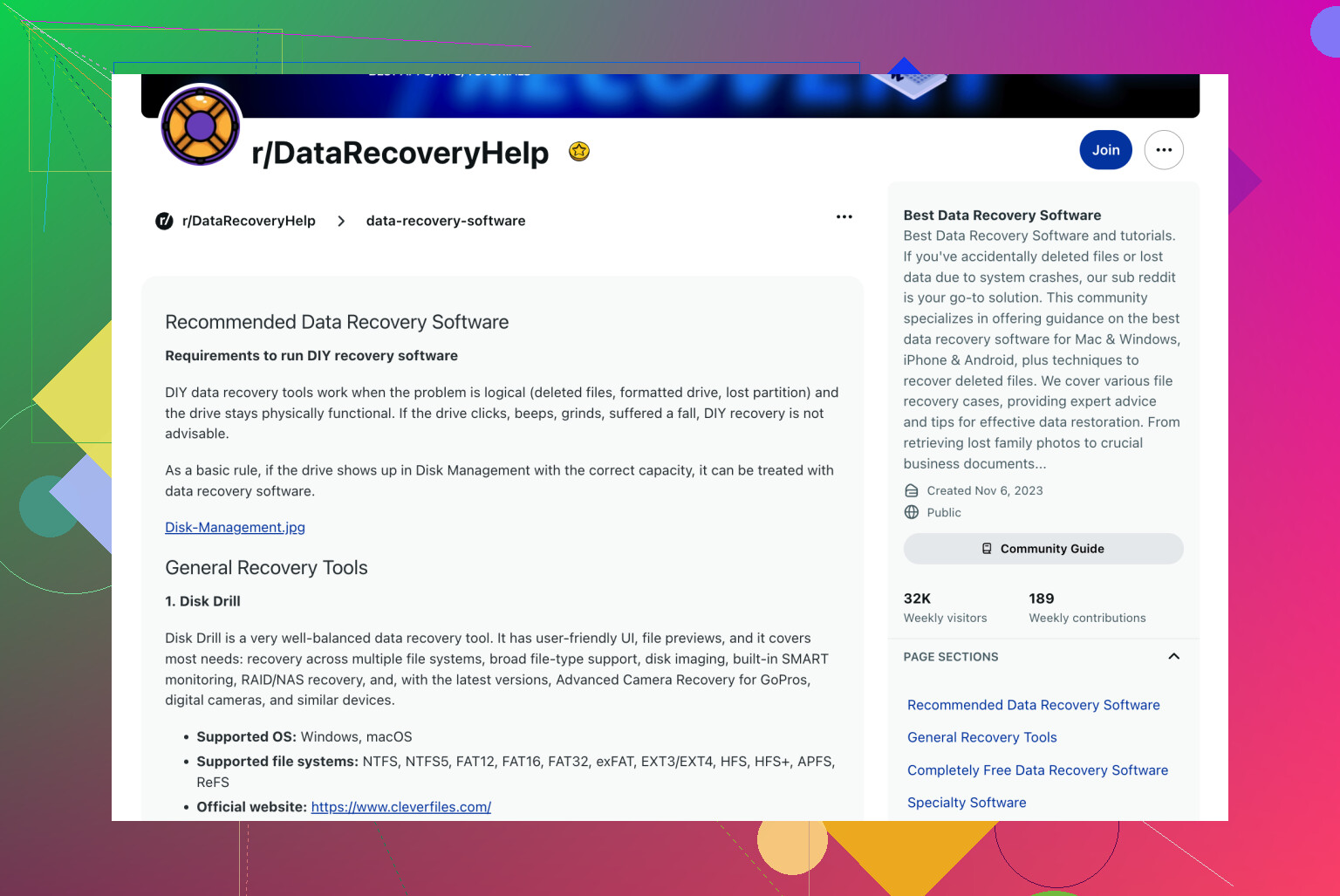
My practical pick is still Disk Drill first, mostly because it is fast to test and easy to preview before paying.
Disk Drill pros:
- very easy to use
- good preview support
- solid for photos, videos, docs
- can find lost partitions in some cases
Disk Drill cons:
- not the deepest tool for badly damaged metadata
- scan results can still get messy on heavily overwritten drives
- licensing cost annoys some people
If Disk Drill shows weak results, I’d move to R-Studio or DMDE before trying carving-heavy tools. Slight disagreement with the “just scan the image with one app” approach: compare at least two engines on the cloned copy, because different tools really do see different remnants.
One more thing people skip: if this is a WD or Seagate external, check whether the USB bridge has hardware encryption. In some enclosures, removing the drive and connecting it directly can make recovery worse, not better.
For an HDD, odds are still decent. For SSD, much less so.