I accidentally deleted important files on my Windows 11 PC and emptied the Recycle Bin before realizing they were gone. These documents and photos are really important, and I need help figuring out the best way to recover deleted files in Windows 11 without making things worse. Any advice on safe recovery steps or software would really help.
First thing, don’t keep writing stuff to the drive. I’ve seen people delete a file, then keep using the PC like normal, install updates, download a few things, save screenshots, and later wonder why recovery failed. The file is often not wiped right away. Windows usually removes the file’s listing and marks the space as free. The data may still be sitting there until something else lands on top of it.
SSD makes this more urgent. Most Windows 11 systems run on SSDs, and TRIM can clean out deleted blocks in the background. Once that happens, your odds drop fast. So yeah, speed matters here.
Check the obvious places first
I’d look here before touching recovery tools:
- Recycle Bin
- OneDrive Recycle Bin, if your desktop or documents sync there
- File History backups
- Previous Versions on the folder where the file lived
- Any cloud backup service linked to your PC
More than once, I thought a file was gone for good and it ended up sitting in one of those spots. Happens more often than people admit.
If it’s not there, move to recovery software
At that point, I’d stop waiting and run a recovery scan. If there’s no backup, this is usually your best shot.
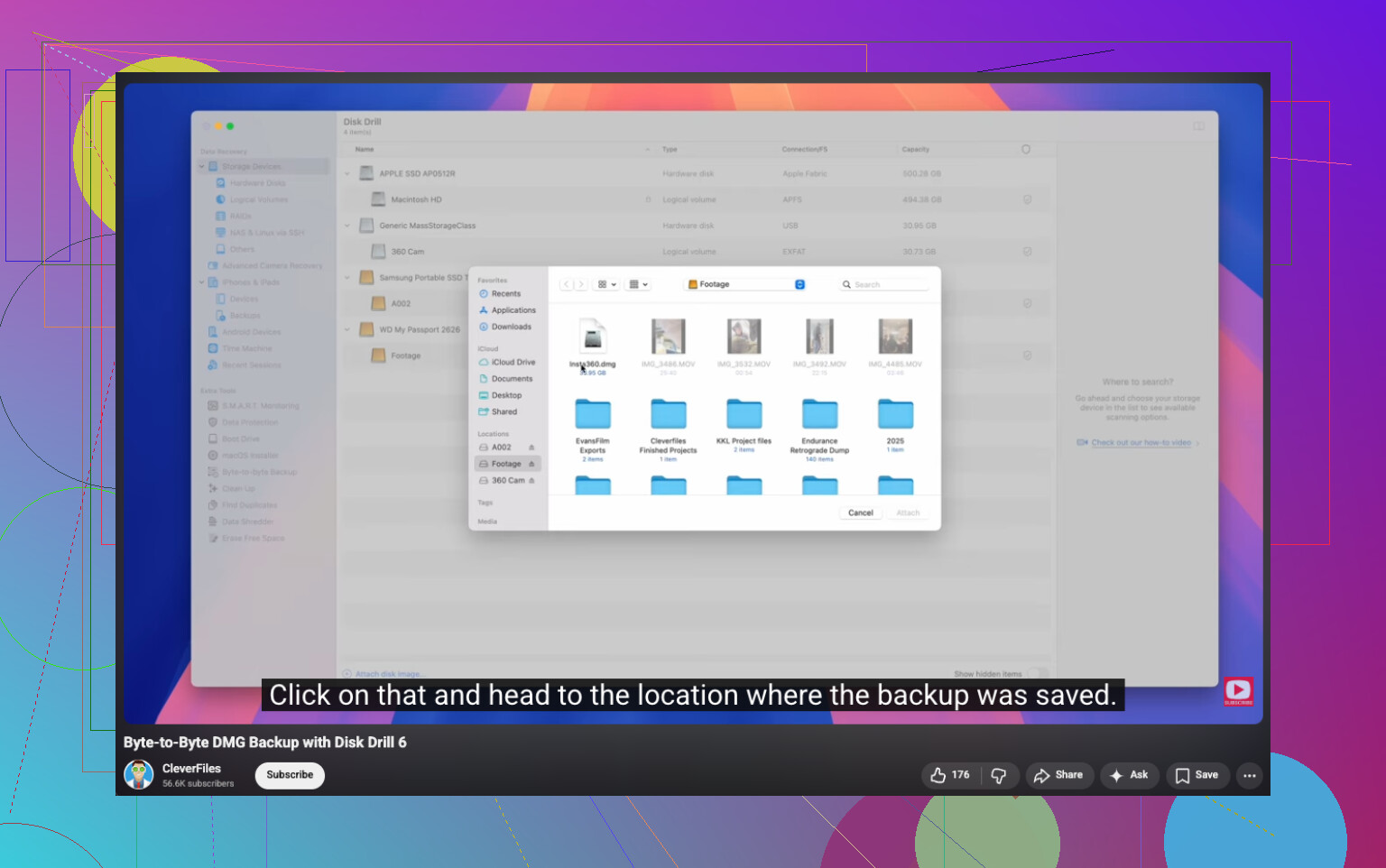
I’ve had solid luck with Disk Drill. It scans for deleted files, pulls data from formatted or damaged volumes, and when the file system info is still usable, it often keeps the old filenames and folder layout. The part I liked most was the option to make a byte-to-byte backup first, then scan the copy instead of poking at the original drive.
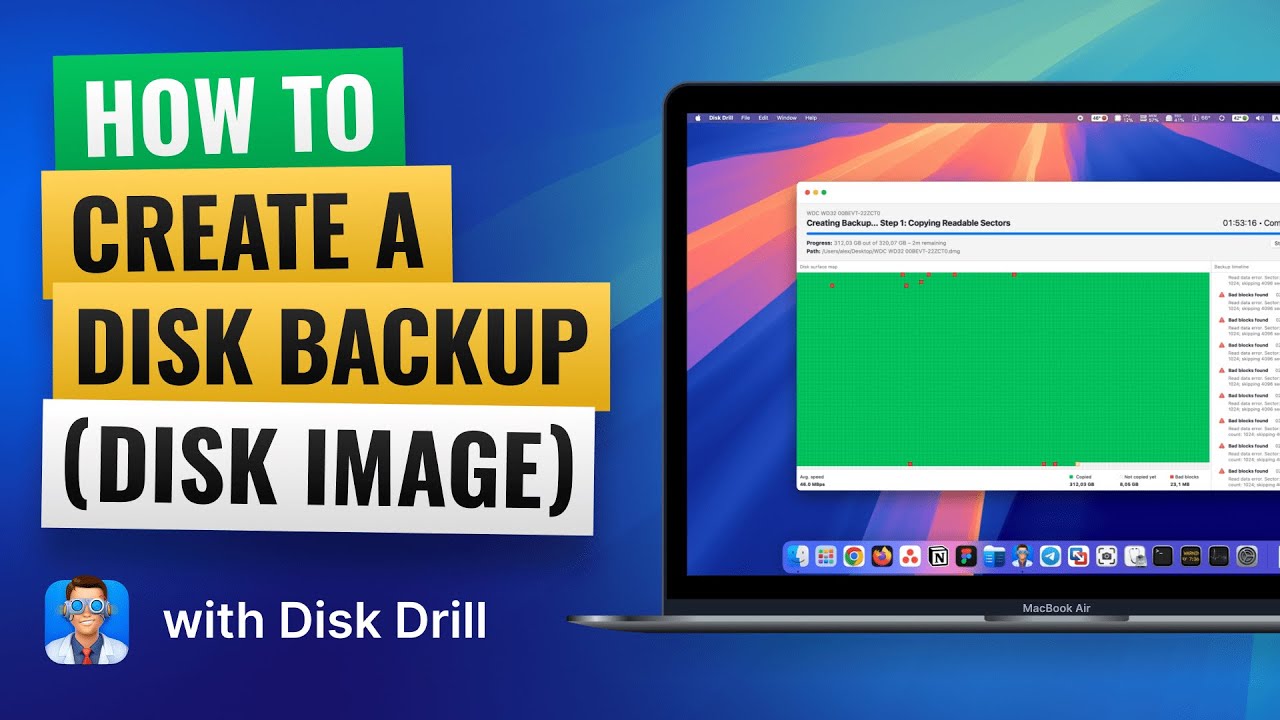
If the drive looks unstable, doing it this way feels safer.
On Windows, the free version gives unlimited scanning and file preview, plus recovery for up to 100 MB. That limit sounds small, but it’s enough to see whether your file is even recoverable before paying for anything.
The Microsoft option
There’s also Windows File Recovery from Microsoft. It’s free, and I’ve seen it work, but it runs in Command Prompt. No proper interface. If you’re comfortable typing commands, fine. If not, it gets annoying fast and you’ll typo somthing sooner or later.
What I’d do, in order
- Stop using the drive as much as you can.
- Check Recycle Bin, OneDrive, and any backups.
- If the file still isn’t there, run recovery software right away.
- Save recovered files to a different drive, not the same one you’re scanning.
Time matters here. Start early, and your chances are better. Wait too long, and the file gets overwritten or cleared by SSD cleanup.
13 Likes
If the Recycle Bin is empty, I’d add one thing to what @mikeappsreviewer said. Check Windows Search indexing and temp export folders from apps you used. Word, Excel, Photoshop, WhatsApp Desktop, and phone photo tools often leave copies behind. Look in AppData\Roaming, AppData\Local, and your Recent folder. It sounds boring, but I’ve seen peole recover the latest draft there.
Also, if the files were on an external drive, unplug it now. Don’t reconnect it until you’re ready to scan.
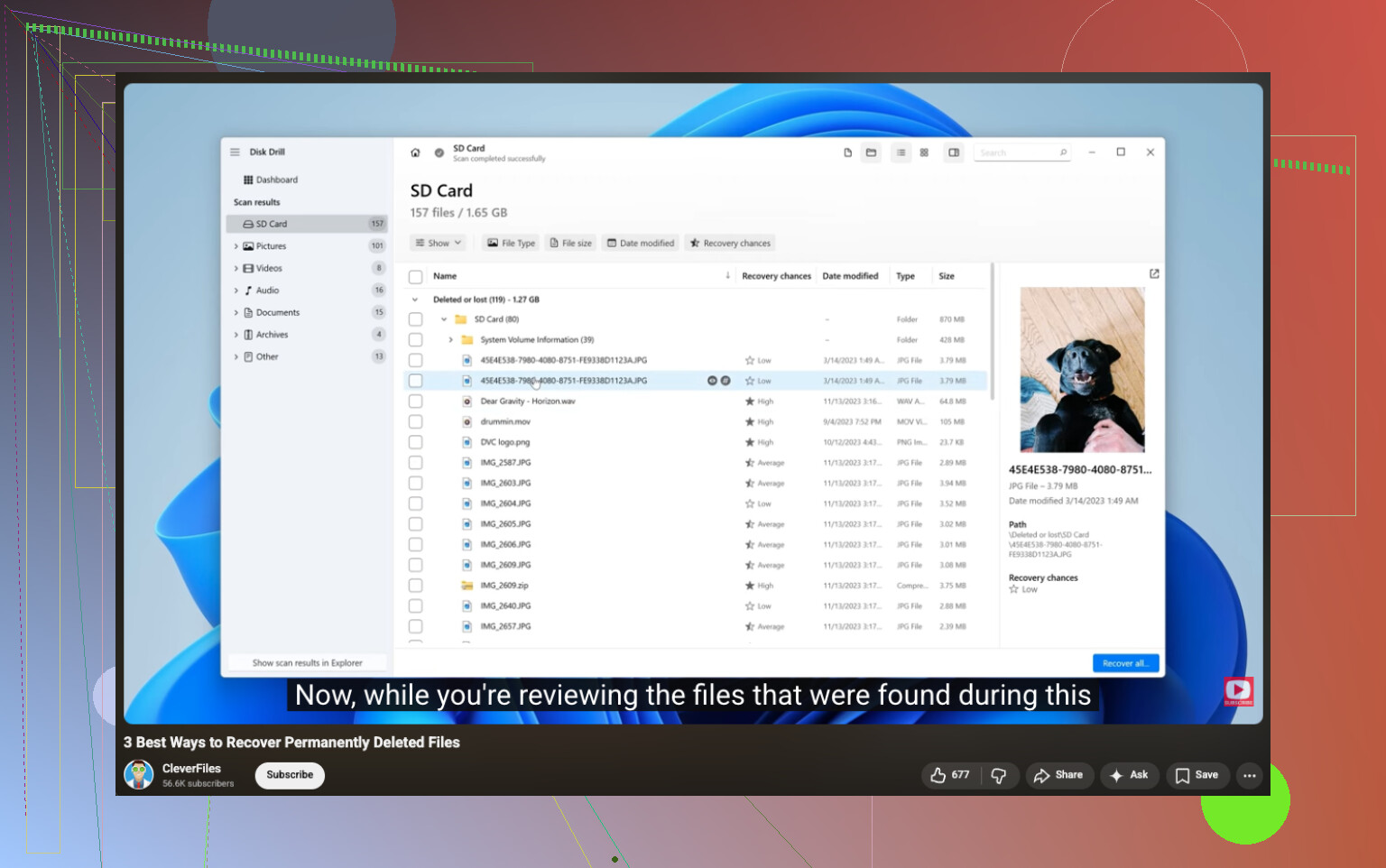
I disagree a bit on going straight to command line tools first. For most people, a visual scan saves time and mistakes. Disk Drill is a solid pick for Windows 11 deleted file recovery, mostly because preview helps you sort photos fast and avoid restoring junk. If filenames are gone, sort by file type and date.
Use this if you want a clear Windows permanently deleted file recovery guide, step by step deleted file recovery on Windows.
One more thing, recovered files must go to another drive. Same drive is how people ruin thier last shot.
One angle I think @mikeappsreviewer and @cazadordeestrellas didn’t really stress enough is whether the files were deleted from your main system drive or from another partition/device. If it was the C: drive on a Windows 11 PC, every reboot, browser cache write, and background task can make things worse. So if the files are that important, I’d actually shut the PC down and do recovery from another computer, or at least boot from a USB so the original drive gets touched less. Bit extreme maybe, but for photos/docs you really care about, it matters.
Also, before scanning the whole disk, check app-specific recovery:
- Word: open Word > File > Info > Manage Document
- Excel: same idea for unsaved workbooks
- Photos/editing apps often keep autosaves
- File Explorer address bar:
%AppData%and%LocalAppData% - Browser download history, in case the “deleted” files were downloaded copies
If you do need software, Disk Drill is one of the easier options for deleted file recovery on Windows 11 because you can preview results before restoring. I don’t love telling people to install recovery apps onto the same drive they’re trying to save, though. If possible, install it on a different drive or use portable tools. That part gets skipped way too often.
And if the files were on OneDrive at any point, log into the web version, not just the local folder. I’ve seen stuff still sitting there when Windows showed nothing. Kinda dumb, but it happens.
For a solid guide on how to recover deleted files from a hard drive on Windows, that thread is worth reading too.
Main thing: do not recover back onto the same drive. Thats how people turn “maybe recoverable” into “gone for real.”
One small disagreement with @cazadordeestrellas, @caminantenocturno, and @mikeappsreviewer: I would not keep retrying lots of built-in fixes if the files mattered a lot and the drive is an SSD. Every extra minute of normal Windows activity can hurt recovery odds.
What I’d add is this: check whether the files were inside a library or synced location that got silently redirected. In Windows 11, Documents, Desktop, and Pictures often point to OneDrive or another location without people noticing. Right click the parent folder, open Properties, then Location. If the path changed, your files may not be where you think they were deleted from.
Also check hidden copies:
C:\Users\YourName\AppData\Local\Microsoft\Office\UnsavedFilesC:\Users\YourName\AppData\Roaming\Microsoft\Windows\RecentC:\Users\YourName\AppData\Local\Temp
If recovery software becomes necessary, Disk Drill is fine for this because preview is useful.
Pros of Disk Drill
- Easy interface
- Good photo/document preview
- Can find deleted partitions too
- Fast for common file types
Cons
- Free recovery limit on Windows is small
- Deep scans can return lots of clutter
- Best results depend heavily on how soon you scan
If Disk Drill finds nothing meaningful, that usually tells you as much as the recovery itself. In other words, don’t keep installing five more tools on the same drive just because the first scan looked bad. That often makes things worse.