I’m trying to transfer files using the built‑in Windows FTP client but I’m confused about the exact commands, how to securely connect to my server, and where the downloaded files actually go. Online guides either seem outdated or skip important steps. Can someone walk me through a clear, up‑to‑date way to use the Windows FTP client for basic uploads and downloads, including any security tips and common pitfalls to avoid?
When I messed with the built-in Windows FTP client for the first time, it felt like I’d accidentally booted into 1998. It does work, but only if you’re willing to live inside a black box of commands.
You pop open Command Prompt, type ftp, then something like:
open server_address- punch in your username
- then your password (with zero feedback, obviously)
From there it’s muscle-memory land:
lsordirto see what’s therecd foldernameto move aroundput file.txtto uploadget file.txtto download
No tabs, no drag and drop, no “oops let me undo that” if you mistype a path. If you only need to quickly grab a file once in a while, it’s tolerable. If you’re doing this daily, it starts to feel like a punishment.
Why I Stopped Using the Windows FTP Client
At some point I got tired of managing files like it was a retro hacking sim and started looking for something that doesn’t fight me.
I ended up using CloudMounter because it let me do what I actually wanted:
just have the FTP show up in File Explorer like any other drive.
You install it, then it lets you basically mount an FTP server as a regular drive in Windows.
No CLI. No memorizing commands. No “did I put that in the right folder or not?” moments.
Once it’s mounted, you can:
- drag and drop files like they’re on a local disk
- open stuff directly in apps (edit, save, whatever)
- rename, move, delete using the normal right-click menu
- juggle multiple FTP servers without multiple windows of command line chaos
For one-off emergency access or when I’m already in a terminal, I still sometimes use the native FTP client. But for day-to-day “I have real work to do and don’t want to babysit file transfers,” the GUI approach is just less error-prone.
How I Set It Up On Windows (Step By Step)
If you want the same setup, here’s exactly what I did.
1. Install the FTP tool
First thing: install the CloudMounter app on your Windows machine.
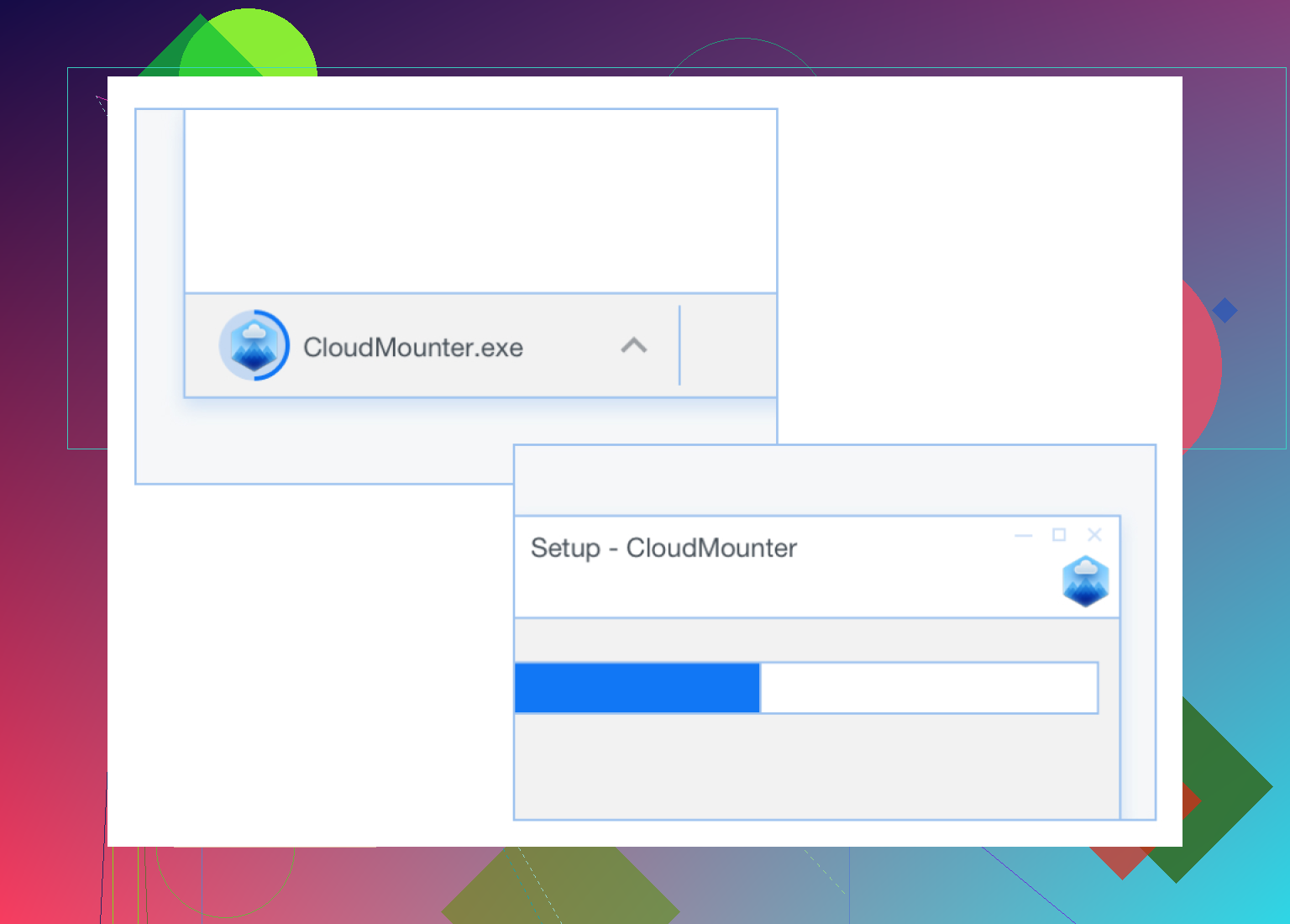
Nothing weird here: download, run the installer, click through the usual prompts.
2. Pick FTP / SFTP as the connection type
Launch CloudMounter. It shows you a bunch of connection options.
From the list, choose “FTP & SFTP.”
This is where you decide whether you’re doing plain FTP or SFTP, depending on what your server supports.
3. Enter your server details and mount it as a drive
A new window pops up with the connection settings.
Here’s what I usually fill in:
- Connection type: FTP or SFTP (match your server)
- Server / host: your FTP server address
- Port: usually 21 for FTP, 22 for SFTP unless your host uses something custom
- Username / password: whatever your host gave you
- Drive letter: pick one that’s free, like
Z:or something you’ll remember
Then hit the “Mount” button.
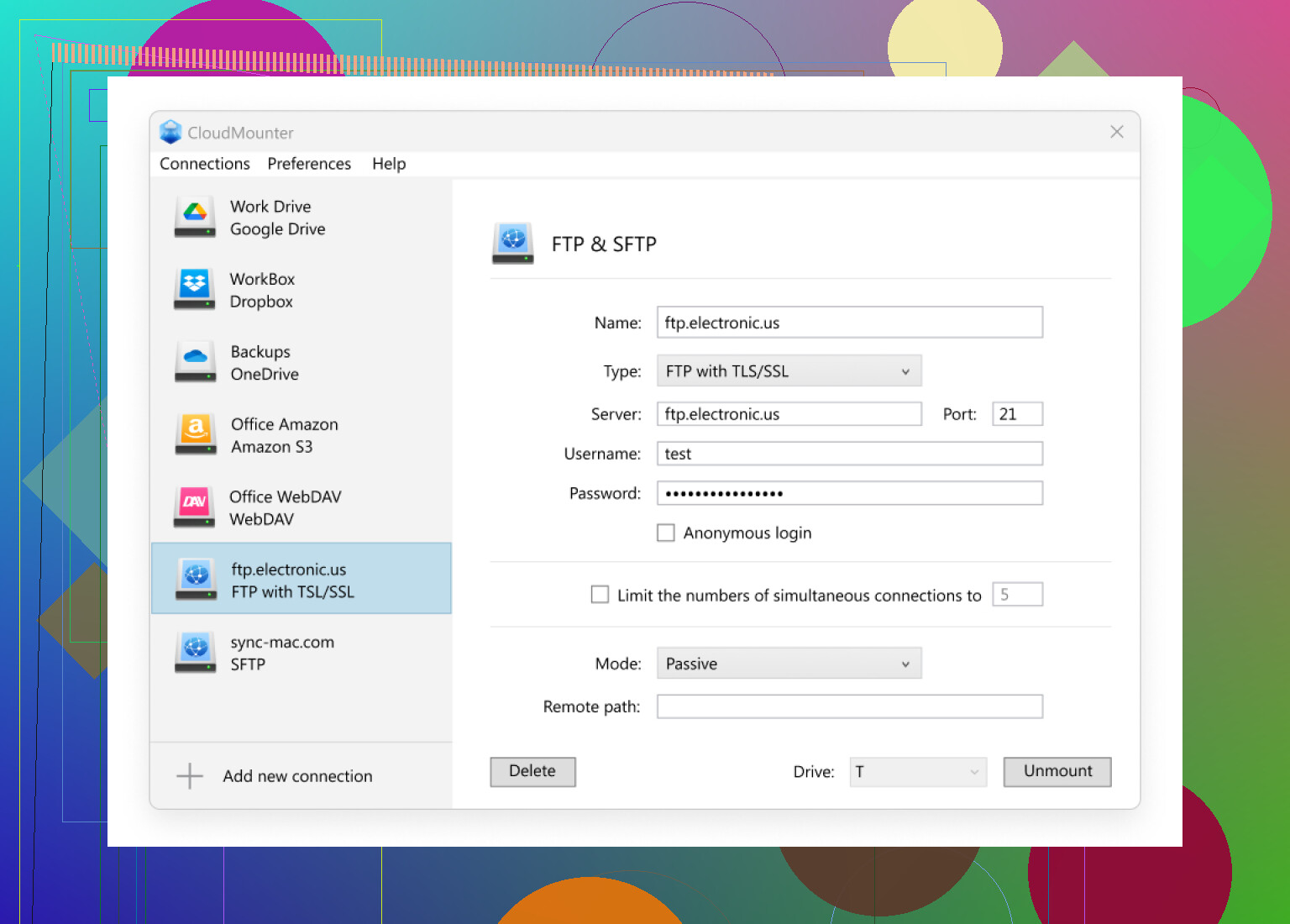
If your credentials are right and nothing is blocking it, it connects and mounts pretty quickly.
4. Use it in File Explorer like any other drive
Once it’s mounted, you don’t really “feel” like you’re using FTP anymore.
You just open File Explorer and your FTP shows up like a new drive:
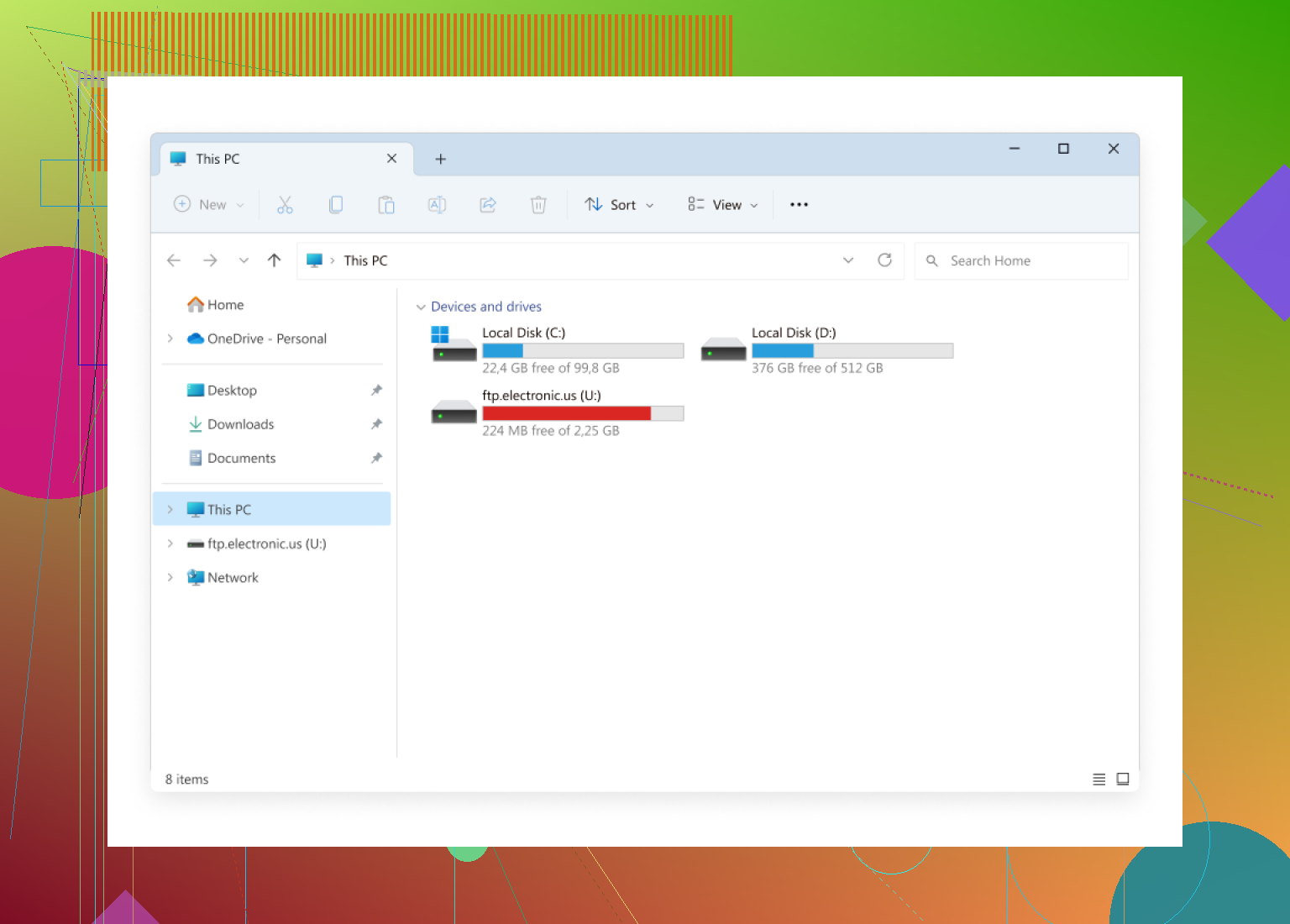
At that point you can:
- drag folders in and out
- copy/paste between local and remote
- sort, search, and preview like normal
No more guessing if your put actually landed in the right directory.
If you’re the type who lives in terminals and scripts everything, the Windows FTP client is probably “good enough.” But if you’re just trying to manage files without turning it into a mini sysadmin session every time, mounting FTP as a drive in Explorer is a lot easier to live with.
18 Likes
You’re not wrong to be confused: the built‑in Windows ftp client is… “minimal.”
I’ll stick to the actual questions you asked: commands, secure connections, and where files go, but I’ll do it for the built‑in client, not replace it like @mikeappsreviewer suggested (though CloudMounter is honestly great if you decide you’re done with CLI pain).
1. How to start and connect
Open Command Prompt and either:
- Type
ftp server.example.com
or - Type
ftpthen at theftp>prompt:
open server.example.com
Then it’ll ask for username and password (no stars, no feedback, just type and hit Enter).
2. Basic navigation & transfers
Key commands at the ftp> prompt:
Remote side (server):
pwd
Shows where you are on the server.lsordir
List remote files.cd foldername
Change directory on the server.
Local side (your PC):
lcd
Shows your current local directory.lcd C:\some\folder
Change where downloaded files will be saved.!dir
Runs your normaldirlocally to see what’s in the local folder.
File transfers:
get file.txt
Download a single file to the current local directory (shown bylcd).put file.txt
Upload a file from the current local directory to the current remote dir.mget *.txt
Download multiple files (it’ll ask Y/N per file unless you turn onprompt).mput *.txt
Upload multiple files.
Binary vs text:
binary
Use this for anything that isn’t plain text: zips, images, exe, etc.ascii
Old-school text mode, rarely what you actually want today.
Always do binary first to avoid corrupted downloads.
3. Where do the downloaded files go?
This is the bit that confuses most people.
- When you first start
ftpfrom Command Prompt, the local directory is whatever folder you were in when you launched it. - Type
lcdinside ftp to see that folder. - That is where
getandmgetwill save files unless you change it.
Example:
C:\Users\You> cd C:\temp
C:\temp> ftp server.example.com
ftp> lcd
Local directory now C:\temp
ftp> get report.pdf
report.pdf ends up in C:\temp.
If you forget and start ftp from C:\Windows\System32 you’ll end up hunting around that mess later, so it’s worth doing:
lcd C:\Downloads\FTP
at the start of your session.
4. “Secure” connection: this is the annoying part
The built‑in ftp.exe on Windows:
- Does NOT support SFTP (SSH-based, port 22).
- Does NOT support FTPS (FTP over TLS) in any sane, modern way.
- It basically only does plain-text FTP, which means:
- Your username and password go over the network unencrypted.
- Your data is not encrypted either.
So if your host is telling you to use SFTP or FTPS and you care about security in any way:
- The classic
ftpcommand is the wrong tool. - You either:
- Use a different command-line client (like
sftpfrom OpenSSH on Windows), or - Use a GUI client or a drive mounter like CloudMounter, which can handle SFTP and secure FTP properly.
- Use a different command-line client (like
I slightly disagree with @mikeappsreviewer on one thing: for quick, scripted, internal transfers on a trusted LAN, the Windows ftp client is still useful. But over the internet, logging into your hosting provider with raw FTP is… not great.
If your server supports SFTP, you’re much better off with:
sftp user@server.example.com
(assuming you have OpenSSH Client installed via “Optional features” in Windows). Commands there are similar (ls, cd, get, put, etc.) but the connection is encrypted.
5. Quick “recipe” to avoid surprises
-
In Command Prompt:
cd C:\Downloads\FTP ftp server.example.com -
At
ftp>:binary lcd C:\Downloads\FTP pwd (check where you are on server) ls (see files) cd /path/on/server/you/want ls get somefile.zip mget *.log -
Quit:
bye
Then just open C:\Downloads\FTP in Explorer and your files should be there.
If this starts to feel like a full-time job, that’s where something like CloudMounter shines: it connects over SFTP/FTPS properly and just shows your server as a normal drive in Explorer so you don’t have to keep asking yourself “where the heck did that get put my file this time?”
You’re not crazy, the Windows ftp client is weirdly opaque and half the guides out there skip the parts you actually care about. @mikeappsreviewer and @cacadordeestrelas already covered the basic “how to connect” flow and the CloudMounter route, so I’ll fill in the gaps they didn’t really touch and nitpick them a bit.
1. Where the files really go (and how not to lose them)
The key thing with the built‑in ftp is understanding local vs remote:
cdaffects the remote server path.lcdaffects the local path.get/mgetwrite into the current local directory (whatlcdsays).put/mputread from the current local directory.
What almost nobody mentions:
-
Before you even start
ftp, choose a sane folder:cd C:\Users\YourUser\Downloads\FromFTP ftp your.server.com -
Inside ftp, confirm:
ftp> lcd Local directory now C:\Users\YourUser\Downloads\FromFTP -
After that, every
getends up there unless you changelcd.
If you forget and start ftp from something like C:\Windows\System32, your downloads will land there and you’ll swear they “disappeared.” That’s the usual confusion you’re hitting.
Small trick: if you get lost on the local side, from the ftp> prompt you can run:
ftp> !cd
ftp> !dir
The ! runs a normal command shell command locally, so !cd shows where you are, !dir lists it. That’s handy when you forget what folder you used.
2. Command “cheat sheet” that people don’t usually mention
Some of this overlaps with what’s already been said, but a few extras are worth calling out.
Session control
status
Shows current mode (binary/ascii, passive/active, etc.). Good for debugging “why is this file corrupted”.passive
Toggles passive mode. If transfers hang or fail behind firewalls/NAT, try flipping this once.
Safer multis
-
prompt
Toggles the “are you sure?” question formget/mput.
Example:ftp> prompt Interactive mode Off. ftp> mget *.logNo more Y/N spam. Just remember you turned it off so you don’t accidentally slurp an entire directory.
Working with paths
get /absolute/path/file.txtworks fine, you don’t have tocdeverywhere.- Same for upload:
put C:\full\path\localfile.txtworks even if it’s not in your currentlcddirectory. People overcomplicate this with constantlcdflipping.
So a quick one‑liner to grab something without changing local dirs:
ftp> binary
ftp> get /remote/path/bigfile.zip C:\Temp\bigfile.zip
Note the second argument: you can specify the local filename and path directly. Most guides never mention that.
3. “Securely connect” using only built‑in tools
This is where I slightly part ways with what’s already been said.
The classic ftp.exe:
- Does not do SFTP.
- Barely does FTPS in any meaningful way.
- Sends credentials and data in clear text.
So if by “secure” you mean “not sending my password so my ISP can read it,” then the fix is not fiddling with ftp.exe flags. The fix is: use a different protocol.
On modern Windows:
-
Install OpenSSH Client (Settings → Apps → Optional features → Add a feature → OpenSSH Client).
-
Use
sftp, which is a separate command fromftp:sftp user@your.server.comCommands are similar but not identical:
ls,cdfor remote.lcdfor local.get,putsame idea.pwd/lpwdare remote/local working directory.
Yes, it’s yet another tool to learn, but if you care at all about security, raw FTP on the public internet is pretty much a non‑starter in 2026.
Where I do agree with the others: if you’re on a totally internal network (no internet, trusted LAN) and this is just a one‑off, the old ftp client can be “good enough.” Anywhere else, especially to a hosting provider, I wouldn’t touch it.
4. When command line stops being worth the pain
@cacadordeestrelas leans more toward “stick with CLI if you script everything,” which is fair. The flip side is:
- The built‑in Windows ftp client cannot do SFTP.
- It cannot comfortably do FTPS either.
- It has no resume, no reconnect logic, no good error reporting, and it’s easy to fat‑finger your way into the wrong folder.
At the point where you:
- Move files more than once in a blue moon
- Need SFTP / FTPS
- Want to avoid the “where did that file land” scavenger hunt
you’ve basically outgrown ftp.exe.
That’s where something like CloudMounter is genuinely a better fit: it supports secure protocols and mounts your FTP / SFTP / FTPS as a normal drive in Explorer. You can still use scripts if you want, but for day‑to‑day pushing files around, a mounted drive is way less error‑prone than living inside a 90s console client.
I don’t quite buy into the “never use CLI again” vibe from @mikeappsreviewer, because scripting can be incredibly useful, but if you’re already frustrated by the basic questions you asked here, a graphical FTP client or a drive mounter is honestly going to save you a lot of time and aggravation.
5. Minimal practical recipe
If you really want to stick to the built‑in client for now, here’s a tight sequence you can copy/paste mentally:
cd C:\Users\YourUser\Downloads\FromFTP
ftp your.server.com
At ftp>:
binary
lcd C:\Users\YourUser\Downloads\FromFTP
pwd
ls
cd /remote/folder/you/want
ls
get myfile.zip
bye
Then open C:\Users\YourUser\Downloads\FromFTP in Explorer. If you don’t see the file there, run through those steps again and watch what lcd says. 9 times out of 10, the “missing file” is just sitting in a dir you didn’t expect.
The built-in Windows FTP client is fine for quick, scripted stuff, but for what you’re asking (secure connection + clarity on where files land) it is mostly the wrong tool.
A few specific points that complement what @cacadordeestrelas, @sternenwanderer and @mikeappsreviewer already covered:
-
Security
ftp.exedoes plain FTP only. No SFTP, and FTPS support is essentially a non-option in practice.- If your server supports SFTP, you are better off with
sftpfrom the OpenSSH client or a GUI that speaks SFTP. - Using plain FTP over the internet today is basically accepting that credentials and data are readable in transit.
-
Where files go in the CLI client
- That confusion is normal because the client separates local vs remote and is not explicit.
- The only reliable rule:
lcdcontrols where files are written locally. If you do not set it, files go to the folder you startedftpfrom. - You can bypass
lcdentirely with explicit local paths:
get remotefile.txt C:\SomeFolder\remotefile.txt
That avoids the stealth “file in System32” issue.
-
Why a mount-as-drive model helps
- This is where CloudMounter actually solves your specific pain points rather than just being “nicer.”
- It mounts FTP or SFTP as a drive in Explorer so:
- Local vs remote is visually obvious: different drive letters.
- File destination is always clear: whatever folder you drag into.
- No need to remember
get,put,lcd, etc.
-
CloudMounter vs the raw client (and vs what the others suggested)
Pros of CloudMounter
- Uses secure protocols like SFTP, unlike
ftp.exe. - Integrates with Explorer, so you see exactly where downloads go.
- Works across multiple servers without juggling separate CLI sessions.
- Plays well with any app that can open a normal drive.
Cons of CloudMounter
- Not built in; you have to install and maintain another program.
- Less suited for headless or automated scripting than plain
ftp.exeorsftp. - Performance on very large bulk transfers can be a bit more opaque because it sits between Explorer and the network stack.
Compared to what @cacadordeestrelas and @sternenwanderer focused on (getting more comfortable with the traditional command flow), CloudMounter sidesteps most of that cognitive load. Compared to @mikeappsreviewer’s experience, I would not drop the command line entirely, but I would absolutely avoid the old FTP client for anything security related.
- Uses secure protocols like SFTP, unlike
-
Practical recommendation
- If you must use the built-in tool on a trusted LAN: start
cmdin a dedicated folder, setbinary, and always either uselcdor explicit local paths. - For any regular use or anything over the internet: configure your server for SFTP and connect via a modern client. CloudMounter is a strong option if you like the drive-letter model and want your FTP or SFTP to behave like a normal disk, while still preserving security and clarity about where files actually end up.
- If you must use the built-in tool on a trusted LAN: start