My YouTube TV remote control suddenly stopped working, and I can’t navigate channels, adjust volume, or access settings like before. I’ve already tried changing the batteries and restarting the device, but nothing fixed it. I need help figuring out whether this is a pairing issue, a device problem, or something else so I can get YouTube TV working normally again.
I ran into this a while back, and the method depends on what your TV is using for YouTube.
Ways to control YouTube on your TV
1. Use the YouTube app on your phone
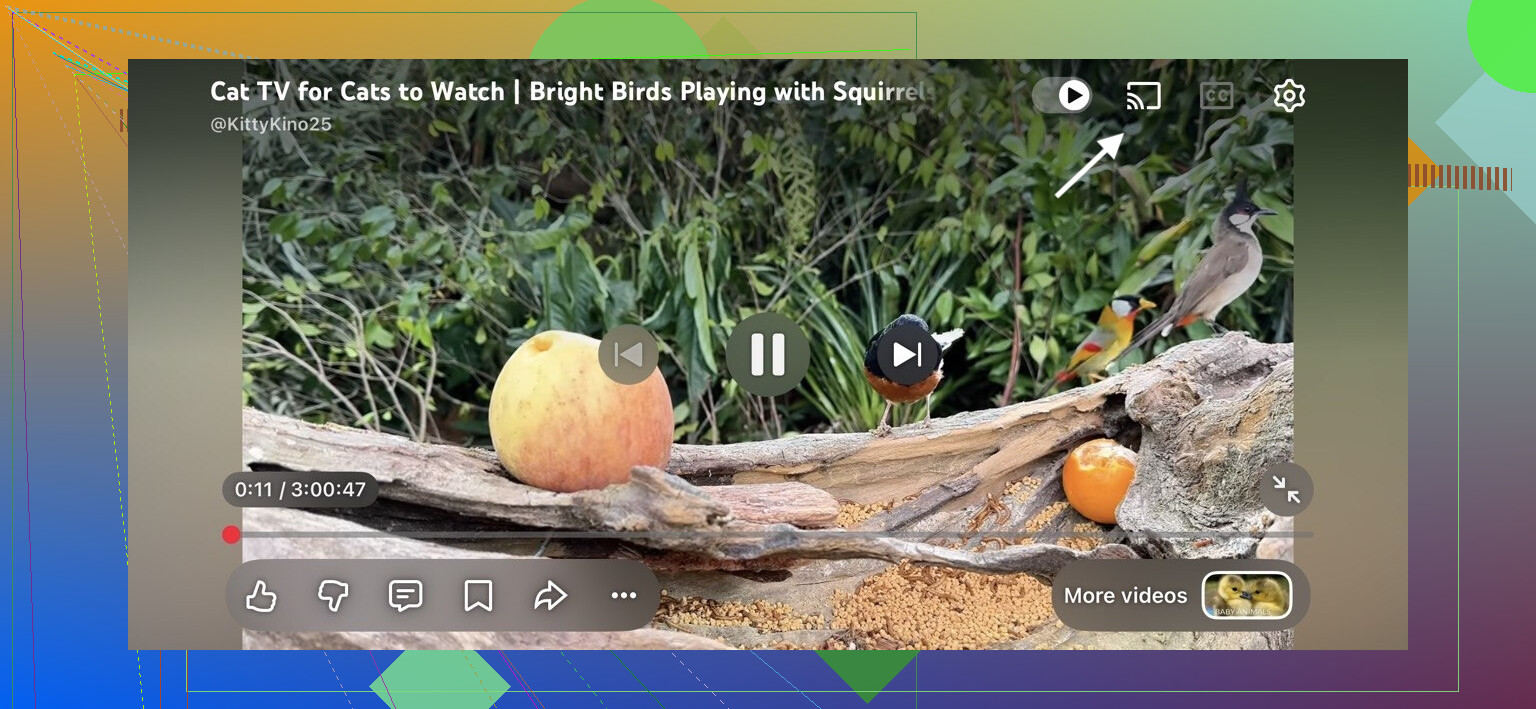
This is the easiest one I tried. Open YouTube on your phone, tap the cast icon near the top, then pick your TV. After it connects, your phone works like the controller. You pick videos, queue stuff up, pause, skip, all from the phone.
The catch is simple. Your phone and TV need to be on the same Wi-Fi. If they are, setup takes maybe 10 seconds.
2. Link the phone with a TV code
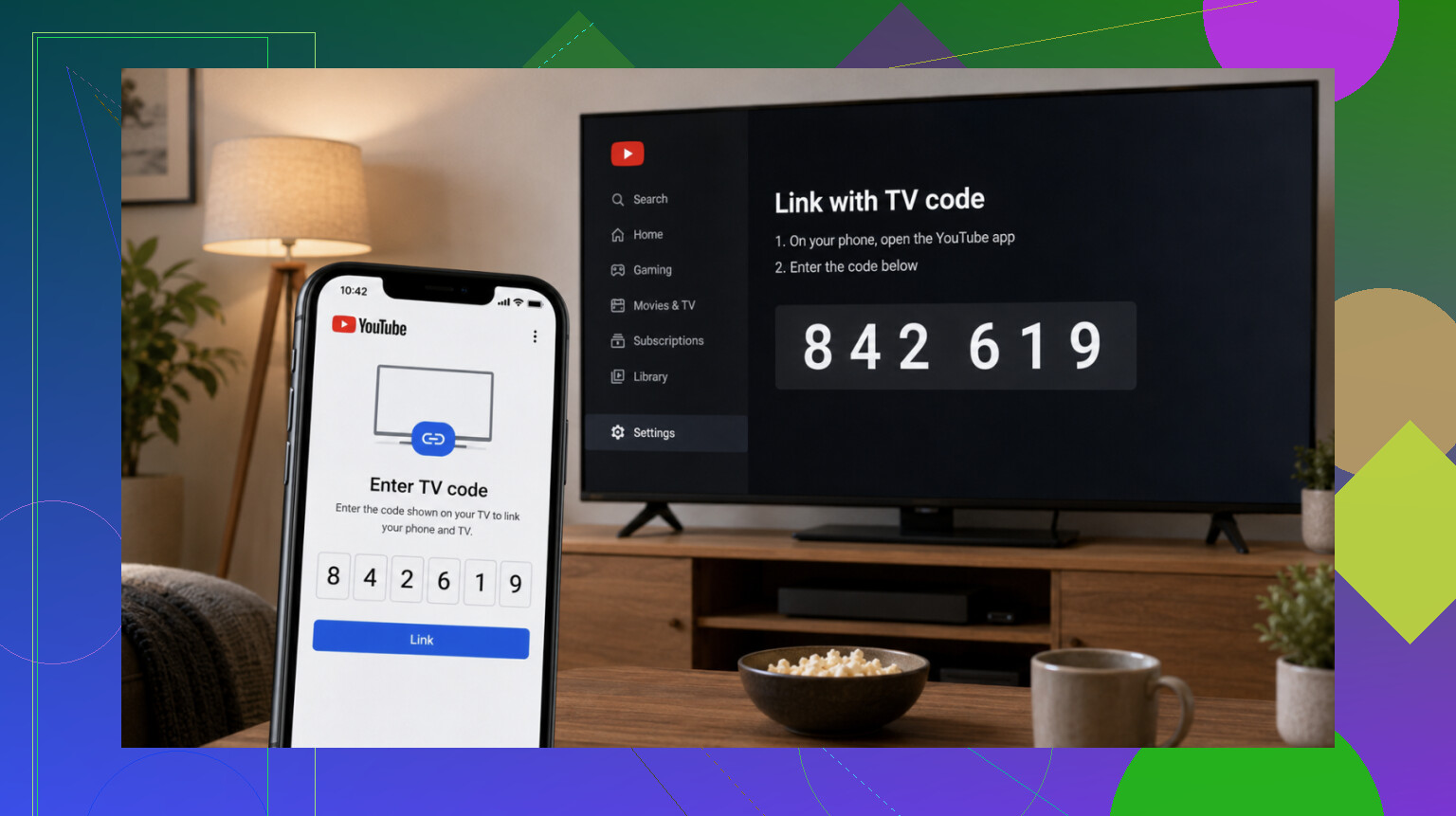
If the TV does not show up in the cast list, I’d try the code option. On the TV, open YouTube, go into Settings, then find Link with TV code. The TV gives you a code. Enter it in the YouTube app on your phone, and it pairs manually.
I used this once when the TV was being stubborn on the network. Worked fine after that.
3. Use a remote app on your phone
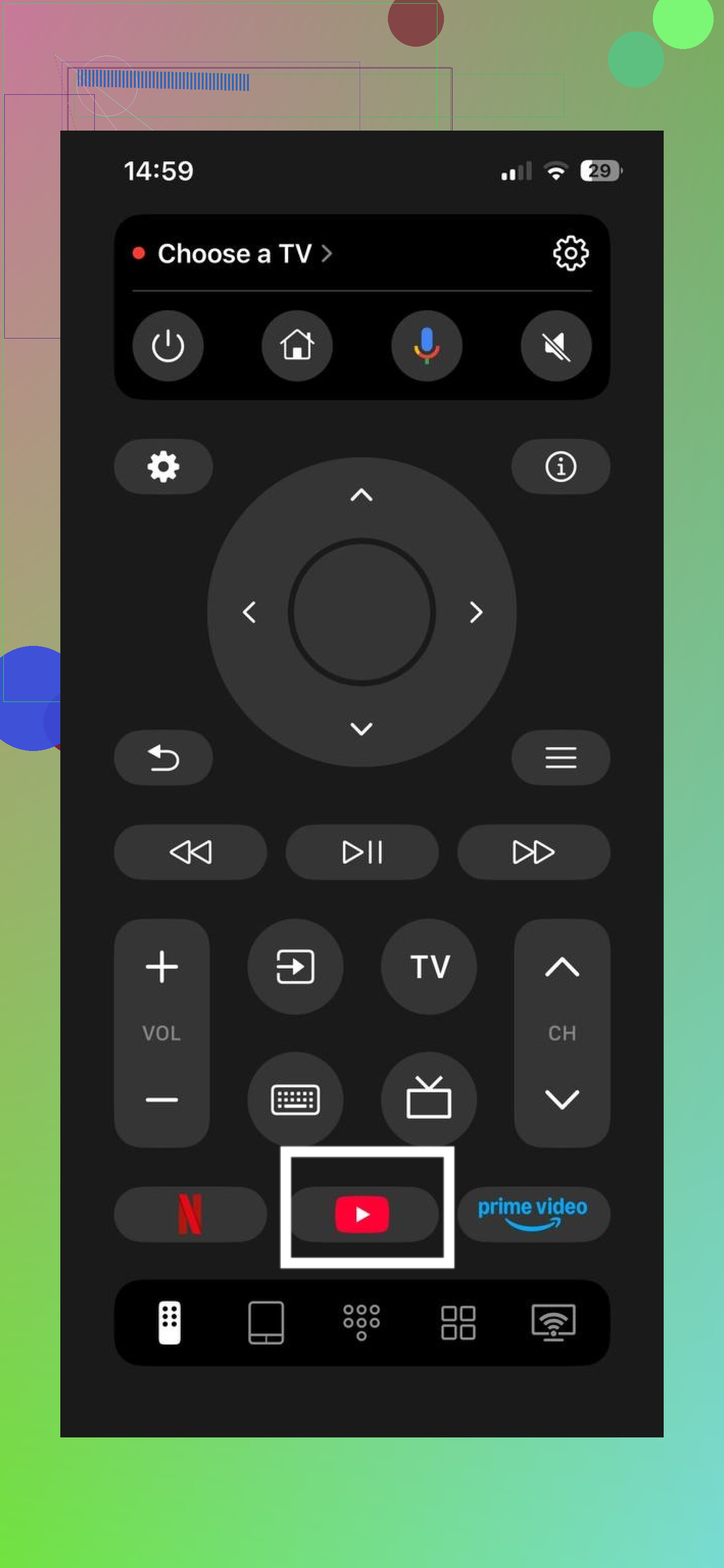
I tested this route too. Universal Remote Control TVRem works over Wi-Fi, so your phone turns into a full remote.
The part I liked most was direct app launch. You open the remote app and jump straight into YouTube without digging through the TV menu. After that, you move around with the touch controls, and typing searches on your phone keyboard feels way less annoying than using arrow buttons on a normal remote.
From what I saw, it works across a mix of platforms, Samsung, LG, Roku, Fire TV, Android TV, Google TV, and Apple TV. So if you’ve got different TVs around the house, you’re not stuck with one app per brand.
More details here: https://mac.eltima.com/tvrem-universal-tv-remote/
4. Use voice controls
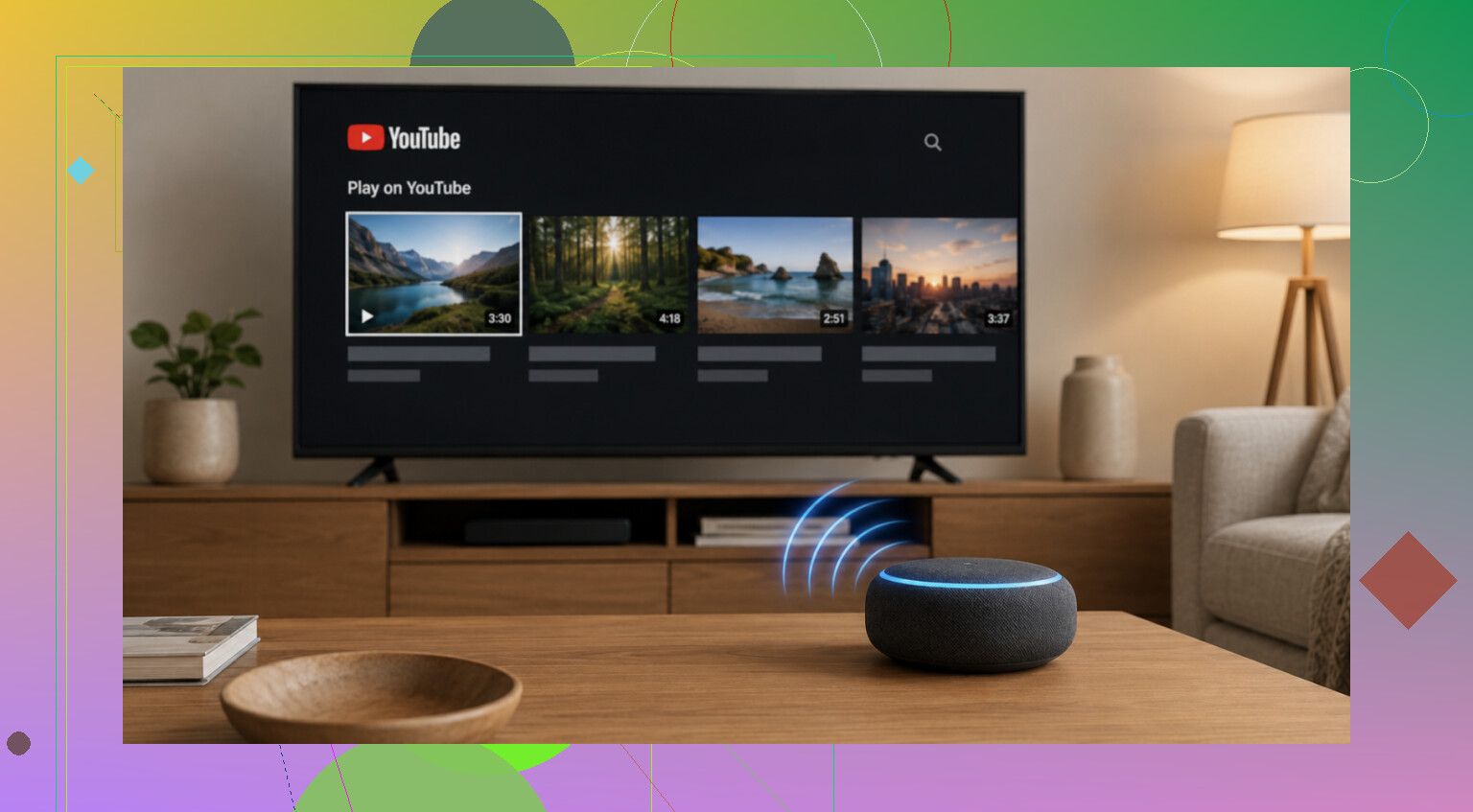
If your setup has Google Assistant or Alexa connected, this is the laziest option in a good way. I’d say the video name out loud and let it open YouTube and start playback. Fewer button presses, less messing around.
One thing tripped me up
These options depend on YouTube running on a smart TV or a Wi-Fi device tied into the TV setup. If your older TV is using a Roku stick, Fire TV stick, or something similar, then you’re controlling the stick’s system, not the TV panel itself.
So if stuff is not responding, check where YouTube is installed first. Tha'ts usually where the confusion starts.
20 Likes
If this is YouTube TV, not plain YouTube, I’d check the remote pairing first. A lot of these remotes stop because Bluetooth pairing drops, and battery swaps do not fix it.
Hold Back and Home for about 3 to 5 seconds. On some devices it’s Back and Enter. Watch for a pairing message on screen. If nothing pops up, move the remote closer to the box or dongle and try again.
Also check where the volume is controlled. This trips people up. If your remote controls a Roku, Fire TV, or Google TV stick, the channel buttons work through the streaming device, but volume might still be tied to the TV by IR. If IR got unset, you lose volume while the app side still works. Go into device remtoe settings with a spare remote, TV buttons, or a phone app and re-run remote setup.
I slightly disagree with @mikeappsreviewer on one point. Using your phone is fine as a backup, but if volume and settings died too, I’d focus on pairing or IR setup first. That points to the remote system failing, not YouTube itself.
Last thing, test the remote with your phone camera. Point the remote at the camera and press volume. If you see a flashing light on screen, IR is firing. If not, the remote might be dead even with new battteries.
If batteries and a restart did nothing, I’d stop treating it like a YouTube TV app problem. This sounds more like the remote itself, or the box not seeing remote input at all.
One thing I’d check that @chasseurdetoiles only kinda touched on: see if some buttons still work in one screen but not another. If Home works but Live Guide doesn’t, that can point to an app freeze or button mapping issue. If literally nothing works, that’s usually hardware, pairing, or the streaming device being hung deeper than a normal restart fixes.
A few things worth trying that are different:
-
Power cycle everything fully
Unplug the TV and the streaming device from the wall for 60 seconds. Not just restart from the menu. Full unplug. I’ve had Roku/Google TV stuff act dead until I did that. -
Check for stuck buttons
Sounds dumb, but a jammed volume or directional key can make the whole remote act weird. Press each button a few times. Crumbs win again. -
Try the TV’s physical buttons
If your TV has side or bottom buttons, use those to get into inputs/settings and see whether the issue is the TV, the streaming stick, or the app. Annoying, but useful. -
Remove HDMI interference
Weird one, but real. Some streaming sticks get flaky if they’re overheating or crowded behind the TV. If you have an HDMI extender, use it. -
Factory reset only the remote/device settings
Not my first choice, but if the remote got corrupted after an update, resetting remote/device control settings can fix it without nuking your whole account setup.
I slightly disagree with @mikeappsreviewer too. Using your phone is fine as a workaround, but if you also lost volume and settings, that points past YouTube TV and into the actual control chain. Different problem, different fix.
Also, if this happened right after an update, there’s a decent chance the remote config got borked. Happens more than it should tbh. If you post what device you’re using, like Roku, Fire Stick, Chromecast/Google TV, smart TV brand, someone can narrow it down fast.