My old iPad has been getting slower over time, and now apps take forever to open, videos lag, and even basic browsing feels sluggish. I’m not sure if this is caused by storage, outdated iPadOS, or battery issues, and I need help figuring out the best way to improve old iPad performance without replacing it.
Old iPad running like mud
I hit this with a 6th gen iPad too. Mine got so slow I would tap Safari, wait, stare, tap again, then regret tapping again. YouTube was worse. It felt broken, but mine wasn’t dead. It was clogged up.
Before you spend on a replacement, I’d try a few boring fixes first. They helped more than I expected.
If the slowdown started after an update
Don’t judge it right away. After an iPadOS update, the system keeps doing cleanup work in the background, indexing files, sorting photos, rebuilding stuff. Mine got warm and sluggish for hours. Once it even stayed weird until the next day.
I left it alone for a bit, then did a full restart. Not sleep mode. Full shut down, then boot it back up. Simple fix, but I’ve seen it clear out stuck junk in memory and stop random processes from hanging around.
Storage is usually the first thing I check
This one gets ignored a lot. When storage is packed, older iPads start dragging hard. Apple mentions keeping free space available, but from what I saw, 1GB free isn’t enough on an aging device. If you’re under roughly 10 to 15 percent free space, performance tends to drop off.
Why it matters:
- Apps need room for cache files
- iPadOS needs scratch space for updates and temp data
- Multitasking gets uglier when storage is near full
I used to delete stuff by hand, mostly screenshots, duplicate photos, old apps I forgot existed. Huge waste of time. I’d clear a little, then the storage would fill right back up.
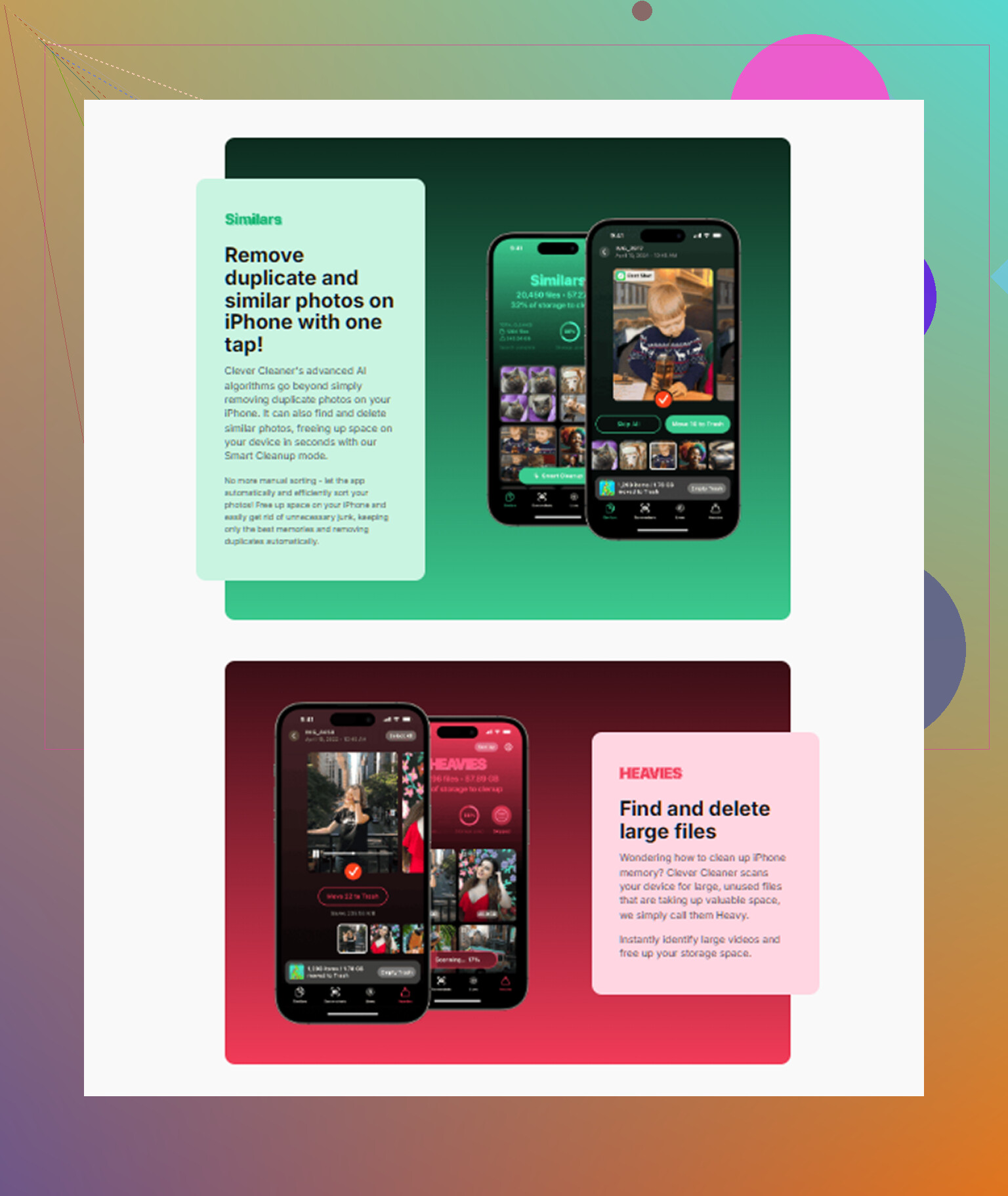
What saved me time was Clever Cleaner. I didn’t expect much, but it was one of the few tools I kept using.
A few things stood out for me:
- The Heavies section made it easy to spot giant files fast
- The Similars section caught near-duplicate photos and blurry junk
- It showed file sizes clearly, including screenshots
- It handled the scan on the device, which I liked because I didn’t want my photo library sent off somewhere else
I cleared around 5GB the first time. The difference was immediate on mine. App switching felt less sticky, and opening stuff took less time.
Settings worth changing on an older iPad
These don’t make the chip faster. They do cut down visual overhead, and on old hardware you feel it.
Reduce Motion
Go to Accessibility and turn on Reduce Motion.
This removes a lot of the zooming and sliding animation. My iPad felt quicker right after I switched it. Same hardware, same apps, less waiting for animations to finish.
Reduce Transparency
While you’re there, open Display & Text Size and enable Reduce Transparency.
This cuts down blur effects in menus and panels. On older devices, those effects seem to drag things down more than people think.
Turn off Background App Refresh
I’d disable it outright.
Path is Settings > General > Background App Refresh.
A bunch of apps sit there checking for updates you didn’t ask for. News, shopping, social apps, random junk. Meanwhile the app you’re using gets less room to breathe. Turning this off helped battery life on mine too.
Sometimes the iPad isn’t slow, your Wi-Fi is
I chased “iPad lag” once and the problem was my network. Old 2.4GHz Wi-Fi made pages feel delayed and video buffering looked like device slowdown.
If your router has 5GHz, switch the iPad over to it and test again. On mine, web stuff got smoother right away.
If Safari is the main pain point, clear its saved data:
Settings > Safari > Clear History and Website Data
Small warning, this signs you out of sites. Still worth trying if Safari has years of buildup.
When I’d stop troubleshooting
If the iPad no longer supports current iPadOS releases, I’d start looking at a newer refurbished model. At some point the age shows.
If it still gets updates, I wouldn’t write it off yet. A lot of these tablets feel “old” because of full storage, heavy visual settings, background activity, and years of cached junk. Mine looked cooked. It wasn’t. It needed cleanup.
So if yours is dragging, I’d do this in order:
- Wait a bit after updates
- Fully restart it
- Free up real storage space
- Turn on Reduce Motion
- Turn on Reduce Transparency
- Disable Background App Refresh
- Check whether Wi-Fi is the bottleneck
- Clear Safari data if browsing is the issue
That list got my old iPad back to usable. Not new, no. But usable, yes. Sometimes that’s enough.
12 Likes
Start with the battery, because people skip it. Older iPads with worn batteries often throttle under load. If your battery health is poor, the iPad feels slow even with free storage. Apple hides battery health on many iPads, so you may need Apple Support diagnostics or a repair shop to check cycle count and voltage sag.
I agree with @mikeappsreviewer on storage, but I would not blame iPadOS first. Old hardware plus a weak battery is a common combo. If videos lag while the device gets warm, that points me more toward battery aging or thermal throttling than clutter alone.
A few things I’d do.
-
Check battery behavior.
Fast drain, random shutdowns, heat, or lag during simple tasks are bad signs. -
Remove heavy web apps.
Facebook, Instagram, and some shopping apps are pigs on old iPads. Use Safari for those for a week and compare. -
Kill widget load.
Too many Home Screen widgets keep pulling data. Remove the non essential ones. -
Reset all settings.
Not erase. Reset all settings. This clears bad config junk, network issues, keyboard dictionaries, and odd display settings.
Settings > General > Transfer or Reset iPad > Reset > Reset All Settings -
Test the iPad offline.
If local apps stutter even with Wi-Fi off, your issue is device side, not internet. -
Factory restore if nothing else works.
Back it up, erase it, set it up as new first. Don’t restore the backup right away. This test matters. Backups sometimes bring the mess back.
If storage is tight, Clever Cleaner is worth a look for clearing photo junk fast. Also, this review is a decent read if you want a simple breakdown of what it does for iOS cleanup, see why Clever Cleaner helps free up iPhone storage.
If the iPad has 2GB RAM or less, there’s a hard limit. At that point, no tweak fixes evrything. A refurb is often the smarter move.
I’d add one thing neither @mikeappsreviewer nor @chasseurdetoiles really leaned on enough: check which apps are simply too old, or too bloated, for that iPad now.
A lot of people assume “the iPad is slow,” when really it’s 3 or 4 problem apps hogging resources. Open Settings > iPad Storage and look at the app list. If one app is using a weird amount of “Documents & Data,” delete it and reinstall it. Offloading is okay, but on really old iPads I’ve had better results fully deleting the worst offenders and starting fresh. Safari, YouTube, Facebook, Chrome, and Teams are usual suspects.
Also, I kinda disagree with the idea that updating is always the move. Sometimes the newest iPadOS your model supports is technically supported, but not exactly happy on old hardware. If you already updated, fine, but I would not obsess over chasing every tiny update if the device is ancient and currently stable.
Another thing to test is free RAM pressure. Old iPads choke when too many tabs are open, too many apps are suspended, and picture-in-picture/video overlays are active. Close out the junk you never use. People say iPadOS manages this automatically, and sure, in theory. In real life, old hardware gets cranky.
A smart diagnostic trick:
- Put it in Airplane Mode
- Force close every app
- Reboot
- Open just Notes, Settings, and Photos
If even that feels laggy, it’s probably hardware age, battery wear, or thermal limits.
If that feels okay, the slowdown is more likely app-specific, browser-specific, or network-related.
For heat, take the case off for a day and test again. Sounds dumb, but some thick cases trap enough heat to make an older iPad throttle faster during video or browsing.
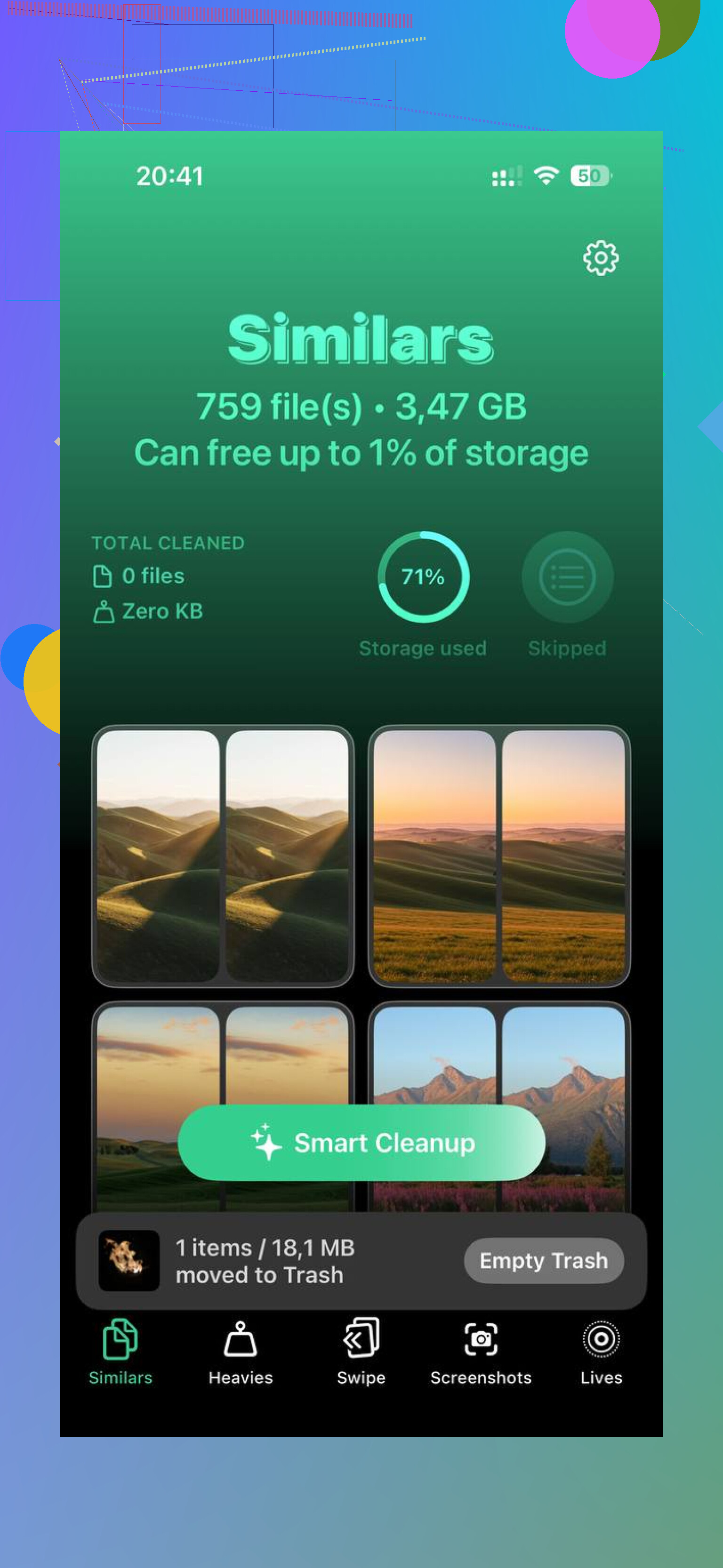
And yeah, if storage is part of the problem, Clever Cleaner is a decent shortcut for clearing duplicate pics, giant files, and other junk without digging forever. If you want to see it in a more useful way, this is a solid demo: how Clever Cleaner helps free up iPhone and iPad storage fast
If the iPad has become slow in literally every app, even after cleanup, you may just be at the “hardware is old and tired” stage. Kinda sucks, but sometimes thats the real answer.
I’d push one angle the others only touched lightly: storage type wear. On really old iPads, the flash storage itself can get slower after years of writes, especially if it has lived nearly full for long stretches. So even after cleanup, installs, app launches, and cache-heavy stuff can still feel sticky. Not common talk, but very real on aging devices.
Where I slightly disagree with @caminantenocturno is force-closing apps all the time. On iPadOS, doing that constantly can actually make some apps relaunch slower and waste more power. I’d only kill the obvious offenders.
What I’d check that’s different:
- Analytics logs: Settings > Privacy & Security > Analytics & Improvements > Analytics Data. If you see the same app crashing over and over, that app may be the drag.
- Mail overload: Huge mailboxes and years of attachments can slow indexing. Remove and re-add heavy mail accounts.
- Tab insanity: Safari/Chrome with 100 tabs open is brutal on older RAM-starved iPads.
- Ad-heavy sites: Try Firefox Focus or a content blocker. Sometimes “slow iPad” is really “modern web is awful.”
- Charging brick/cable: Weird one, but flaky charging can increase heat and poor performance while in use.
On Clever Cleaner specifically, if your Photos library is a mess, it’s useful.
Pros
- fast way to find duplicates/similar shots
- helps spot large files without digging
- easier than manual cleanup
Cons
- won’t fix bad battery or weak hardware
- cleanup apps can only do so much inside iPadOS limits
- you still need to review before deleting anything important
Since @chasseurdetoiles and @mikeappsreviewer already covered battery and general cleanup well, my cutoff is simple: if a clean setup still lags in Notes, Settings, and offline video, the iPad is just old. At that point, stop tuning and start replacing.