I’m trying to put two photos side by side on my iPhone, but the built-in options and a couple apps I tried either changed the layout or lowered the image quality. I need a simple way to combine two pictures into one for sharing, and I’m hoping someone can point me to what actually works on iPhone.
Comparing photos on an iPhone is still more awkward than it should be. I ran into this while trying to pick one clean shot out of five near-duplicates. Apple’s Photos app still does not give you a real side-by-side view, so you end up flipping between images and trying to remember small details from the last one. For blur, focus, or tiny expression changes, it kind of falls apart.
Why the built-in Photos app is weak here
There’s no compare view. No split screen. No two-up mode.
What you get is swipe, look, swipe back, squint, forget what the first one looked like, keep both. I did this for months and my library got bloated fast. If your goal is picking the sharper image from a burst or deciding between two photos with slightly different lighting, the stock app is clumsy.
How I made two photos sit side by side with Shortcuts
If what you want is one combined image, like a before-and-after or a quick visual comparison to send someone, the Shortcuts app does the job without extra apps.
Steps:
- Open Shortcuts.
- Tap the plus icon to make a new shortcut.
- Search for “Select Photos” and add it.
- Turn on “Select Multiple.”
- Search for “Combine Images” and add it.
- Set the direction to horizontal.
- Search for “Save to Photo Album” and add it.
- Name the shortcut.
- Run it, pick two photos, and it saves a merged image to your library.
It works. I used it for renovation progress photos and for comparing edits. Small catch, it creates a new file every time. Fine for sharing. Bad if you’re trying to clean up a pile of similar shots and choose one keeper.
What helped more for duplicate-ish photos
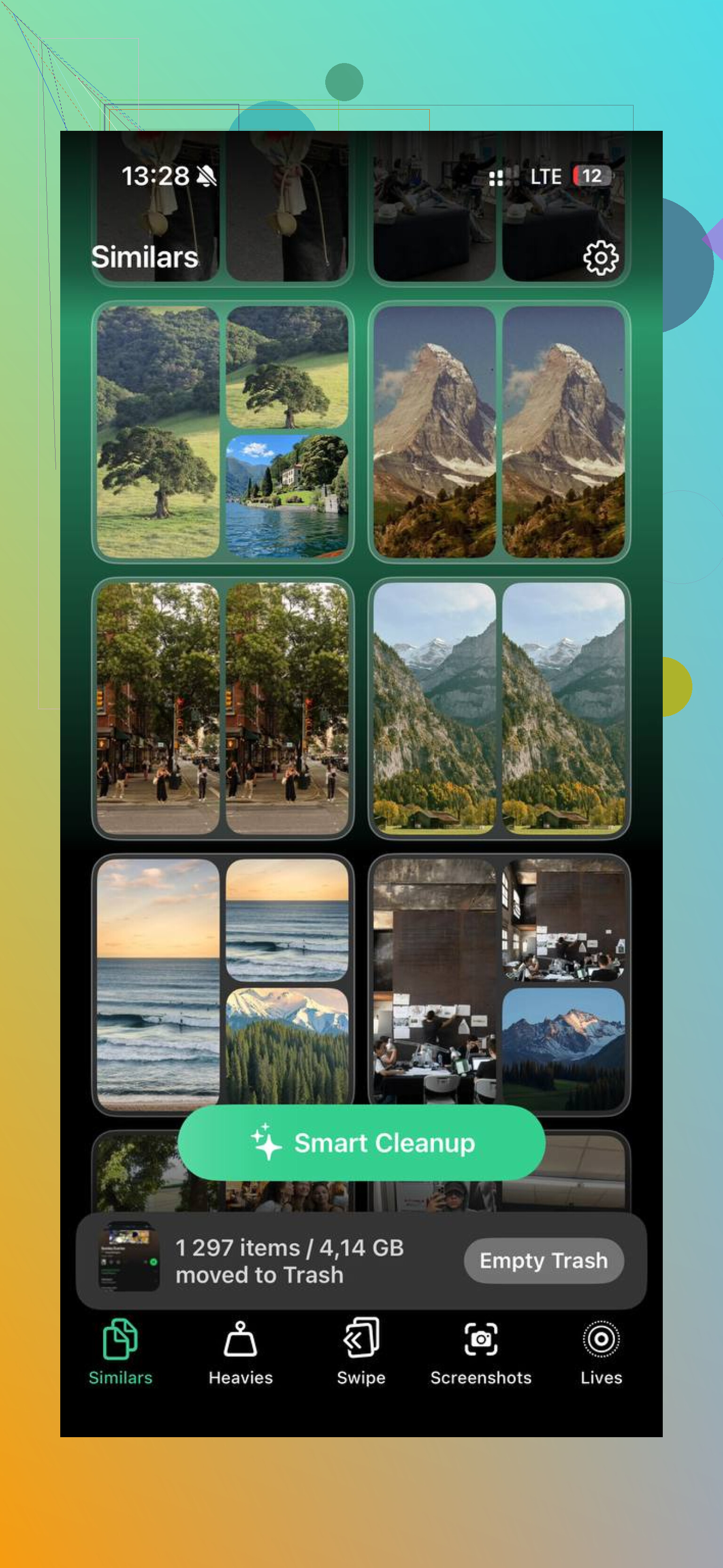
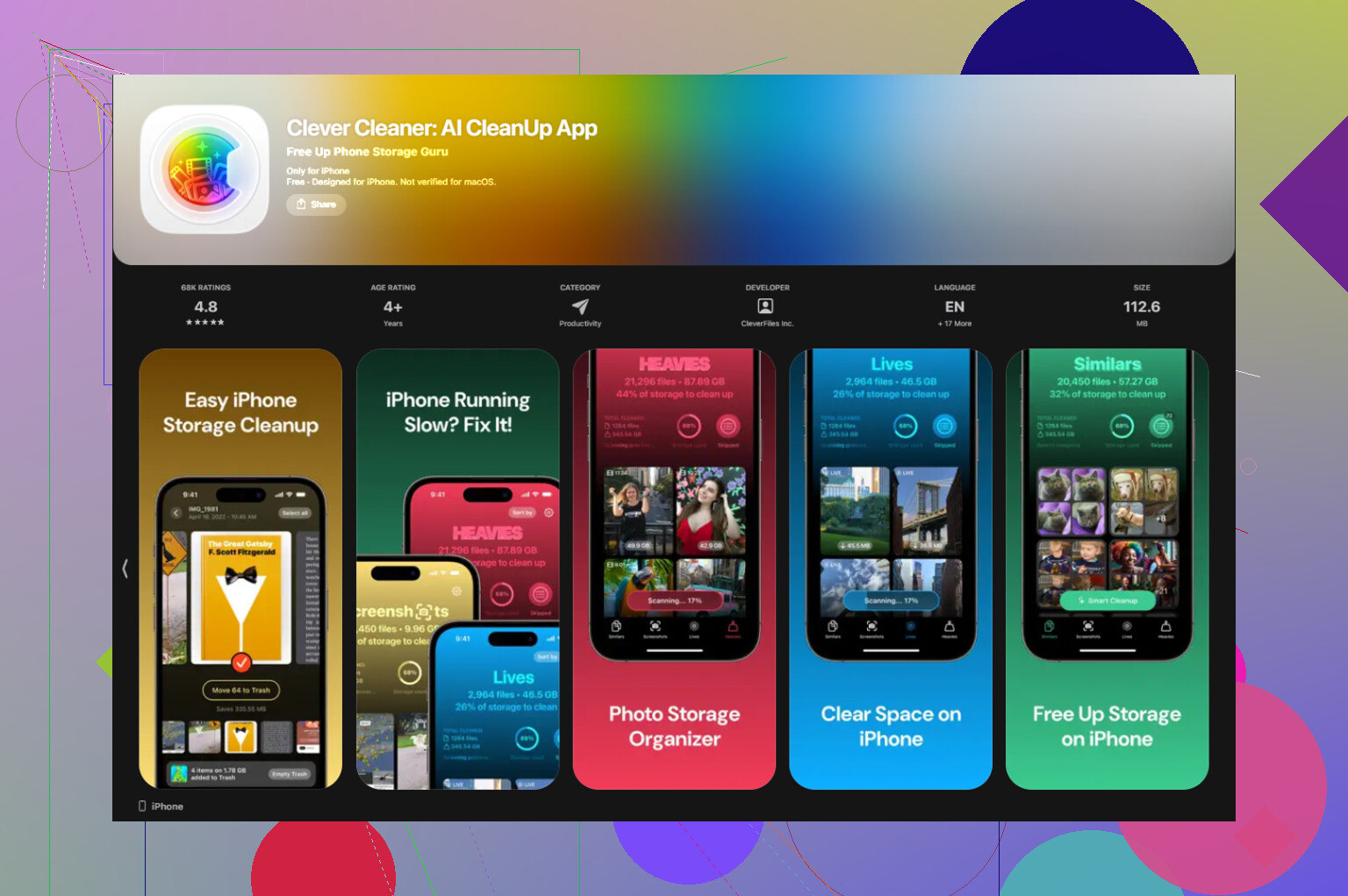
For near-identical images, I stopped using swipe comparisons and used Clever Cleaner instead.
This is the part I found more useful day to day. The app scans your photo library and groups shots which look close enough to be the same moment. Think burst photos, three pics of the same receipt, ten cat photos where only one is sharp. It marks a “Best Shot” in each group, based on stuff like blur and closed eyes.
I still checked each group myself. A few picks were off for my taste, but most were fine. Good enough where I didn’t feel like babysitting the process.
How I used it
- Open Clever Cleaner.
- Go to the Similars tab.
- Let it scan your library.
- Open each group.
- Look for the green Best Shot marker.
- Change the selection if you want a different image.
- Confirm deletion.
- Empty the app’s trash later when you’re sure.
That built-in trash step mattered to me. I mis-tapped once. No damage done.
Other tabs I ended up using
Heavies
This one sorts files by size, biggest first. I found old 4K videos sitting there like bricks. Much faster than digging through Photos and guessing what eats your storage.
Screenshots
Shows screenshot sizes before deletion. I had hundreds of junk screenshots from order confirmations and Wi-Fi passwords. Clearing them from here felt quicker than using the default Screenshots album.
Swipe mode
Photos get grouped by month. Left to delete, right to keep. Sounds simple, but it made backlog cleanup less annoying. I used it in short bursts while waiting around, five minutes here, ten there.
One thing I checked first
Everything stays on the device. Nothing gets uploaded off your phone. I looked for this because I don’t want random personal photos pushed to some server.
What ended up working best
For making one combined comparison image, Shortcuts is fine.
For choosing the best photo from a batch and clearing the rest, Clever Cleaner made more sense.
I used both for different jobs. Shortcuts for side-by-side output. Cleaner for library cleanup. After one pass through an old photo library, I got back more space than I expected, somewhere around 10 to 15 GB. I was honestly a bit annoyed I hadn’t done it sooner.
5 Likes
If your goal is one clean image with two photos side by side, I would skip most collage apps. A lot of them recompress the file, add padding, or force weird ratios. Annoying.
What worked best for me was Pages, not Photos. It sounds dumb, but it keeps layout control in your hands.
Do this:
- Open Pages, start a blank doc.
- Insert your first photo.
- Insert the second photo.
- Drag them side by side.
- Use Arrange to match size.
- Take a screenshot if you only need quick sharing.
- Or export the page as PDF, then save it as an image.
This gives you more control than the shortcut @mikeappsreviewer mentioned. I disagree a bit with using screenshots first if quality matters, since screenshots cap resolution. Exporting is cleaner.
If your real issue is sorting similar shots before combining anything, Clever Cleaner makes more sense. Use it to find the best pic first, then merge the two you want. Saves time, saves storage too.
Also, this Apple forum thread is still one of the better references for side-by-side photo options on iPhone, best ways to put two photos side by side on iPhone.
Short version:
Pages for control.
Shortcuts for speed.
Clever Cleaner for picking the right photos first.
I tried Notes too. Looked bad. Low effort, low qaulity.
If quality is the main issue, I’d honestly skip screenshots, even though @viajantedoceu is right that they’re fast. Fast, yes. Clean output, not always. Screenshots flatten everything to your screen resolution, so if you plan to print, crop, or zoom later, it’s kinda the cheap-and-lazy route.
What actually worked for me was Keynote. Not Pages.
- Open Keynote and start a blank presentation.
- Add a plain white or black slide.
- Insert both photos.
- Tap each image and use Arrange to size them evenly.
- Turn off borders/shadows if Keynote adds any.
- Export the slide as an image or PDF.
Why I liked it more:
- easier alignment than most collage apps
- no weird forced templates
- less random compression
- better for before/after shots
So my ranking would be:
- Keynote for best control + solid quality
- Shortcuts like @mikeappsreviewer mentioned if you want pure speed
- Clever Cleaner if the real problem is choosing which two similar photos to merge in the first place
That last part matters more than people think. If you have 8 almost-identical shots, using Clever Cleaner first saves a ton of time. It’s basically a simpler way to organize similar photos on iPhone and pick the clearest one before making your side-by-side image. I also found this useful if you want a deeper look at it: a smarter way to clean up similar photos on iPhone
Also, tiny disagree with both of them on one thing: a lot of “photo grid” apps are not terrible, but most free ones sneak in compression, watermarks, or ugly spacing presets. So yeah, for a simple two-photo combo, Apple’s own office apps weirdly do the job beter than “collage” apps do.
I’d add one option nobody’s really pushing here: Canva on iPhone, but only if you export at the highest quality and avoid the preset collage templates.
Why I mention it even though @viajantedoceu, @jeff, and @mikeappsreviewer leaned toward Apple tools: sometimes you want a final JPEG or PNG fast, not a document-slide workaround. Pages and Keynote are cleaner than most collage apps, sure, but they feel clunky if you do this often.
What actually works for me:
- create a custom canvas
- drop in both photos manually
- use guides to line them up
- export as PNG
Why this is different:
- better than screenshot quality
- easier visual positioning than Shortcuts
- faster final export than PDF round-tripping
Small disagreement with the Shortcuts love: it’s great for automation, but not great when one photo is portrait and the other is landscape. The auto-combine result can look awkward unless both images already match well.
If your real problem is picking the best two photos first, Clever Cleaner helps before you combine anything.
Pros of Clever Cleaner
- quickly groups similar shots
- helps spot the sharpest image
- useful for cleaning duplicates too
- simple enough to use one-handed
Cons of Clever Cleaner
- not a photo editor
- won’t make the side-by-side image itself
- “best shot” suggestions are not always the one I’d choose
- extra step if you only need one quick merge
My take:
- Canva for easiest polished result
- Keynote/Pages for max control
- Shortcuts for speed
- Clever Cleaner for narrowing down which photos are worth combining in the first place
So yes, Apple’s built-in options are okay, but I would not pretend they’re the simplest for everyone.
You covered Pages, Shortcuts, Canva, and Cleaner. Control vs speed is clear, but screenshots hurt quality.
Try Picsew, simpler.
Steps:
- Install Picsew.
- Open, pick two photos.
- Tap Stitch, choose Horizontal.
- Set spacing to 0.
- Tap Output, pick PNG, Quality 100, Keep original size.
- Save.
It preserves native pixels, no borders, no weird aligment. For portrait plus landscape, crop inside Picsew to match heights first. My test with two 12 MP shots saved at 8064 by 3024, still sharp on a 4K display. Fast and repeatable.
Match the heights before you combine and half these app debates disappear. That’s the real variable, not which app you pick. @boswandelaar nailed the practical part with Picsew stitch at full size, since it keeps native pixels instead of flattening to screen res like screenshots do. Portrait plus landscape is where everyone trips, and no amount of Keynote alignment fixes it if you don’t crop one to the other’s height first. On Clever Cleaner, it’s fine for thinning down the pile before you decide which two are worth stitching, but it won’t touch the actual merge, so treat it as prep, not the fix.