My Google TV never shows up when I open screen mirroring on my iPhone. I checked that both were on the same Wi-Fi and tried again while sitting on the couch. I just want to show a recipe from my browser. Is mirroring the right term, and what should I try next?
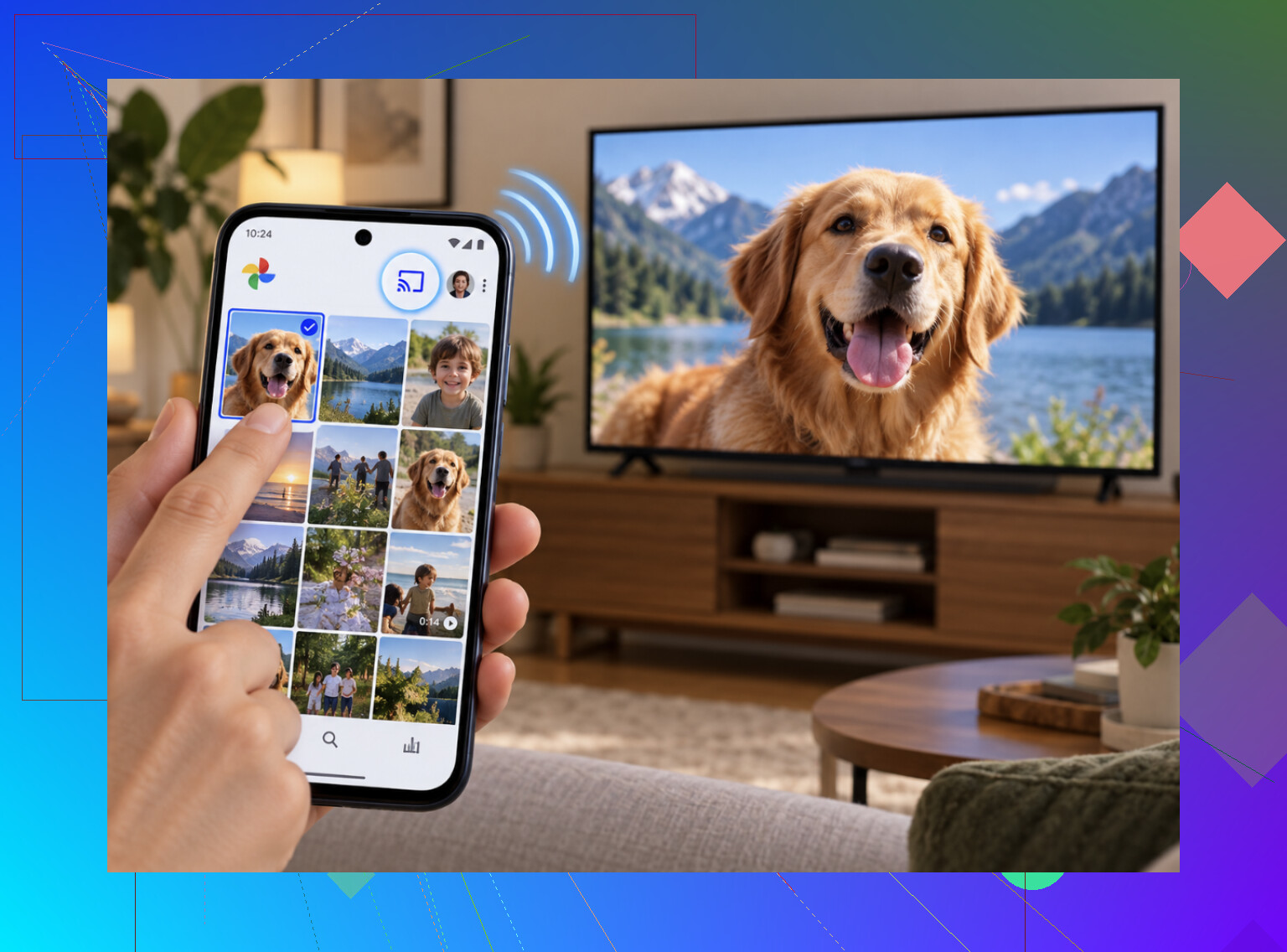
Getting an iPhone presentation onto a Google TV is the practical problem I’m trying to sort out. I’d rather understand what the connection needs than install another app because somebody says it’s the solution to everything.
Showing content isn’t always mirroring
The distinction that keeps getting buried is whether you need your entire phone screen on the TV or just something playing on it. Those aren’t the same job, and treating them as interchangeable makes this more annoying than it needs to be.
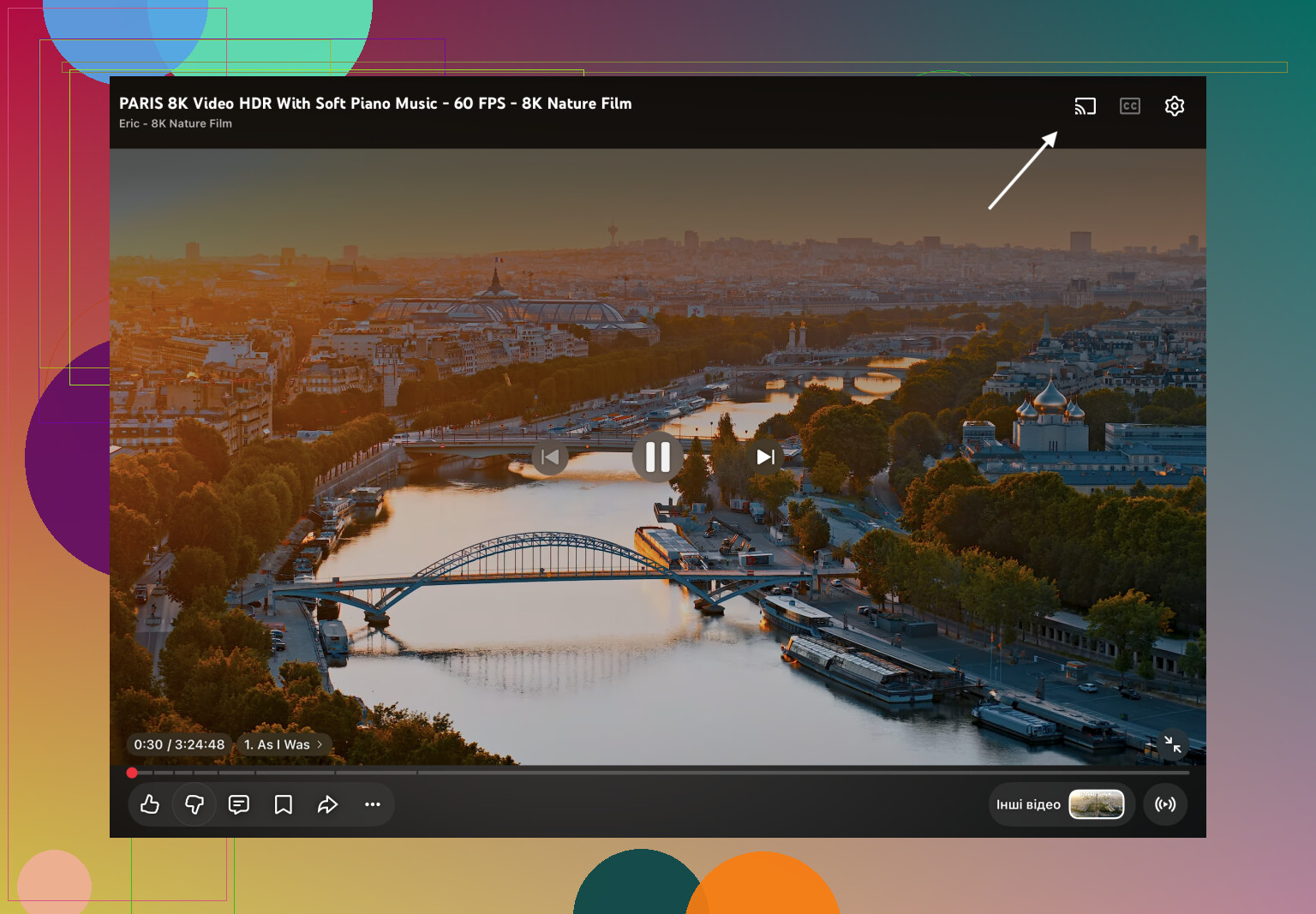
For supported content, apps such as YouTube, Netflix, Disney+, and Spotify offer casting from inside the app. Google Photos also has a cast button for pictures and videos. If that covers what you’re doing, there’s no reason to start with full-screen mirroring. I’d check the app I already have before looking for another one.
I wouldn’t dismiss a cable
For a presentation, I’d also consider the boring option: an HDMI connection. A regular TV with an available HDMI port can take a connection through a Lightning Digital AV Adapter, or a USB-C to HDMI adapter for an iPhone 15 or newer.
That gives you wired mirroring without casting lag. It’s less convenient if you want to move around with the phone, but wireless isn’t automatically the better answer. I don’t see much value in insisting on a wireless setup when a cable would cover the actual task.
The missing TV isn’t the whole story
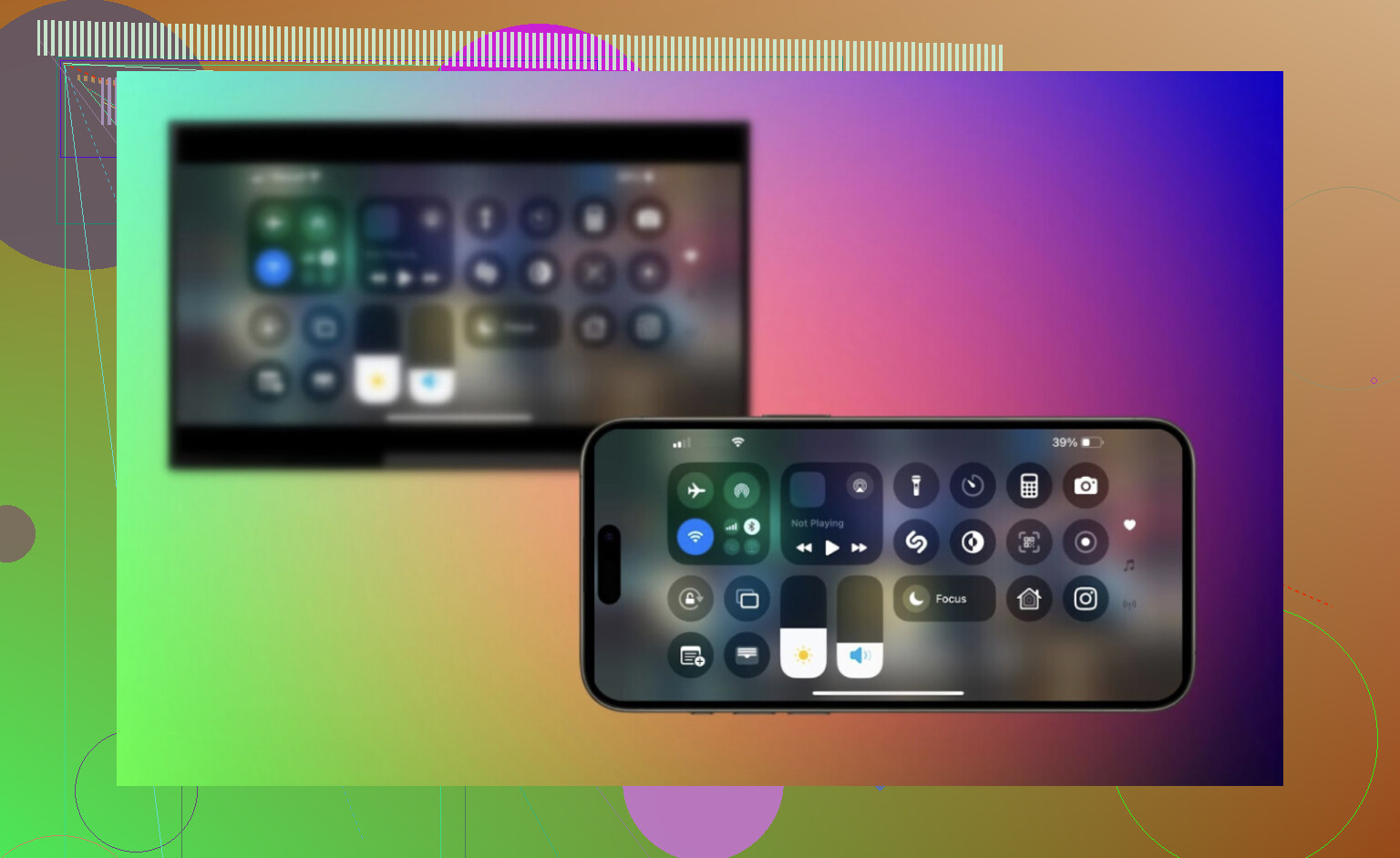
If you do want wireless mirroring, the iPhone’s Screen Mirroring button is looking for AirPlay. Google TV is built around Chromecast. That mismatch explains why a TV can support casting and still not appear in Control Center.
There are exceptions. Some Google TV models, including certain Sony Bravia TVs, support AirPlay 2. Check the TV’s settings for an AirPlay option before downloading anything. If it’s there, enable it and use Screen Mirroring normally.
Most Google TV models, and the Chromecast with Google TV stick, don’t have that built-in route. So “just open Control Center” isn’t useful advice for everyone.
Where another app actually fits
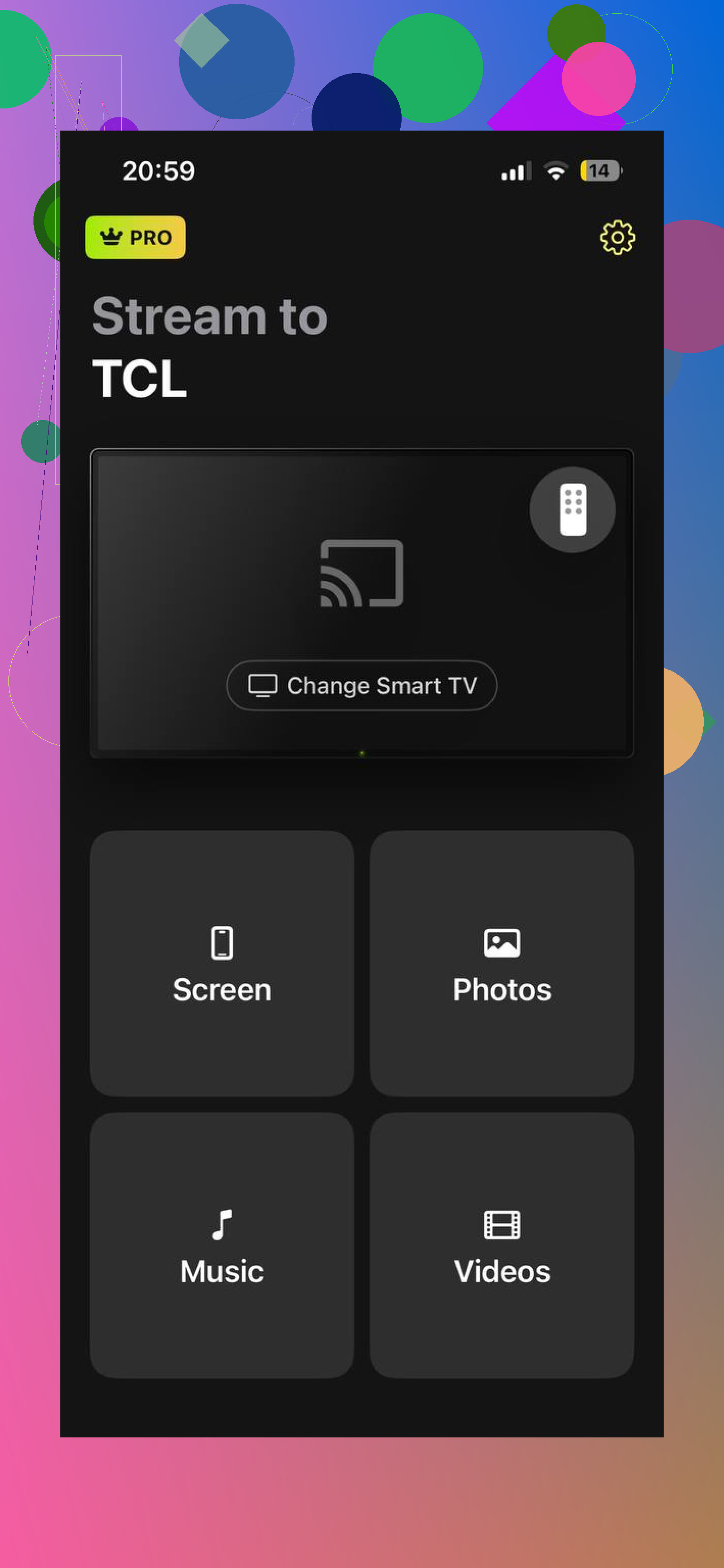
For a Chromecast-based connection that needs the whole iPhone screen, the DoCast tool provides that route. It supports every Chromecast generation, including Chromecast with Google TV and televisions with Chromecast built in.
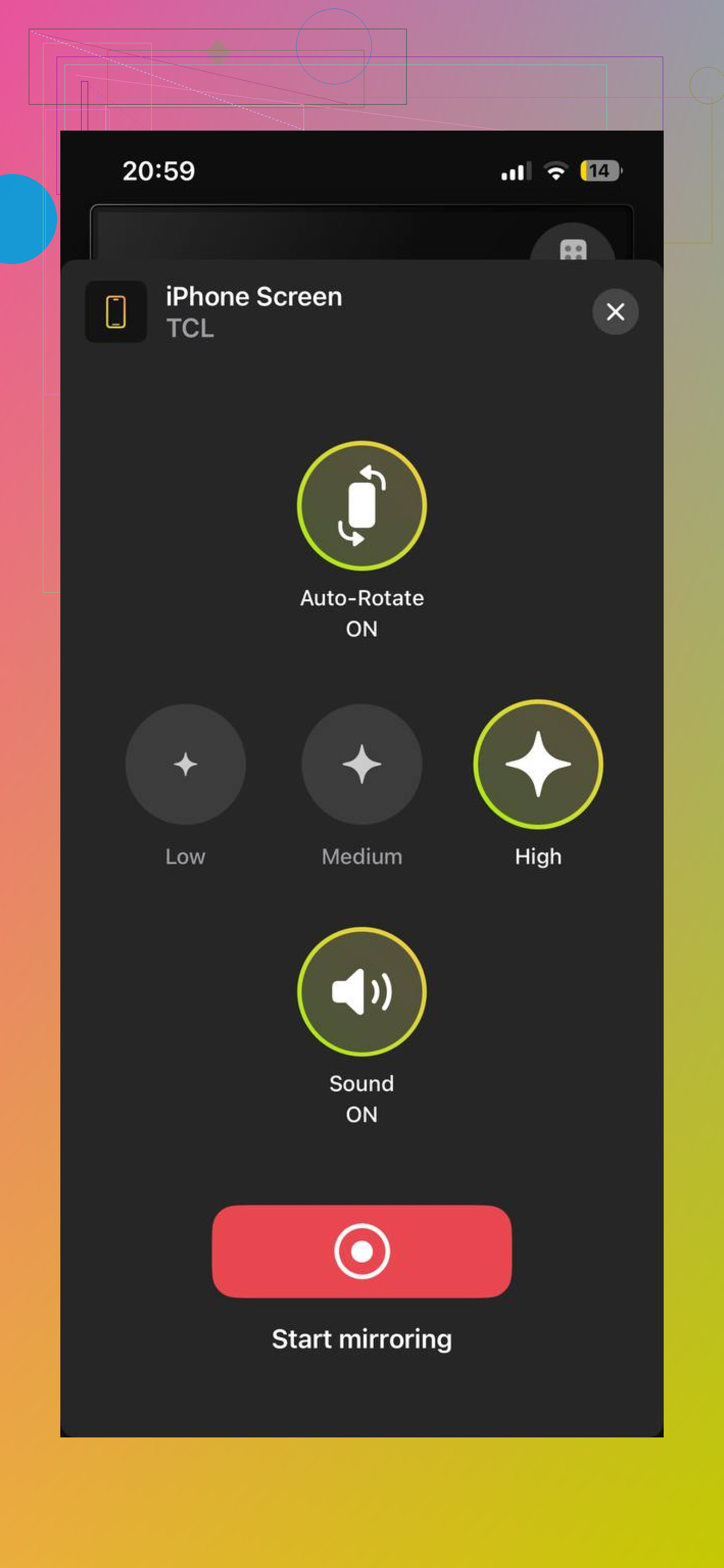
The setup described on the DoCast page starts with putting the phone and TV on the same Wi-Fi. Open the app, select the TV when it appears, then choose screen mirroring or send individual photos, videos, or music instead. Presentations, scrolling Instagram, and camera-roll videos are the sorts of uses this covers.
The payment distinction matters: photo casting is free and unlimited, while mirroring and longer video or music streaming require Premium. I wouldn’t gloss over that.
My verdict: I’d use an existing cast button or built-in AirPlay first, keep HDMI in mind for presentations, and pay for a mirroring app only when I actually need the whole screen wirelessly.
11 Likes
Take screenshot images of ingredients and steps, then use the photo-cast option rather than using mirroring live. For something like a recipe I’d do that before paying for full screen mirroring just to put up a browser page on the TV.
Getting the recipe on to the TV won’t make it readable from the kitchen. I’d be more concerned about the size of the ingredients and directions than the slight pause while you scroll.
I’m with @phantom_signal312 on using screenshots, but I’d crop them rather than send an entire browser page. Give the ingredients their own image, then split the directions into a few readable sections. A screenshot containing the site’s header, ads, and half the author’s life story isn’t what you want up there. If your browser offers a reader view for that page, try that before taking the screenshots.
The other thing is I don’t know if you want the phone tied up showing the recipe. I would prefer a static image for now (this particular thing) that leaves the phone available for a timer or check a substitution, before paying for anything. Test that exact routine, put the ingredients on the TV, leave the sending app, and see if it stays up there, that’s more important than whether an app touts full-screen mirroring.
For the missing TV, the Airplay distinction is a useful explanation, rather than how close you’re sitting. What is the TV’s exact model? That would be useful in establishing whether you should be looking for an AirPlay setting at all. I wouldn’t keep redounding the same Wi-Fi check until you settle that.
Does the recipe require a serving size selector or checkboxes to indicate what you want to prepare using it? Then this would affect my answer. The screenshot method would be great for a specific recipe you are making, but I would avoid taking screenshots if you are going to customize it. It is a lot of extra work to make a stack of images when all you really want is the browser page itself. If you do want to take a screenshot, make sure to adjust the serving size first so that you aren’t capturing extra ingredient information for other portions.
For live scrolling, the AirPlay distinction in @retrothread_77’s reply is the deciding point. Being on the same Wi-Fi doesn’t make a Chromecast receiver appear in the iPhone’s Screen Mirroring menu. Check whether your TV supports AirPlay before spending more time on that menu. If it doesn’t, you’ll need a different mirroring route, but I wouldn’t pay for one until you’ve decided whether you need an interactive recipe or just something to glance at.
Do not pay for mirroring if you expect to control the recipe with the TV remote. It mirrors your phone’s screen to the television, but you still have to scroll, adjust the serving, and check off ingredients on the iPhone. Having it larger on the TV does not turn the recipe into a TV application.
That’s my reservation about @jack41’s interactive-recipe argument. Live mirroring makes sense if you actually need to change something while cooking. But if the aim is to leave your phone somewhere clean and read the directions across the room, you should decide how much tapping you’re willing to do. I wouldn’t build a folder of screenshots for a short recipe either. Pick the section you need and leave it visible rather than making this a whole preparation task.
The AirPlay check assesses whether your iPhone’s built-in mirroring is an option. Do not judge a setup based on its ability to connect. Open the actual recipe, enlarge the text, and see how much of a step will fit on your television at one time. If you need to keep scrolling through the middle of each step, you are not using a display to solve the annoyance. As a matter of this particular use, readable directions with less touches take precedence over getting the entire browser on to the television.
The extra app does not necessarily have to be placed on the iPhone. Instead, one can also install an AirPlay receiver app on the television. The app AirScreen does this, thereby enabling the use of the iPhone’s native screen mirroring controls instead of having to rely on a separate phone app. It is worth noting that not all televisions are compatible with such software, so this is more of an experiment. To address your other question, I would try opening the app on my television, see if there is any way to connect it to the iPhone via AirPlay, and try to follow the given instructions.
To me, describing the recipe sounds like a more reliable plan than attempting to take screenshot photos of the page. However, taking screenshots could work if you plan on saving the recipe somewhere else anyway. Otherwise, it seems like a needless detour to me. After all, one would not want to spend several minutes trying to set up the application before being able to actually view the desired content.
Conversely, I would not purchase the product before testing it for at least the amount of time that it will presumably have to be used on a regular basis. Granted, this might be excessive, but getting interrupted in the middle of the recipe is arguably a bigger problem than a bit of extra scrolling.
Set your expectations low here, a TV across the room will not be any closer than the phone you already have on the counter, and unless you are willing to make the text 3’ tall, your recipe might be hard to see. Bigger screen doesn’t always mean easier to read while you cook.
The screenshot crowd has the right instinct, but I’d go even lazier than cropping them into sections. Most recipe sites print clean if you hit the share and print option, and you can save that as a PDF or just use reader view like @retrothread_77 said. The point is to strip the clutter once and stop fiddling. Where I part ways with the live-mirroring plans is the kitchen itself. Wet or floury hands plus a touchscreen you have to keep waking up is its own small nightmare, and nothing about casting fixes that.
If you do want the wireless route, @jack41 nailed the real gate: find out if your TV does AirPlay 2 before you spend another minute in Control Center. Some Sony and newer Bravia panels have it buried in settings. No AirPlay means a Chromecast-based app is your only wireless path, and DoCast is a fair fit for that narrow job, just know the full-screen part isn’t free. For a single recipe tonight though, I’d prop the phone against a canister, keep the screen awake setting on, and skip the whole mirroring project.