I would compare the options by checking for a moved folder, then existing copies, then recoverable disk data. That order avoids treating every missing folder as a recovery job. For Windows 11, permanent deletion does not necessarily mean the contents are already gone.
Shift + Delete, emptying the Recycle Bin, or deleting something too large for it can mark occupied sectors as free space. Recovery depends on what happens afterward. Browsing, applications, logs, temporary data, and system files can overwrite those sectors. I would stop using that drive rather than spend recovery time working on it.
An internal SSD adds TRIM, which can clear deleted blocks. I would install recovery software elsewhere, preferably on an external drive. Clicking or grinding changes the decision entirely: stop software attempts and use a professional recovery lab because physical damage may be involved.
Check whether recovery is necessary
I would first run portable Everything from a USB stick. It searches names across drives in seconds and may locate a folder moved accidentally.
Then I would check the parent folder’s Properties > Previous Versions for File History, and Control Panel > Backup and Restore (Windows 7) > Restore my files.
For a synced folder, I would check the OneDrive page, sign in, select Recycle bin, and restore the folder if present. Its cloud copy can survive deletion from the PC; personal accounts retain deleted items for 30 days.
Inspect before saving anything
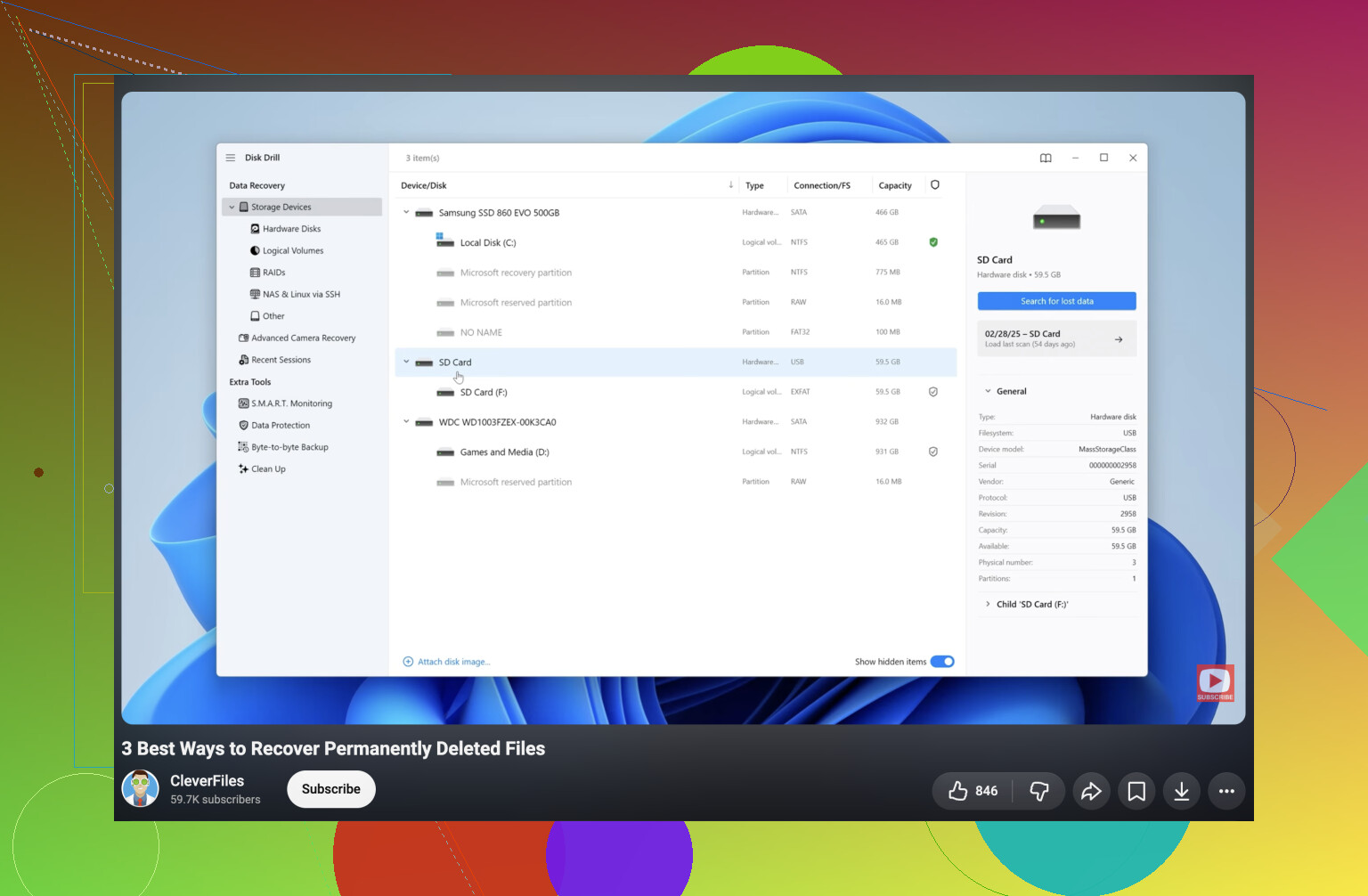
With no usable copy, I would use the Disk Drill tool to inspect the affected drive or partition. Select Search for lost data and let Universal Scan finish.
Search by folder name or extensions such as .docx, .jpg, and .pdf, or inspect Reconstructed and Lost Location. Hovering over a file and selecting the eye icon gives a preview, which helps assess its condition before recovery.
Select the wanted files or folder, click Recover, and save to a different drive, never the original. The Windows version allows up to 100MB of free recovery.