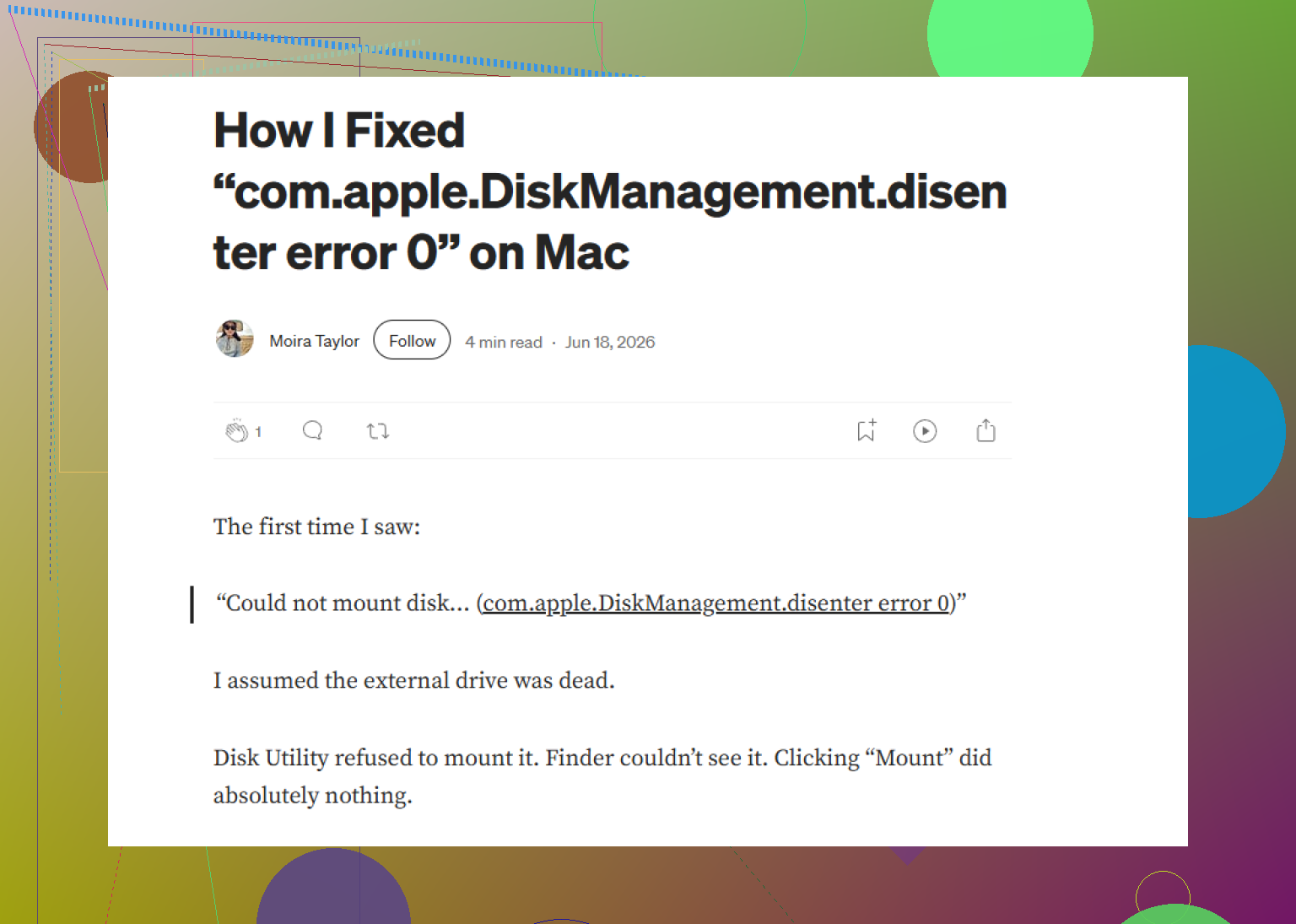
My WD Passport suddenly won’t mount on my Mac and keeps showing the com.apple.diskmanagement.disenter error -119930878. I’ve already tried reconnecting it and restarting, but I still can’t access my files. I need help figuring out what caused this and how to fix it without losing data.
Drive shows up in Disk Utility, stays gray, throws Error 0
I ran into this on my Mac too. The drive showed in Disk Utility, but it would not mount, and macOS kept tossing the ‘com.apple.DiskManagement.disenter’ thing with Error 0. What I figured out was simple enough. The Mac sees the hardware. It trips when it tries to read the file system.
From what I saw, this usually came from one of these:
- The drive got pulled without ejecting, so macOS marked it dirty.
- The file system and macOS version did not get along, mostly on Monterey and Ventura.
- fsck got stuck and held the disk hostage.
If your files matter, I would not keep poking at it blind. Start with the light stuff first.
1. Kill the stuck fsck process
This fixed it for me more than once.
When a drive was removed the wrong way, macOS often started fsck in the background. While fsck was running, the volume stayed locked. On some exFAT drives, and on larger disks, it seemed to sit there forever.
Open Terminal from Applications > Utilities and run:
sudo pkill -f fsck
Type your password and press Enter. The password field stays blank while you type, which always feels broken, but it isn’t.
A few times, the drive mounted right after I killed fsck. If it comes back as read-only, copy your files off first. Don’t wait. I made that mistake once.
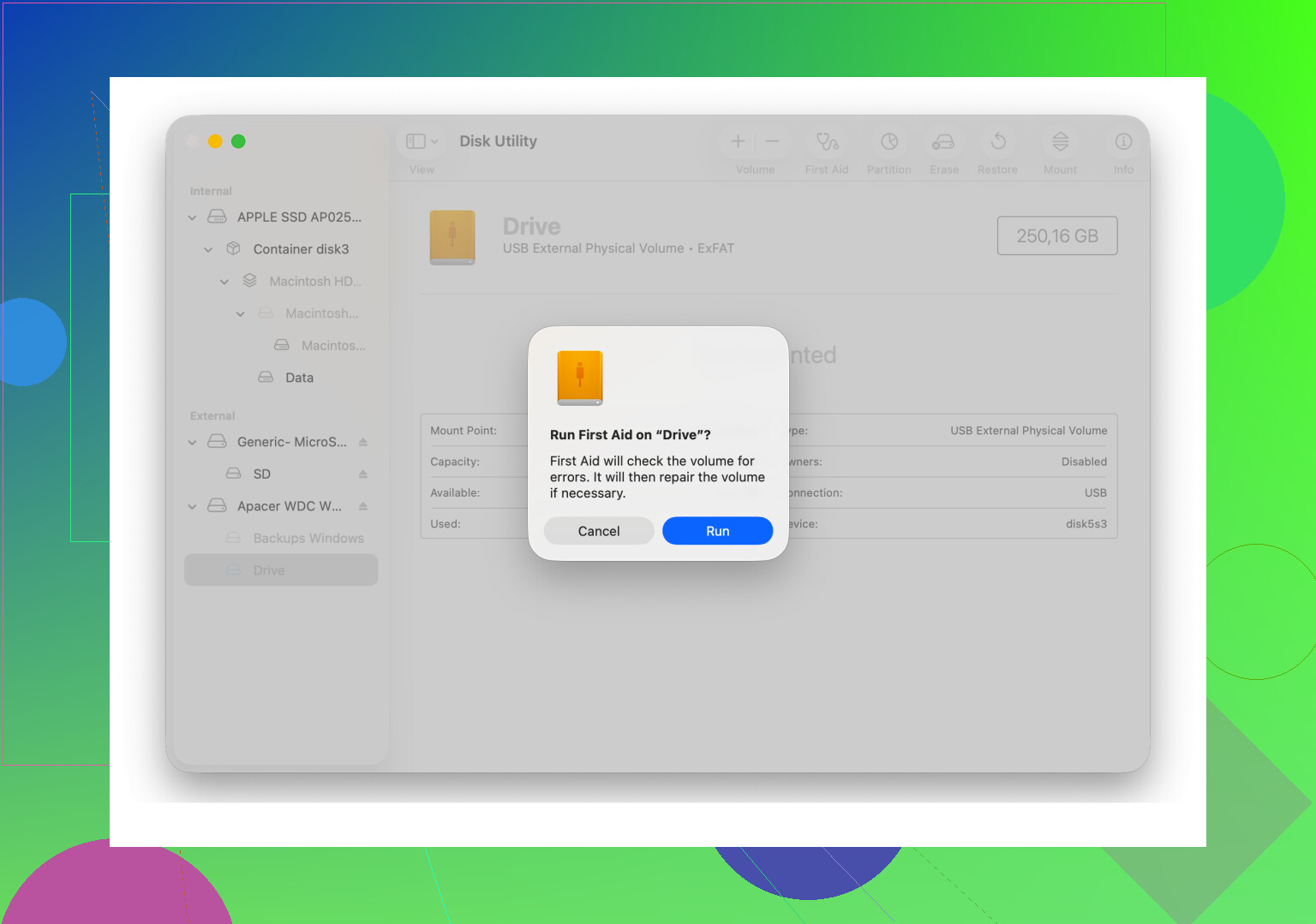
2. Run First Aid on every layer, not only the volume
A lot of people hit First Aid on the volume name and stop there. I had better luck when I showed the full device stack.
In Disk Utility:
- Open View
- Pick Show All Devices
- Select the physical disk
- Run First Aid
- Then run it on the container, if there is one
- Then run it on the volume
I had one case where First Aid failed twice, then fixed the structure on the third pass. Weird, yes. Still worked.
3. Log out, then back in
This one felt dumb. It still helped.
On Monterey and Ventura, DiskManagement sometimes got flaky. I logged out of my user account, logged back in, and the disk mounted. On another machine, switching to a second user account did it.
If the drive mounts under another user, your main account is likely carrying some permission or preference mess.
4. Check Time Machine
If the disk used to be a Time Machine target, macOS might still be trying to deal with snapshots or backup state.
I turned off ‘Back Up Automatically’ in Time Machine settings and, after that, the drive stopped acting frozen. Not every time, but enough times for me to keep it on the list.
5. If First Aid keeps failing, switch to recovery mode for your files
Once First Aid starts throwing more errors and Terminal tricks do nothing, I stop trying to force the mount. Messing with a damaged file system over and over made things worse for me once. Lost folder names, partial copies, all of it.
What worked better was scanning the disk with Disk Drill. The reason I used it was straightforward. It did not need macOS to mount the drive first. It scanned the raw disk and showed me what was still there.
I had a WD_Black drive do this exact stunt. Disk Drill scanned it and rebuilt enough of the directory tree in preview for me to pull the important folders onto another drive. Not perfect, but way safer than hammering the disk with random repair attempts.
6. Reformat only after your files are safe
Once your data is copied out, wipe the drive clean.
In Disk Utility:
- Select the physical drive
- Click Erase
- Pick the format based on how you use it
Use APFS or Mac OS Extended (Journaled) if the drive stays with Macs.
Use exFAT if you need Mac and Windows. I had fewer issues when I formatted exFAT on the Mac instead of on a PC. I don’t know if that solves every compatibility problem, but it cut down on repeat failures for me.
What I would do, in order
- Kill fsck
- Run First Aid on disk, container, and volume
- Log out or switch users
- Disable automatic Time Machine backup
- Recover files with Disk Drill
- Erase and reformat the drive
One last thing. Safe eject matters. I used to treat it like optional ceremony. It isn’t. And RAID still doesn’t replace backups, learned that one the hard way.
Also, if your drive is 4TB or larger, give First Aid time. I saw scans sit there so long I thought they were dead, then they finished.
16 Likes
Error -119930878 usually points to one of three things. Bad file system metadata, a bridge board issue in the WD enclosure, or a disk mounting conflict in macOS. I would not start with erase.
A few things I’d do first, different from what @mikeappsreviewer listed.
- Check if the Mac sees the disk at the hardware level.
Open Terminal and run:
diskutil list
If the WD shows there, run:
diskutil info /dev/diskX
Swap X with the right disk number. Look for:
Protocol
SMART status
File system personality
Read-Only Media
If it shows as read-only or disk arbitration failed, you’re dealing with mount logic or disk damage.
- Try mounting from Terminal, not Disk Utility.
Run:
diskutil mountDisk /dev/diskX
If it fails, try:
diskutil mount readOnly /dev/diskXsY
Read-only mount is safer when your files matter. I prefer this before repeated First Aid passes. Too many repair attempts on a weak drive is a bad idea.
-
Test the cable and enclosure, not only the port.
WD Passport drives fail at the USB bridge more often than people think. If your Mac sees the drive size wrong, spins up and down, or disconnects in Console logs, the enclosure is suspect. A diff cable helps if your model has a detachable one. If the USB port on the drive itself is loose, that’s a diff problem. -
Check Console for the exact mount error.
Open Console, filter for disenter or diskmanagement. If you see I/O errors, invalid B-tree, or exFAT corruption, stop repair attempts and move to recovery. -
Try another Mac, or a Windows PC if the drive is exFAT or NTFS.
This matters more than people say. If it mounts elsewhere, copy data off fast. If it fails on every system, the issue is on the disk side, not your user profile. -
If the files matter, scan before formatting.
Disk Drill is one of the better options here because it reads the disk without needing a normal mount first. For a Passport stuck on a disenter error, that’s often the cleanest path to recover data before you wipe anything.
Then, after recovery, erase the physical disk in Disk Utility and format it fresh. APFS for Mac-only use. exFAT for Mac and Windows.
Also, this thread on fixing the disenter error by reformatting the drive matches what a lot of people ended up doing after saving thier files first.
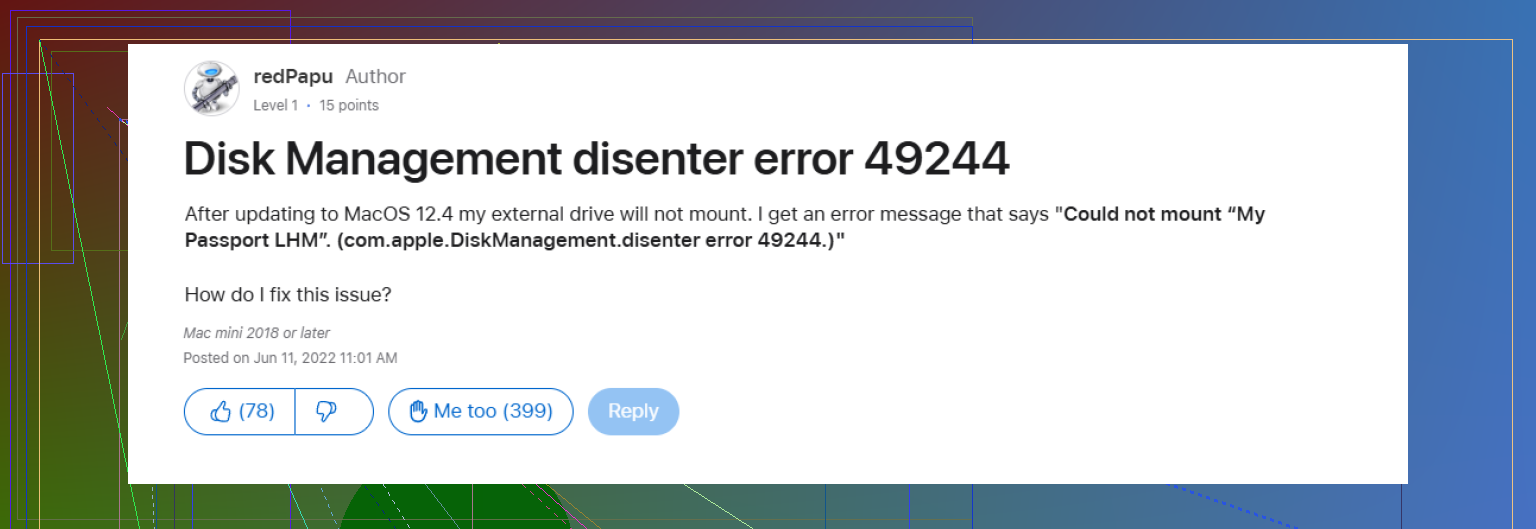
One thing I’d do that neither @mikeappsreviewer nor @techchizkid really leaned on is checking whether macOS is refusing the mount because of ownership / encryption state rather than pure file system damage.
If your WD Passport was ever used with WD Security, FileVault-style encryption software, or even just got permissions weird after moving between Macs, try this in Terminal:
diskutil apfs list
diskutil list
If it is APFS and shows a locked volume, unlock it with:
diskutil apfs unlockVolume /dev/diskXsY
If it is HFS+ and ownership is being dumb, sometimes mounting with owners disabled helps:
sudo diskutil mount nobrowse /dev/diskXsY
Also, I kinda disagree with doing repeated First Aid runs if the drive is making odd noises or hangs Finder hard. At that point you can turn a recoverable mess into a worse mess, real fast. If Finder freezes the second the Passport is plugged in, try booting into Safe Mode and connect the drive there. Safe Mode loads fewer background services and sometimes lets a stubborn external mount long enough to copy data.
Another angle is power draw. Some WD Passports act dumb on low-power USB hubs or older Mac ports. Plug it directly into the Mac, no hub, no adapter chain if possible. If you’re on a desktop Mac, try a diff port group. Sounds basic, but yep, it matters.
If the disk still shows up but won’t mount, and your files matter, skip the ‘keep trying random repairs’ phase. Use Disk Drill for Mac to scan the raw WD Passport and recover what you can before formatting. That’s usually the safer play.
Also found a solid user write-up here:
step-by-step fix for DiskManagement disenter errors on Mac external drives
If you want, post the output of:
diskutil list
diskutil info /dev/diskX
and the exact format of the drive, exFAT/APFS/HFS+/NTFS. That’ll narrow it down fast.