I’ve recently switched to a Mac for development and I’m overwhelmed by all the different code editors and IDEs people recommend. I’m looking for suggestions on the best coding apps for Mac for web and app development, including lightweight editors and full-featured IDEs. What tools are you using, and why do you prefer them over the alternatives?
I keep looking at my dock and wondering if this is some kind of productivity system or just visual proof that I have commitment issues with code editors.
Right now I’m bouncing between three different editors plus a bunch of helper tools, and somehow it all hangs together… barely.
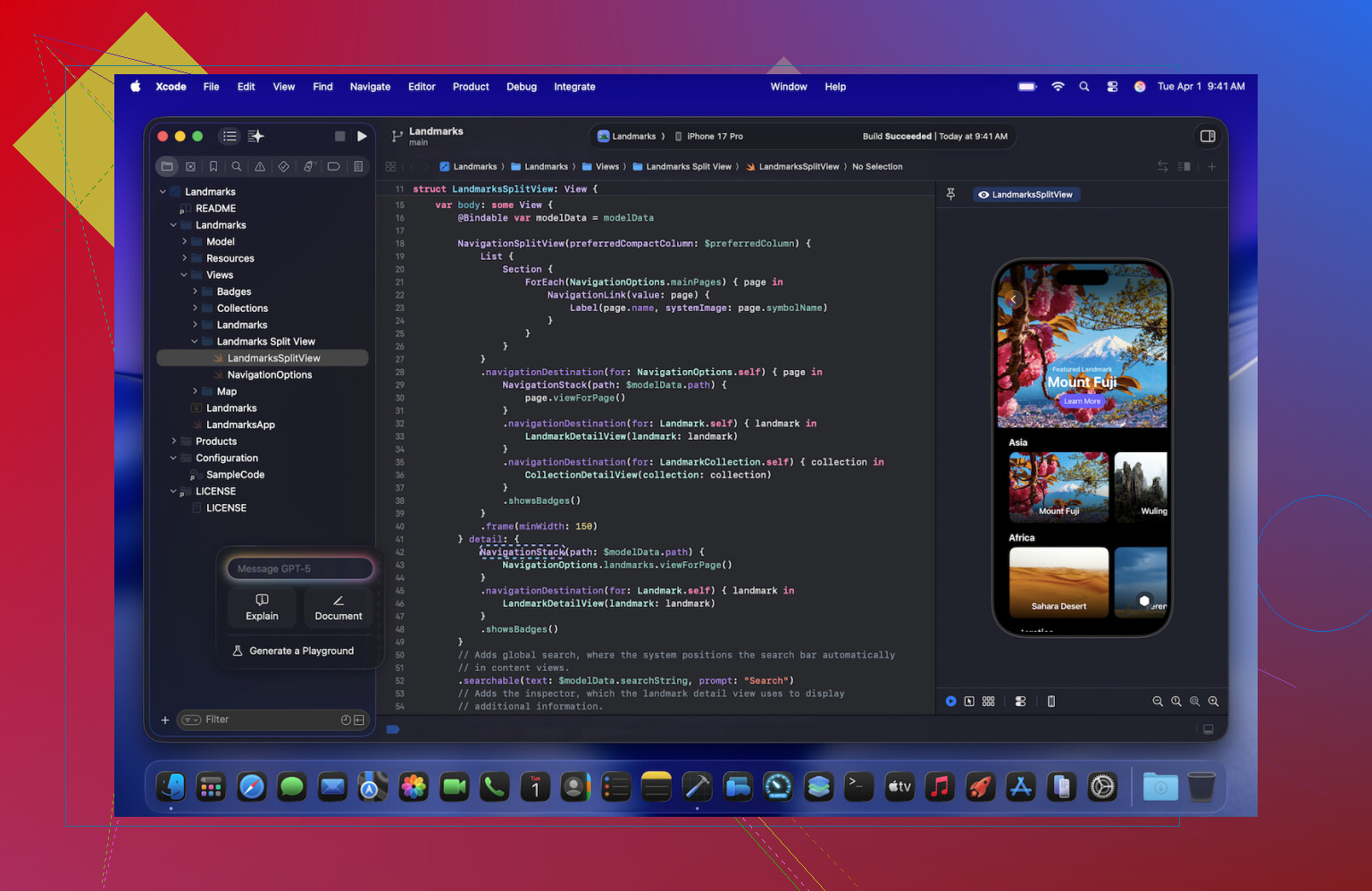
Xcode: The Heavyweight I Can’t Escape
I only open Xcode when I’ve run out of excuses not to.
Xcode feels like installing an operating system inside your operating system. It does everything, which is also the problem. Half the time I open a project and forget which sidebar controls what.
The new AI bits in the latest version are weirdly competent. It will happily autocomplete half a function I haven’t fully thought through yet. I don’t trust it, so I treat every suggestion like an intern’s pull request: helpful, but inspected line by line.
Still, if I want anything to actually land on an iPhone, I end up back here, waiting for builds, watching the little progress bar crawl across like it’s 2009.
Sublime Text: The Panic Button
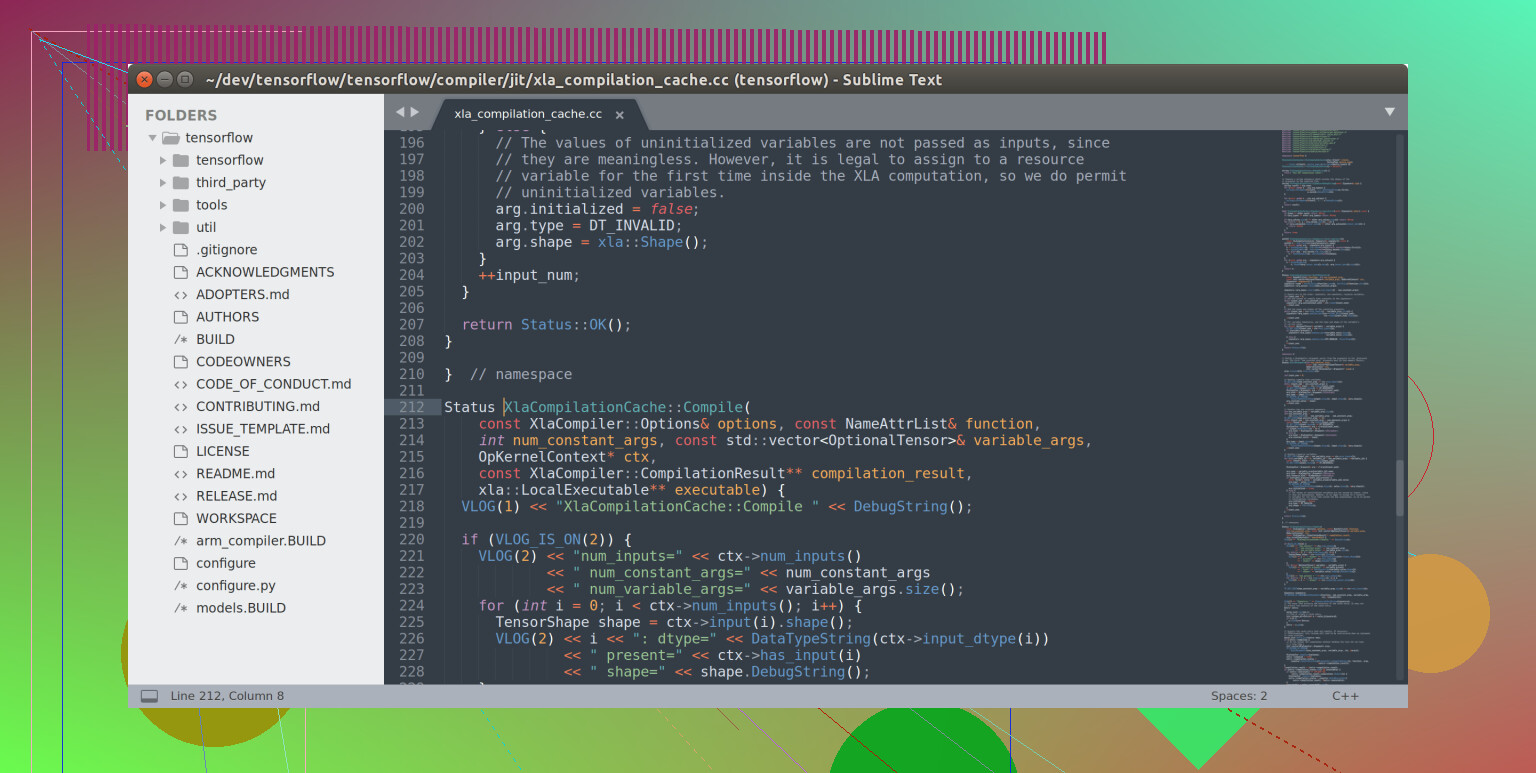
Sublime Text is the editor I forget exists until everything else is on fire.
Last week I had to open a 500 MB log file. VS Code tapped out. Xcode pretended it had other plans. Sublime? Opened it like it was a grocery list.
That’s pretty much its whole personality: it’s fast, ignores drama, and opens stuff nothing else wants to touch. The “Goto Anything” feature is still hit or miss for me. When I nail the right key combo and jump straight to the line I need, I feel like I actually know what I’m doing. When I miss, I just mash keys until something useful happens.
CodeRunner: The “What Happens If I Do This?” Box
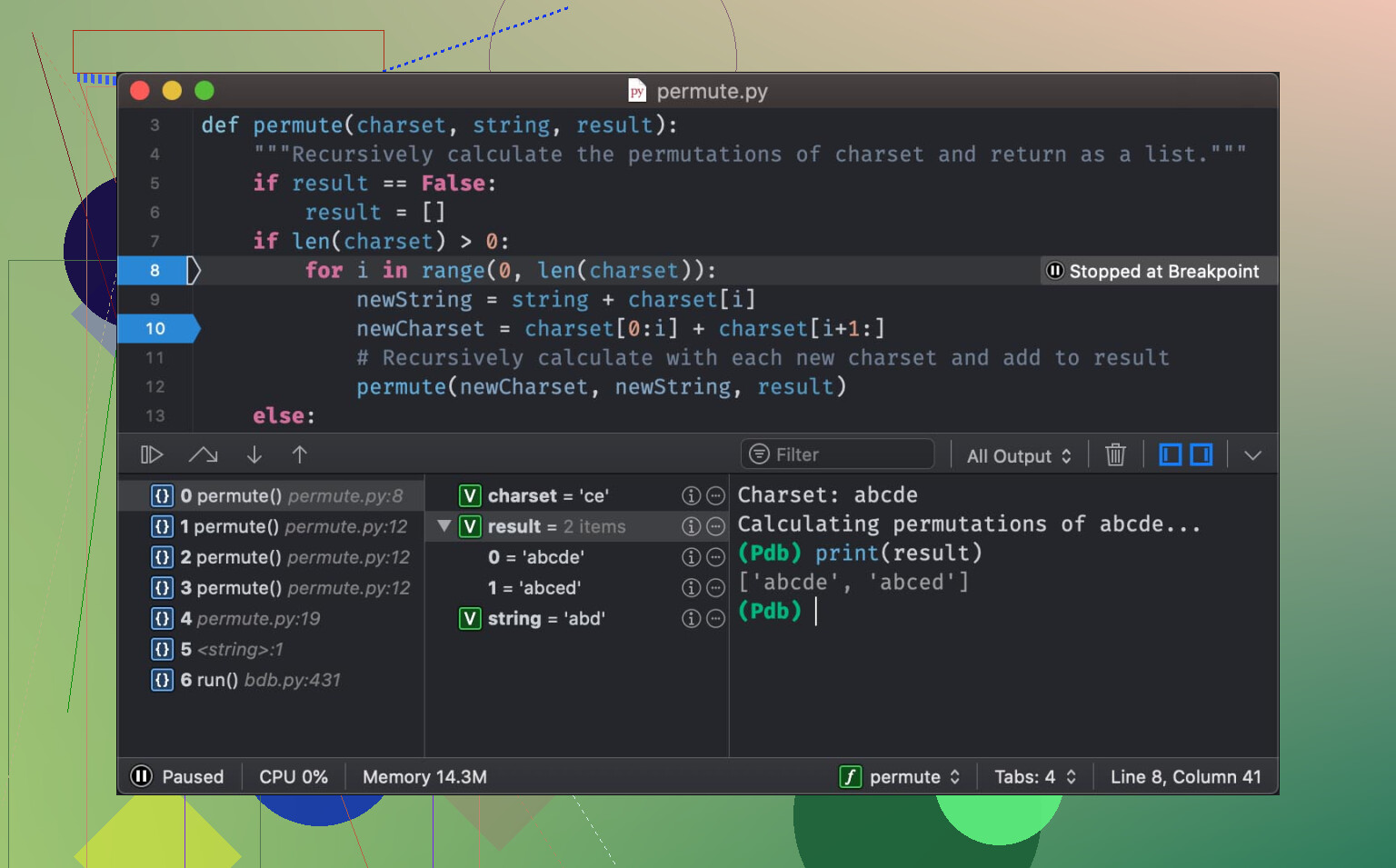
CodeRunner is where my bad ideas go to see daylight.
It’s perfect for those tiny experiments that are too small to justify a full project. Little one-off scripts, a random Swift function, a three-line Python thing I want to sanity check before I embed it somewhere permanent.
I paste it, hit run, and the output just shows up in the console, no build steps, no project structure, no nonsense. It feels like using a REPL that ate its vegetables and decided to grow a UI.
I use it when I’m trying to answer questions like:
- “Will this regex actually match what I think it will?”
- “Is this off-by-one or am I just tired?”
- “What does this API call actually return if I feed it garbage?”
Every time it runs without a full compile cycle, I feel like I’ve cheated time a little.
TeaCode: Tiny Spells for Boring Stuff
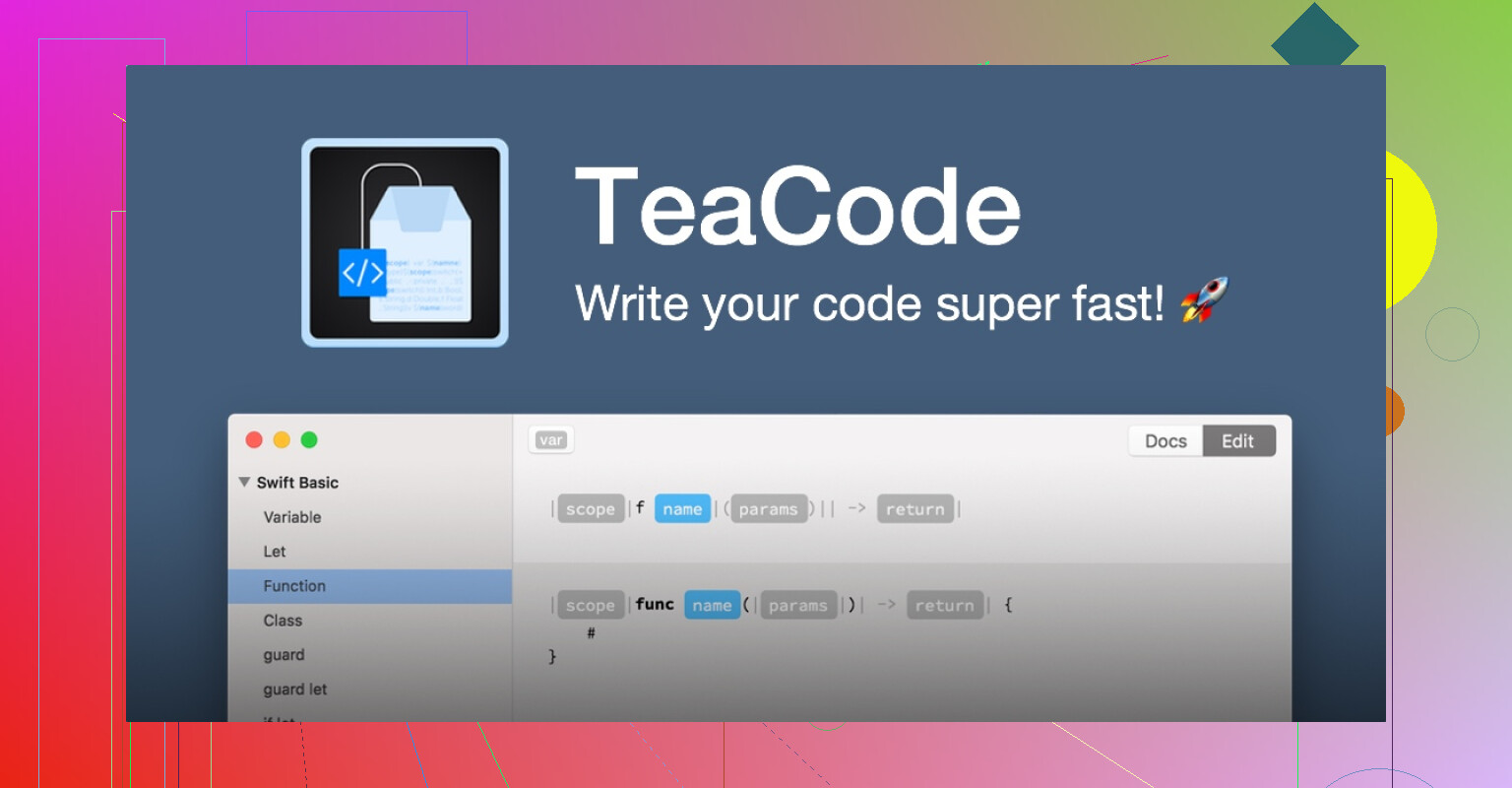
TeaCode is one of those tools that sound boring until you use it for real.
It’s not just text expansion like “brb” turning into “be right back.” It’s more like building little templates for patterns you’re sick of typing from scratch.
I set up a shortcut for a full HTML skeleton: three characters, hit the trigger, and suddenly there’s a whole doc with <!DOCTYPE>, <head>, <body>, the works. It felt like pulling a tablecloth off a table and having everything still standing, except in a good way.
Once you get used to it, your fingers start to hesitate before typing boilerplate, like, “Wait, don’t we have a spell for this now?”
SnippetsLab: External Hard Drive for My Brain
I don’t know what it is about regex, but my brain treats every solution like a temporary file.
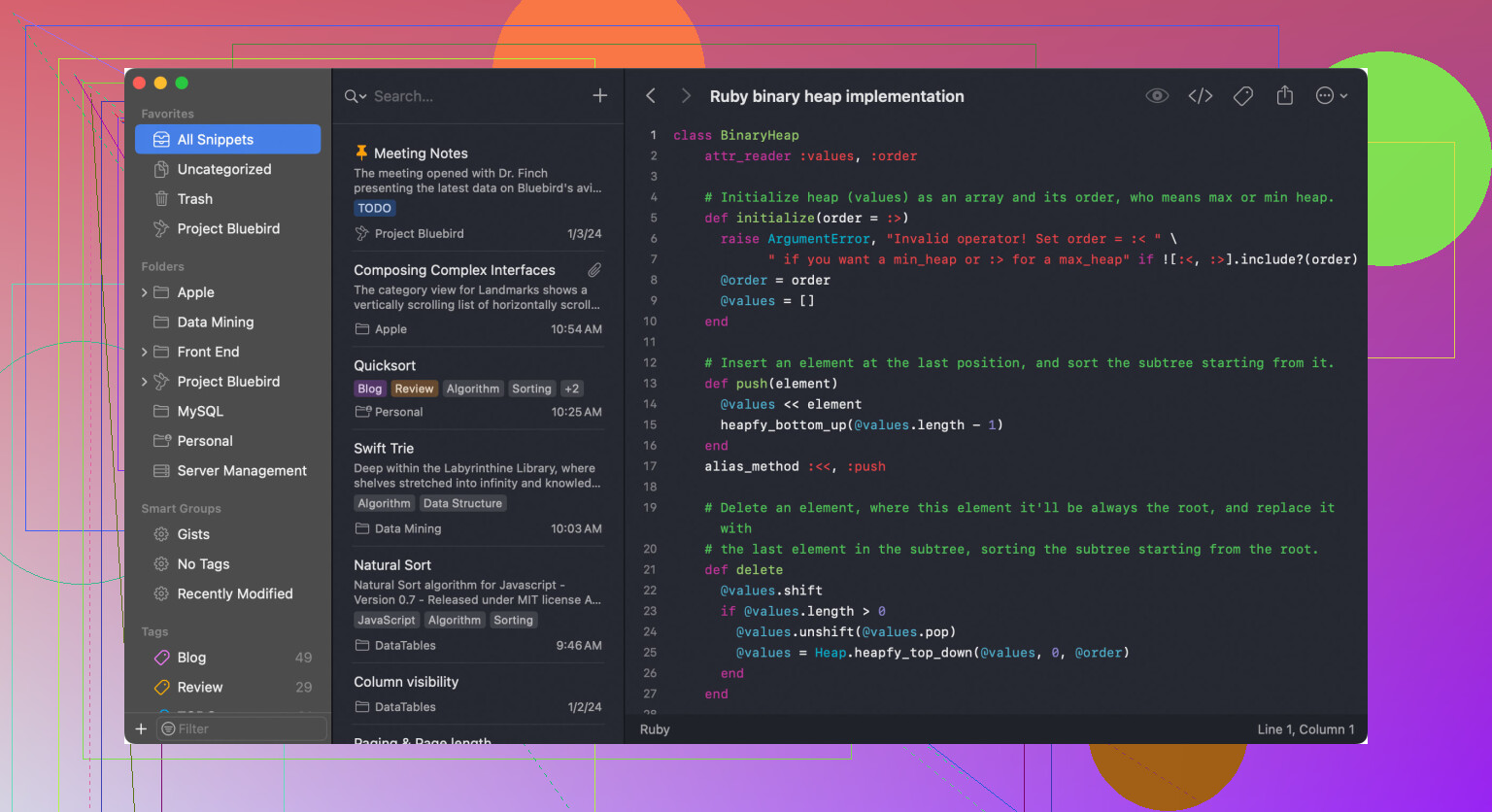
So I started dumping all those fiddly little solutions into SnippetsLab (that’s the app, if anyone’s curious). Anything I don’t want to Google again goes in there:
- That one shell command I use twice a year
- The exact incantation for some obscure Swift API
- JSON samples I know I’ll need to fake again later
The reason I actually use it: the menu bar. One click, search a keyword, paste. If I had to summon a full window every time, I’d absolutely just open a browser and type the same Stack Overflow question all over again.
Commander One: Where I Accidentally Spend Half My “Coding” Time
At some point I realized a lot of my “development session” is just dragging files around like a glorified filing clerk.
So I quietly demoted Finder and started using Commander One for dev work.
Two things sold me on it:
1. Server Stuff Without Being Fancy About It
I used to juggle dedicated FTP/SFTP apps. They all felt like that one printer in the office that works 70% of the time and throws cryptic errors the rest.
In Commander One I just mount my staging servers like they’re extra drives and use the dual-pane view:
- Left: local build folder
- Right: remote server directory
Then I drag the dist folder from left to right and can literally see what’s going where. No mystery, no “which window is which machine” guessing. It also seems to avoid the weird lag that some other clients get when listing big directories.
2. Terminal, But Where I Already Am
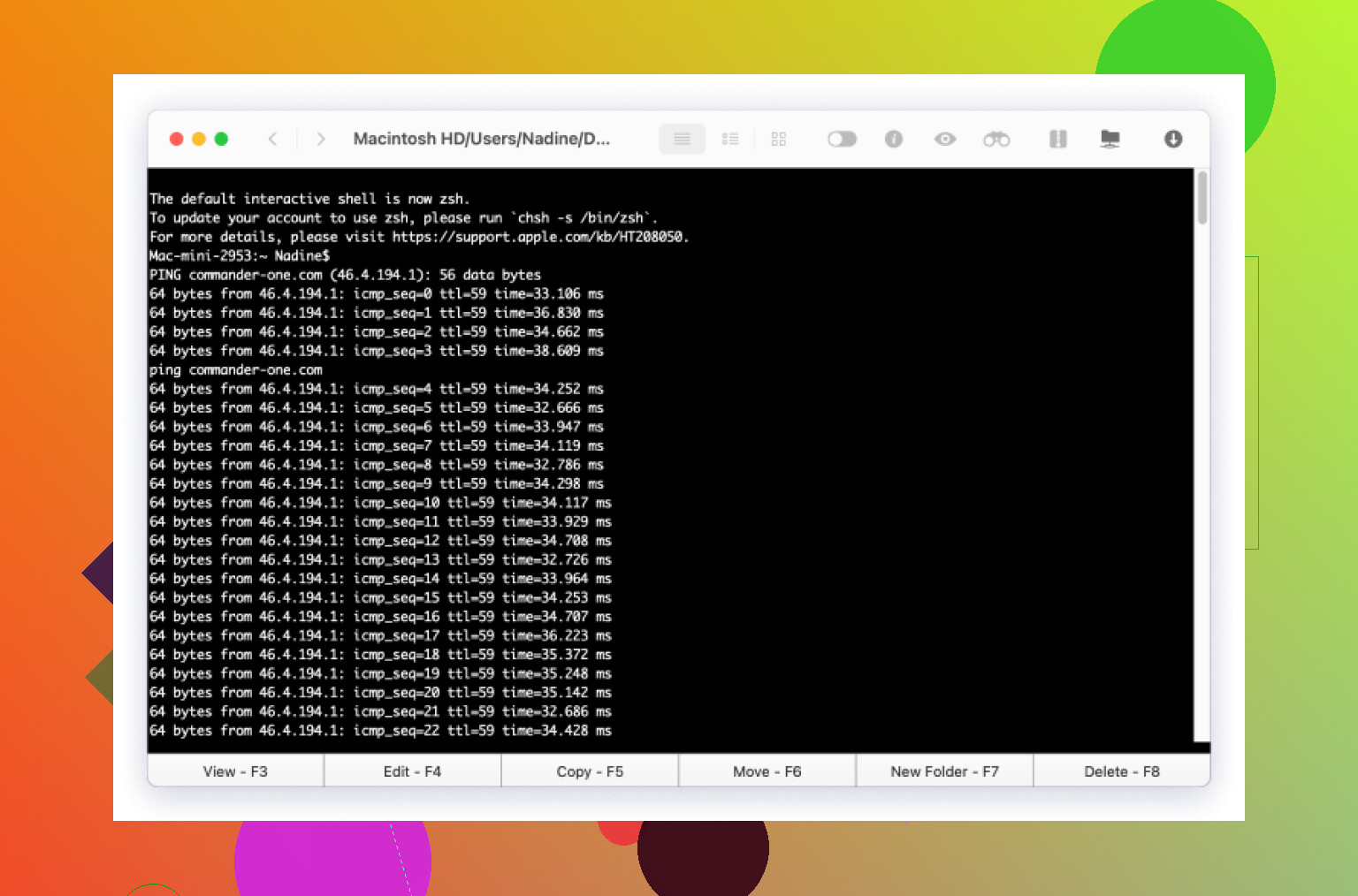
The integrated terminal at the bottom turned out way more useful than I expected.
No more switching to a separate terminal app, cd-ing five levels deep, and only then running a command. I just hit a hotkey, terminal drops down inside the same window, already in the directory I’m looking at.
Yesterday I:
- SSH’d into a remote box
- Did a quick
git pull - Checked a log file
All without leaving the file manager. Nothing special, but it removed a bunch of tiny context switches that usually eat time and attention.
Where This Leaves Me
If history holds, I’ll probably have a completely different setup by next summer and pretend this era never happened.
For now though, this strange combination actually works:
- Xcode for anything that has to be blessed by Apple
- Sublime for stupidly large files and quick edits
- CodeRunner for “does this idea compile at all?” moments
- TeaCode to avoid typing the same scaffolding 400 times
- SnippetsLab so I don’t reinvent the same regex twice
- Commander One as the command center for moving stuff around and touching servers
It’s just enough structure to keep my desktop from turning into a pile of half-installed apps and forgotten .dmg files.
373 Likes
If you’re feeling overwhelmed by “pick an editor” discourse on Mac, the trick is to stop chasing the one and build a small toolkit that actually matches what you do all day.
I’ll disagree with @mikeappsreviewer on one thing: juggling 5–6 apps would fry my brain. I try to keep it to 2 primary editors + a couple of utilities.
Here’s what I’d look at right now for web & app dev on macOS:
1. VS Code: Default answer for a reason
If you’re doing web stuff (JS, TS, React, Node, backend APIs, etc.), VS Code is very hard to beat:
- Great TypeScript/JavaScript support out of the box
- Git integration that’s “good enough” for most workflows
- Extensions for literally everything: Docker, ESLint, Prettier, Prisma, you name it
- Remote development / SSH / containers support if you end up working on servers or DevContainers
I used to hop between editors a lot; once I forced myself to live in VS Code for a month, the urge mostly died off. You can absolutely tune it to your brain and then ignore most of the editor FOMO.
Where it kinda sucks:
- Huge files (like those 500 MB logs @mikeappsreviewer mentioned)
- Getting a bit sluggish when you stack too many extensions
So: use it as your main web IDE, not as your “open literally everything” tool.
2. JetBrains (WebStorm, IntelliJ, PyCharm, etc.): When you want the big guns
If you like the “everything in one place” style that Xcode has but you’re doing web or backend, a JetBrains IDE is worth a serious look:
- WebStorm for frontend / Node
- IntelliJ IDEA for Java / Kotlin + web
- PyCharm for Python-backend heavy work
Why these might beat VS Code for you:
- Better refactoring tools for big codebases
- Incredible search / navigation for large projects
- Built-in inspections that actually catch subtle bugs
They are heavier than VS Code and not as instantly snappy as Sublime, but if you work in one language ecosystem a lot, a JetBrains IDE can feel like cheating once you learn the hotkeys.
3. Xcode: Only when Apple forces your hand
On this part I’m aligned with @mikeappsreviewer: Xcode is not something you pick because it’s fun; you pick it because iOS/watchOS/macOS dev requires it.
For app development on Apple platforms:
- Storyboards / SwiftUI previews
- Signing, provisioning, and simulator management
- Instruments for performance profiling
My honest take:
- Use Xcode only when you’re actually building and shipping iOS/macOS apps
- Do not try to use it as your general-purpose editor, it’ll just annoy you
Some people write SwiftUI code in VS Code/JetBrains and just open Xcode to build and run. That can work once you know your way around.
4. Sublime Text: Keep it as a “utility knife,” not your home
I’m with @mikeappsreviewer that Sublime is ridiculously good at opening giant files and being fast. Where I differ is I do not treat it as a real project editor anymore.
How I use it:
- Open huge log files
- Quick random text manipulation
- One-off edits when I don’t want to “commit” to opening a full IDE
If you’re just starting on Mac, I’d resist the temptation to turn Sublime into your main editor. You’ll end up redoing a ton of config that VS Code or JetBrains just handle better these days.
5. Terminal + file management matters more than you think
This is the part people skip when they ask “what editor should I use,” but you’ll spend half your dev life in a terminal or shuffling files.
For that combo on Mac:
iTerm2 or the new macOS Terminal
- Split panes, profiles, and solid keyboard navigation
- Great pairing with
zsh,fzf,ripgrep, etc.
Commander One (seriously useful on Mac)
If you’re deploying builds, moving assets, or juggling local and remote files, Commander One is one of those tools that looks optional until you actually use it for dev:
- Dual-pane file manager so you can do:
- Left: project build directory
- Right: server / staging / S3-mounted volume
- Built-in FTP/SFTP which means no extra “FTP app” you forget about
- Integrated terminal at the bottom, right in the directory you’re staring at
For web and app development, that setup is nice when you:
- Sync
distorbuildfolders to a server - Need to quickly tweak something on a remote machine without context switching all over the place
I wouldn’t call Commander One an “editor,” but on a Mac dev setup it’s a legit part of the workflow, especially once your projects get bigger than “one folder on the Desktop.”
6. A more minimal “starter kit” for you
If I had to recommend a clean, non-chaotic setup for someone new to Mac:
For web dev:
- Primary editor: VS Code
- Optional “heavier” IDE: WebStorm if you find yourself working on large TS/React projects
- Utilities:
- Sublime Text for big text/log files
- Commander One for file + server management
- iTerm2 for serious terminal work
For Apple app dev:
- Primary IDE: Xcode (no way around it)
- Still keep: VS Code for web APIs / scripts / node tooling around your app
- Same utilites: Commander One + terminal for server work, logs, and deployment steps
That’s it. Ignore the rest until you actually feel the pain that some specialized tool solves. The worst trap right now is installing 12 editors because everyone swears theirs is life-changing, then spending more time tweaking configs than writing code.
Pick one main editor, one “oh crap” fast editor, a solid terminal, and something like Commander One to handle files and servers, and you’ll be way less overwhelmed.
You’re not alone staring at a dock full of editors wondering which one you actually live in. @mikeappsreviewer runs a full “toolbox” setup, @reveurdenuit is trying hard to keep it lean. I’m somewhere in the middle: a small stack instead of a single “forever editor.”
Here’s how I’d slice it for Mac right now, with web + app dev in mind:
1. Pick one main editor per “universe”
For web / backend stuff:
- VS Code or WebStorm
I’d say:- VS Code if you like to tinker and curate extensions.
- WebStorm if you prefer batteries‑included and can live with heavier RAM use.
If you’re overwhelmed, just commit to one for 30 days. Don’t keep bouncing like @mikeappsreviewer unless you enjoy context switching.
For Apple app dev (iOS/macOS):
- Xcode, like it or not
Here I slightly disagree with @reveurdenuit: I would lean into Xcode a bit more, at least while you’re learning. Splitting SwiftUI between VS Code and Xcode too early is a great way to end up confused about build issues and previews.
Start with:- Xcode for everything Swift/SwiftUI
- Later, when comfy, you can write some code in another editor and just build in Xcode.
2. Have a “scratchpad” editor, but not five of them
I wouldn’t juggle three editors like @mikeappsreviewer unless your brain thrives on chaos.
Pick one “lightweight” sidekick:
- Sublime Text if you care about opening massive logs or doing fast search/replace.
- Or CodeRunner if you care more about quickly running little scripts / trying code snippets.
You probably don’t need both on day one. Start with Sublime unless you know you’ll run lots of tiny one-off scripts.
3. File & server work: don’t sleep on this
This is where I very much agree with both of them and push it even harder:
If you’re doing web/app dev that touches servers, deployments, or lots of assets, Commander One is honestly worth installing early:
- Dual‑pane layout: left side local project, right side remote or another directory.
- Built‑in FTP/SFTP so you don’t need a separate janky FTP client.
- Integrated terminal at the bottom so you can be in the right folder instantly and run git, npm, whatever.
For “coding apps” people always name editors, but on macOS a solid file manager like Commander One quietly saves hours once your stuff moves beyond “all on localhost.”
4. Snippets & boilerplate: nice to have, not day‑one critical
Here I slightly push back on @mikeappsreviewer’s big helper‑tool kit:
- TeaCode, SnippetsLab etc are great once you know what you repeat often.
- Early on, just use your main editor’s built‑in snippets and maybe a simple text expander.
When you catch yourself typing the same pattern for the 20th time, then add TeaCode or similar. Before that, it’s just more to configure.
5. A minimal, sane Mac setup to start with
If I had to hand you a “no‑nonsense” starter list:
Web‑focused:
- Main: VS Code
- Optional heavy: WebStorm (only if your projects get big/complex)
- Utility editor: Sublime Text
- File/server: Commander One
- Terminal: iTerm2 or the stock Terminal app
Apple‑app‑focused:
- Main: Xcode
- Web / scripts around it: VS Code
- Utility editor: Sublime Text for quick text / log work
- File/server: Commander One for deployment, logs, server file juggling
- Terminal: whatever you like, but keep it nearby
Key thing: don’t chase the “perfect” coding app. Pick one main editor, one fast backup, one good file+server tool like Commander One, and give yourself a month before you swap anything. The overwhelm drops a lot once you stop reinstalling your workflow every weekend.