I’m trying to upload a file directly into my WordPress site using FTP, but I’m not sure which folder it should go in or if there are any permissions I need to set. I want the file to show up in my Media Library or be accessible on my site. Can anyone explain step-by-step how to do this safely and correctly?
Quick Walkthrough: FTP Access Using CloudMounter (File Transfers for the DIY Crowd)
So here’s the deal—if you’ve got to shovel a stack of files onto your website, the easiest tool in the shed is an FTP client. I’ve been around the block with a bunch of them, but CloudMounter gets a frequent workout on my machine. If you’re curious, it’s at CloudMounter on the Mac App Store. (But hey, pick whatever tool floats your boat. I’m just here to show what’s worked for me, not to wage an app war.)
Setting The Scene: Working With CloudMounter
If you’re like me and tired of juggling 19 different cloud apps, CloudMounter lets you stack all your cloud storage services in Windows File Explorer, kind of like all your socks in one drawer. No more messy desktop apps competing for your attention. You fire it up, link services, and voila—Google Drive, Dropbox, FTP, all that jazz in one view.
Short Steps for FTP Glory
Here’s the quick-and-dirty recipe I used. If you like step-by-steps with a side of sarcasm, stick around:
- Fire up the installer for CloudMounter on your Windows PC. Click Next a few times (you know the drill).
- With CloudMounter running, pick the “FTP & SFTP” option. It’s in the menu—hard to miss unless you’re click-happy.
- Tell it you want FTP. Get the boring details (server address, port—usually 21), your username, and your password ready. Or just “anonymous” if that’s how your server lives on the wild side. Then, flip the switch between Active or Passive transfer mode (some hosting providers are sticklers for Passive, just FYI). Pop in the target folder path on your web server, and boom—config done.
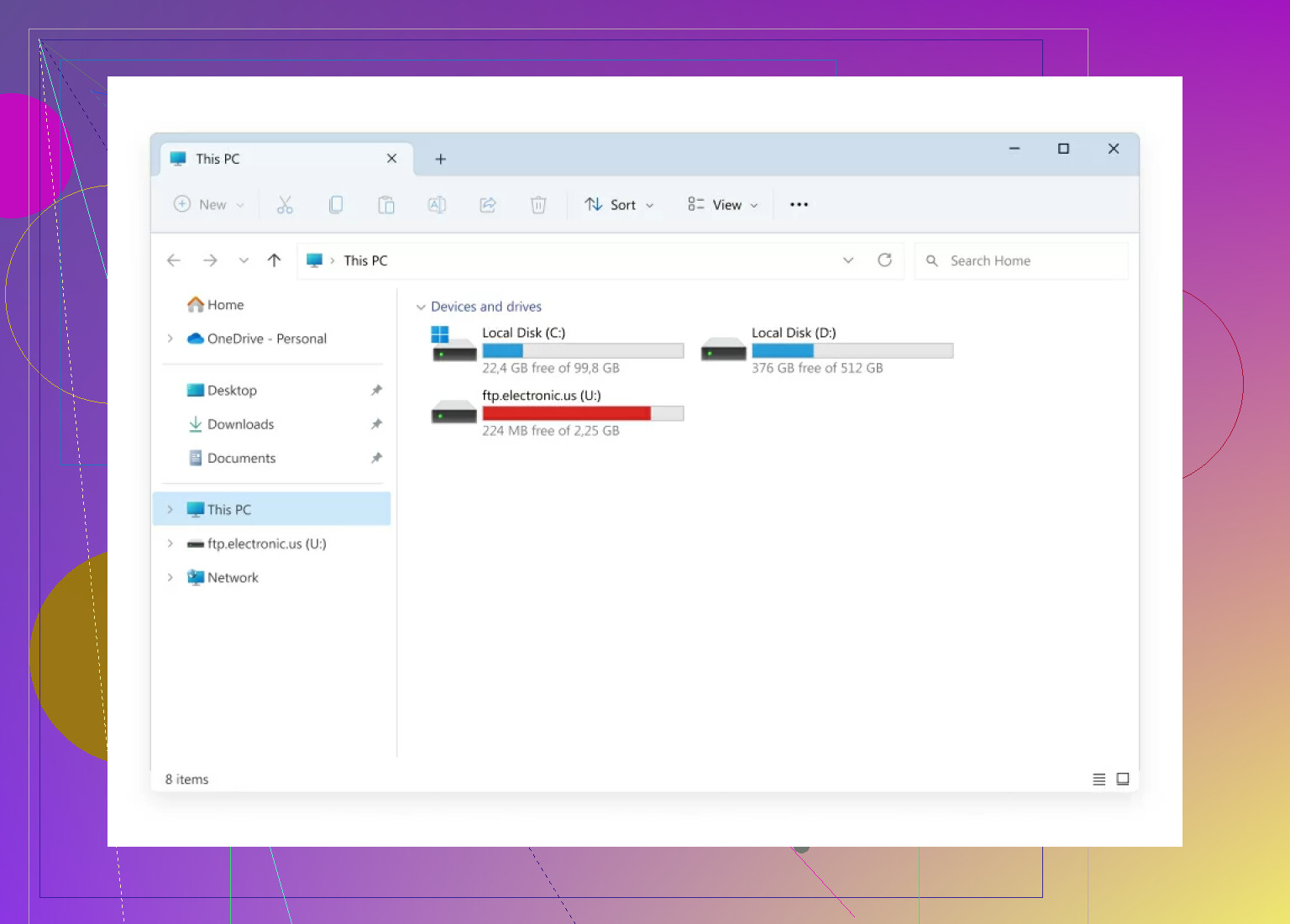
- Hit the “Mount” button. Your FTP server now shows up in File Explorer like another drive. Magic? Nope, just good software.
Digging Into Your WordPress Files
Once the dust settles, finding your WordPress root directory is just a few clicks away:
- Open up your new FTP “drive” in File Explorer.
- Look for the home base—the root—with the classic WordPress folders hanging out (you’ll spot
wp-content, that workhorse folder). - Want to throw new files onto your site? Just drag-and-drop from your computer over to the right WordPress folder. No obscure commands, no “Are you sure?” warnings (unless you’re about to nuke something critical).
Closing Thoughts (Not a TED Talk, Promise)
There’s more than one way to wrangle FTP transfers—Google will show you a mess of alternatives, plugins, and command line hacks if you want them. What I’ve outlined above? It’s just one simple setup that never left me cursing at my screen. Might not be fancy, but for straightforward uploads and downloads, it just works.
Test things out, see what fits. If you hit a wall, chances are forums like this or the official doc pages will have your answer. Good luck out there!
12 Likes
Haha, props to @mikeappsreviewer for the detailed run-down on CloudMounter, but honestly, fancy tools aside, let’s get real: FTP to WordPress is basically old school drag-n-drop (with a couple nasty pitfalls if you’re not careful).
First: You wanna upload media through FTP and expect it to magically appear in the Media Library? Sorry, that’s not how WordPress rolls by default. Dropping files directly into /wp-content/uploads/2024/06 (or whatever your year/month combo is) with FTP will get your files on the server, but the Media Library won’t know (or care) about them. WP builds its media database when you upload files via the Dashboard, not when you sneakily drop them in by FTP.
So, if you have to use FTP (let’s say you have a boatload of images or huge videos and the Media Uploader keeps choking), do this:
- FTP them into the right folder (
/wp-content/uploads/2024/06/). You can make new folders if needed, just match the structure WP uses (year/month). - Important: Permissions matter! Each file needs to be
0644, folders should be0755. Otherwise, stuff can go missing, or the server throws a fit. - Then, you need a plugin like “Media from FTP” or “Add From Server” (both free in the repo) to tell WP to “notice” the new files and add them to the Library. Dashboard > Plugins > Add New > search, install, run the tool, and it’ll scan your uploads and let you import what’s missing.
- Don’t FTP into wp-admin or wp-includes unless you REALLY want things to break. All uploads, themes, and plugins go in
wp-content.
BTW, re: FTP clients—CloudMounter is fine, but I’m team FileZilla most days (or Cyberduck for Mac). If you’re exclusively on Android and wanna hook up your smartphone to your Mac for file transfers, check out MacDroid—it’s a lifesaver for Android file management via Mac (and yes, it speaks plain old FTP too).
In short: upload to /wp-content/uploads, fix those permissions, scan with a plugin so WordPress “sees” your files. Anything else and you’re just clogging up server space for nothin’. If you just want the files to be accessible via direct link (but not in the Media Library), literally any folder inside /uploads/ works, but don’t expect WordPress magic without that extra plugin step.
Uploading via FTP skips the fancy WP database stuff, so don’t expect thumbnails or metadata unless you import via plugin. That’s just how it is—been burned by this more than once.
Alright, ftp’n files into WordPress—everyone’s got a “favorite” method (lookin’ at you, @mikeappsreviewer and @caminantenocturno), but let’s cut to the chase: FTP is just the courier, not the magician. If you’re expecting your files to auto-magically land in the Media Library just by tossing them into /wp-content/uploads, prepare for disappointment. WordPress ain’t psychic—it only tracks files uploaded via the admin panel because it stores their info in the database. Drop a file in with FTP and…it sits there, lonely, unregistered, and definitely not showing in the Media Library.
If you’re dead set on FTP (like for monster file sizes or bulk dumps), you gotta play by the rules:
- Folder location: Stick to
/wp-content/uploads/year/month/(example:/uploads/2024/06/). Keep that structure unless you want total chaos later. - Permissions: Pretty standard—files should be
0644, dirs0755. (Don’t get lazy here; wrong perms = server hissy fit or security holes no one wants.) - Getting files into the Media Library: Do not skip this part! Use a plugin like “Media from FTP” (or similar) to register the files you FTPed in; it’ll poke WP’s database and generate thumbails/metadata. Otherwise, your stuff is basically invisible to WP.
Disagreein’ a little with the all-in praise for CloudMounter—sure, it makes FTP look seamless, but FileZilla and Cyberduck do the trick too, and you don’t have to shell out for extras. Also, if you’re swapping files between Android and Mac? Skip the circus: {{MacDroid}} makes it a breeze, and yeah, it also does FTP if that’s your jam.
One last thing: DO NOT (and I can’t stress this enough) upload directly into wp-admin, wp-includes, or anything not /wp-content/uploads, unless you actually want a white screen of death (site breakage = sad panda).
TL;DR: Upload to /uploads/ with correct perms, scan/import w/ a plugin, don’t expect miracles from plain FTP, and don’t nuke your site. Basically, FTP is the hammer, but you still have to finish the job.