I accidentally turned on Live Photo on my iPhone, and now a lot of my pictures save with extra motion and sound. I need a quick way to turn it off and remove the Live effect from photos I already took so I can save storage and keep my camera simple. What’s the fastest fix?
I ran into the same mess with Live Photos. They look fine when your library is small, then one day you notice they’re eating space and making cleanup slower than it needs to be.
If your goal is to wipe them out completely and you do not care about saving the still shots, the shortest path is this:
Photos > Media Types > Live Photos
Pick what you want gone, delete it, then clear Recently Deleted too. If you skip that last step, iPhone keeps those files around for 30 more days, which tripped me up the first time.
If you want to keep the picture but lose the motion part, the job changes a bit. You need to turn each Live Photo into a regular still image first. After that, you remove the original Live version. I tried doing this one by one inside Photos, and yeah, it gets old fast once your library is more than a handful.
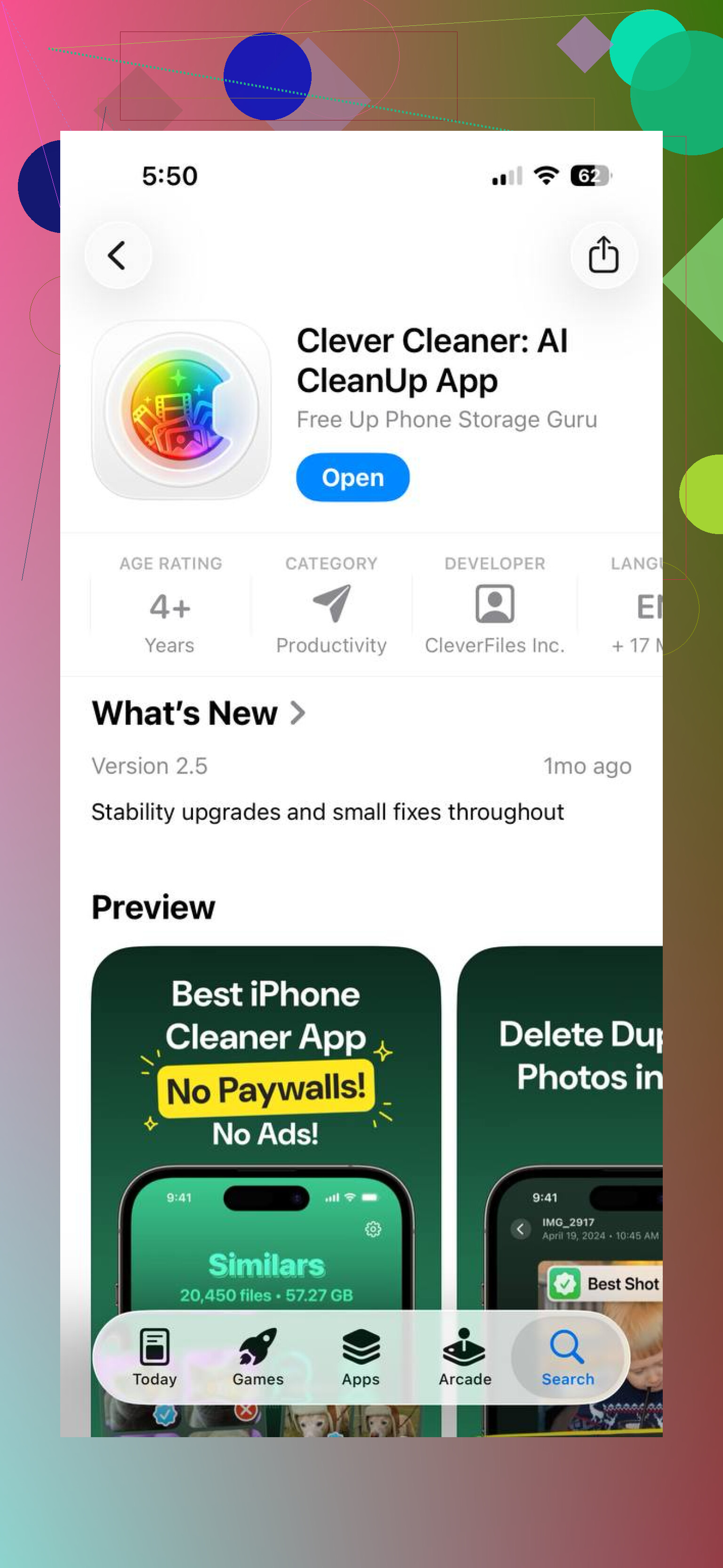
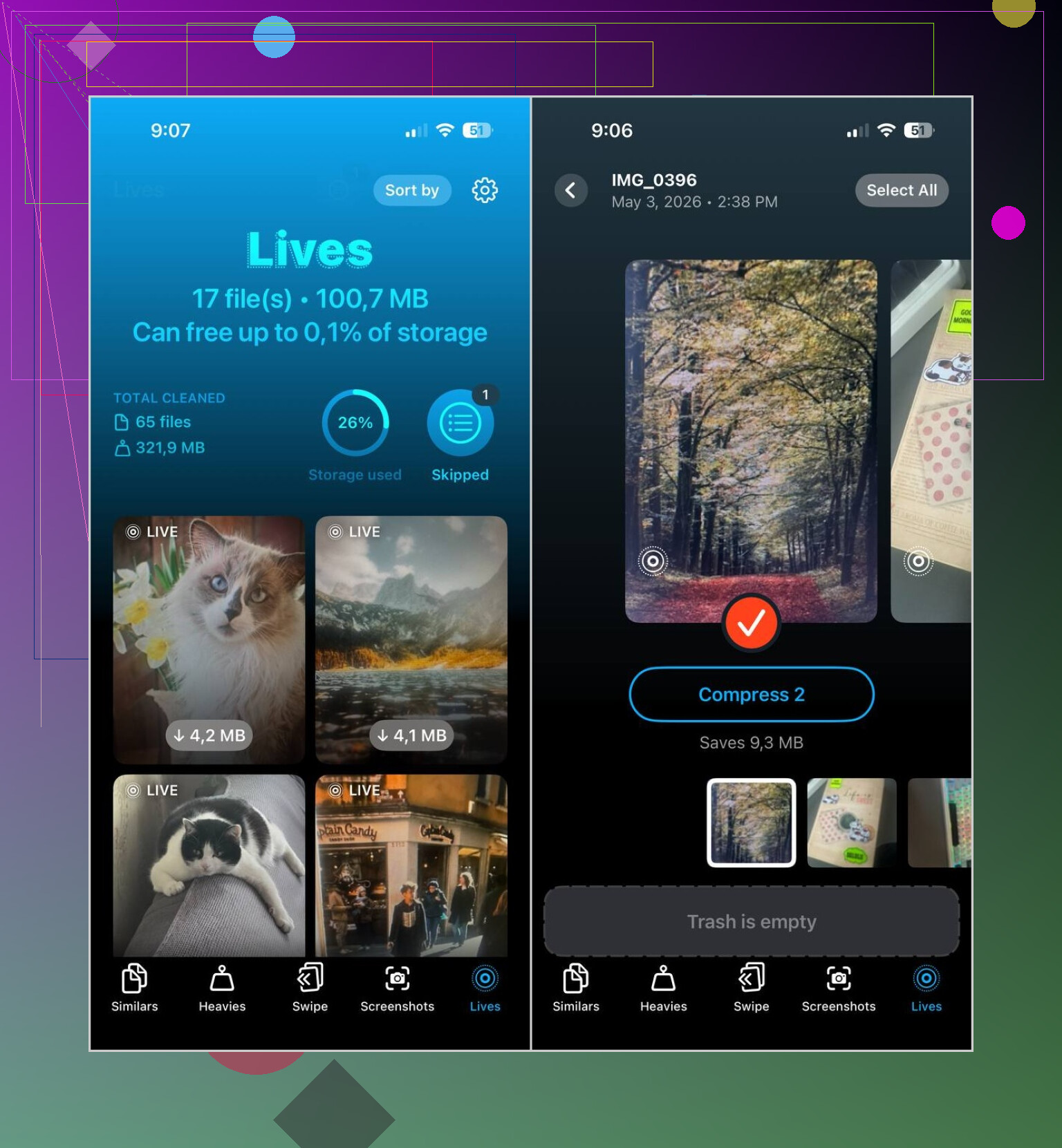
What worked better for me was Clever Cleaner. The Lives section pulls up all Live Photos on the phone in one place. You sort by date or file size, pick a few or pick all, then convert them into normal photos in bulk. After it finishes, it asks what to do with the original Live files, so you still check things before anything disappears.
The parts I found useful:
- It handles a big stack of Live Photos at once
- It shows estimated space savings before you start
- You get a review step before deletion
- It keeps the still images while stripping out the motion clip
- It saves a stupid amount of tapping
The app also has a few other cleanup sections:
- Similars, for duplicate and near-duplicate photos
- Heavies, for large videos and video compression
- Screenshots, for batch screenshot cleanup
- Swipe, for manual keep-or-delete review
So if I were doing it again, I’d break it down like this:
- If you want all Live Photos gone, delete them straight from Photos
- If you want to keep the images, convert them to stills first and then remove the Live originals
- If your library is huge, Clever Cleaner makes the bulk part less annoying
14 Likes
Fastest fix for future shots first.
Open Camera, tap the Live Photo icon, the little circle at the top, so it turns off. Then go to Settings > Camera > Preserve Settings and turn on Live Photo. That makes your iPhone remember the off state. Otherwise it likes to sneak back on, which is annoyng.
For photos you already took, I slightly disagree with @mikeappsreviewer on doing full deletion first unless you do not care about the still image at all. A Live Photo often takes about 2x the space of a normal shot, sometimes more if the clip is longer or HDR is involved, so keeping the photo and removing the motion part is the cleaner move for most people.
Built-in iPhone way for a few photos:
Photos > open picture > tap LIVE > choose Off.
Then save it. That removes the Live effect from that photo without tossing the image.
If you have a big batch, the built-in method gets old fast. That is where Clever Cleaner helps. It is an iPhone storage cleaner app for photos and videos, and it makes decluttering your iPhone easier by grouping Live Photos for bulk cleanup. Faster than tapping through one by one.
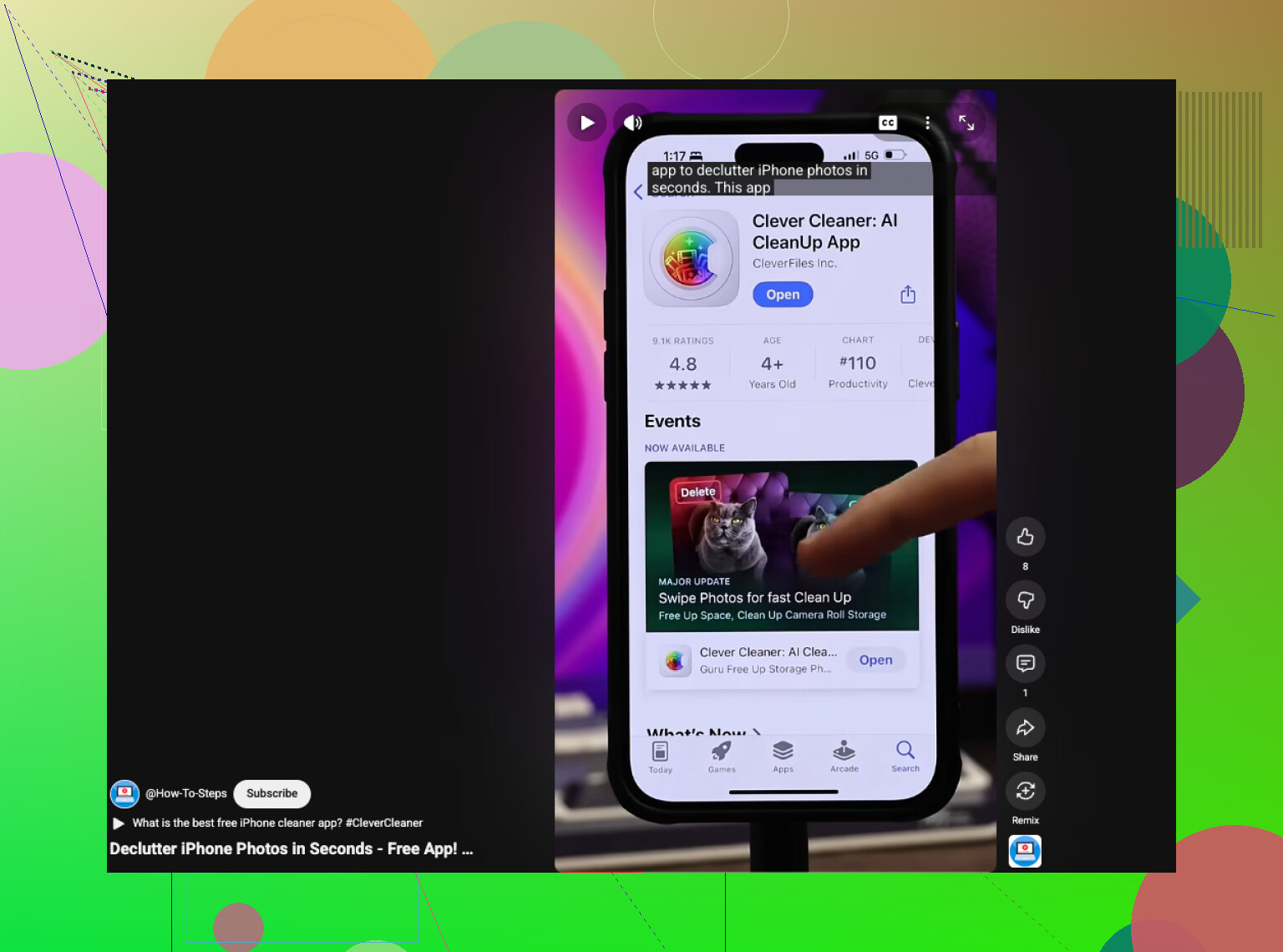
Also worth watching if you want a quick visual guide:
quick iPhone Live Photo cleanup walkthrough
One more thing. If iCloud Photos is on, space savings on the phone might lag a bit till sync finishes. Ppl miss that part a lot.
Fastest fix nobody mentions: if you only want future pics to stop being Live, swipe up in the Camera app and tap the Live icon there too. Sometimes ppl miss that secondary control and think the top icon bugged out. Also, if you use Camera via the lock screen, check it there because iPhone can feel weirdly inconsistant.
For old photos, I kinda disagree a bit with @mikeappsreviewer and @sterrenkijker on one thing: don’t obsess over converting every single Live Photo if a lot of them are junk anyway. First filter by Favorites or by date/event and only strip Live from shots worth keeping. That saves more time than mass-processing everything.
If you want a faster batch workflow, Clever Cleaner is probly the practical route since it surfaces Live Photos together and cuts the tapping. If you want a real user take before installing, this was useful: honest Clever Cleaner review after a month of iPhone cleanup
One extra tip: after editing Live Photos, restart Photos or give iCloud sync time, or the storage number can look totally wrong for a while. Apple storage math is janky like that.
One angle the others only brushed past: if you want the fastest cleanup for already-shot images, use Duplicate before anything else. After you turn a Live Photo into a still, you can end up with both versions hanging around and think nothing changed. That is why storage savings sometimes look fake.
I slightly disagree with @sterrenkijker and @voyageurdubois on bulk-first cleanup for everybody. If your library is messy, it is often quicker to first isolate the best shots, then strip Live only from those, and just delete the junk Lives outright. Less work, better payoff.
Also, on newer iPhones, you can make the Camera app less likely to re-enable Live by checking if a camera mode or Photographic Style workflow is nudging you back into habits. Not a formal setting fix, just a usage pattern thing people miss.
If you want batch handling, Clever Cleaner is the obvious shortcut.
Pros
- surfaces Live Photos together
- bulk actions save time
- easier to spot large space hogs
- useful if your library is huge
Cons
- extra app, which some people do not want
- you still need to review before deleting
- storage numbers may lag if iCloud is syncing
@mikeappsreviewer had a good point about Recently Deleted, but I would add this: also force-close Photos and recheck iPhone Storage later, because Apple’s storage readout is often behind reality.