My external hard drive suddenly shows as RAW instead of NTFS, and now I can’t open my files or use the drive normally. I’m trying to figure out what caused the file system to change and the safest way to convert RAW to NTFS without losing data. I need help with recovery steps, possible causes, and whether formatting is my only option.
A RAW result on an NTFS drive usually means Windows lost track of the file system. I’ve seen it happen after a power cut, yanking an external drive without ejecting it, a crash during copying, file system damage, bad sectors, or flaky USB gear like a bad cable, enclosure, or controller. The drive did not always change in some dramatic way. A lot of the time, the files are still sitting there, but Windows no longer reads the NTFS structure.
What I’d do first is keep your hands off the format button. Windows loves to suggest formatting right away, and yeah, that is the part you ignore.
Here’s the order I’d stick to.
-
Don’t format the drive.
If Windows throws up the prompt, close it. -
Try the simple stuff before anything else.
Plug it into another USB port. Try another computer. Swap the cable if it’s an external drive. I’ve had a drive look dead when the only problem was a junk cable. -
If it still shows up as RAW, recover the data before you do anything else.
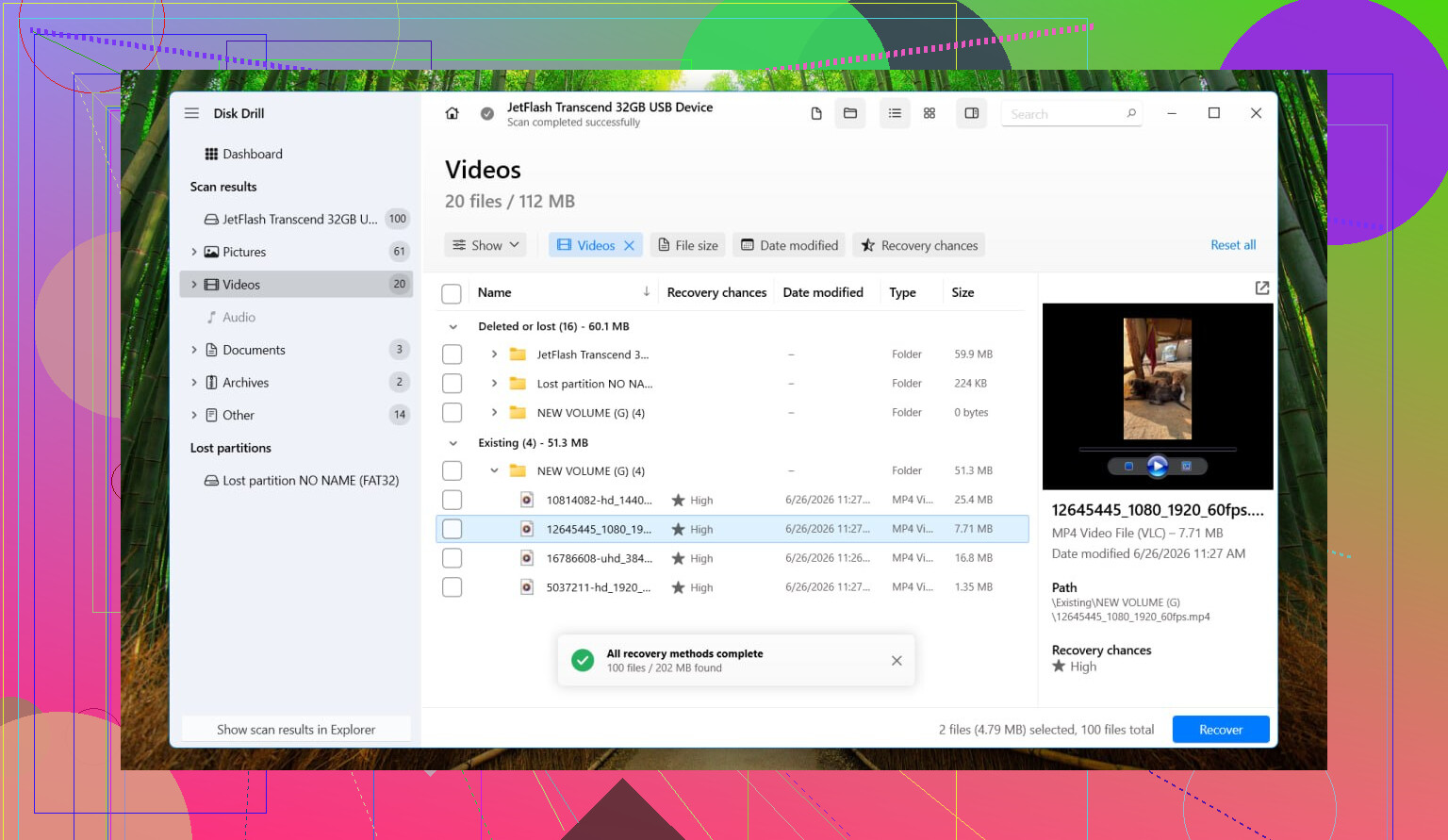
I’ve had decent results with Disk Drill. It tends to handle RAW partitions well, and the layout is easy enough if you don’t want to fight the software too. -
If the drive seems unstable, stop poking it and image it first.
By unstable, I mean random disconnects, odd noises, long freezes, or speeds falling off a cliff. In Disk Drill, go to Extra Tools > Byte-to-byte Backup. Save the image to a different healthy drive. Then mount or attach the image and scan the image file instead of hammering the original disk again and again. -
Run a full scan.
Use Universal Scan, look through the found files, preview what matters, and recover everything to another drive. Don’t write recovered files back onto the RAW drive. That part trips people up. -
Only after the files are safe, format the partition back to NTFS.
You can do it from File Explorer, Disk Management, or DiskPart. Pick whichever one you already know how to use. -
Move the recovered files back.
Once the drive is clean and mounted normally as NTFS again, copy the files back over.
A few things people mix up all the time.
A RAW drive does not always mean dying hardware. I’ve seen plenty of cases where the hardware was fine and the file system was the only broken piece.
SMART showing Good is nice, but it only says something about physical drive health. It does not prove the NTFS structure is okay. People lean on SMART way too much for file system issues.
I would not run CHKDSK or TestDisk before pulling your important files off. CHKDSK usually refuses RAW volumes anyway. TestDisk sometimes helps, sure, but it writes changes straight to disk structure. If your stuff matters, I wouldn’t risk repairs before recovery. I did once, years ago, and it made the mess worse. Learned that one the hard way.
So no, there isn’t some clean in-place RAW-to-NTFS switch where your files stay untouched. The usual path is recover first, format second. If you do it in that order, you end up with your data back and the drive usable again.
27 Likes
RAW usually means the NTFS metadata got damaged, not that the disk “became a different format.” Common causes are bad USB bridge boards, unsafe removal, interrupted writes, weak power from a USB port, partition table damage, or early media failure. I agree with most of what @mikeappsreviewer said, but I’m a little less strict about one thing. If the drive is stable and the data is replaceable, a read-only test in Disk Management is worth doing first to see if Windows is misreporting the partition size or file system.
A few checks I’d do before recovery:
-
Open Disk Management.
See if the partition size looks correct.
If the size is wrong or unallocated space appears, the issue might be the partition table, not NTFS alone. -
Check SMART with CrystalDiskInfo or smartctl.
If you see reallocated sectors, pending sectors, or CRC errors climbing, stop using the drive. CRC spikes often point to a bad cable or enclosure. I’ve seen this a lot with externals. -
Try the enclosure theory.
For portable HDDs, the USB-SATA bridge fails pretty often. Pull the drive from the enclosure, if possible, and connect it direct by SATA or a diff adapter. I’ve had “RAW” drives mount fine after ditching the bad bridge board.
About conversion, there is no clean RAW to NTFS flip which keeps files in place. If Windows sees RAW, format is the rebuild step. Data first, file system second.
If you need files, scan with Disk Drill or similar and recover to a separate disk. If the partition structure looks messed up, TestDisk is an option, but I only use it when I’m prepared for mixed results. It’s not magic and it’s easy to make a bigger mess. Been there, done taht.
After recovery, delete the RAW volume, create a new partition, then format NTFS. Full format is better than quick format if you suspect bad sectors, since it forces a surface check on modern Windows.
This thread covers the process well too, how to convert RAW to NTFS without losing data.
Short version. RAW is a symptom. Find out if your problem is file system damage, partition damage, or bad hardware first. If the hardware looks shaky, don’t keep retrying mounts. Tha’ts where people lose more data.
RAW usually means Windows can still see the device, but it can’t parse the file system metadata anymore. So the drive did not magically “turn into another format.” It’s more like the NTFS label got smeared off.
Common causes I’ve run into:
- unsafe unplugging
- USB bridge/enclosure glitches
- corrupted partition boot sector or MFT
- weak power from a front USB port
- bad sectors starting to pile up
- antivirus or system crash hitting during writes
I mostly agree with @mikeappsreviewer and @sognonotturno, but I’m gonna disagree a little on one point: if this is just a cheap external used for non-critical files, I would not spend forever diagnosing every layer of the enclosure mystery. Sometimes the fastest answer is recover what you can, test the bare drive, then retire the sketchy setup.
One extra thing I’d check that they didn’t really get into: Event Viewer. Look under Windows Logs > System for disk, ntfs, or volmgr errors around the time it went RAW. If you see resets or I/O errors, that points more toward hardware than just file system corruption. Also check the drive’s exact size in DiskPart with list disk and list volume. If capacity looks weird, that can hint at controller/enclosure nonsense.
As for converting RAW to NTFS, there isn’t a safe magic convert command that preserves files in place. Yeah, Windows likes to act like format is no big deal. It is. Recover first, then format.
If the files matter, use Disk Drill or another recovery tool to pull data off to a different disk. Disk Drill is pretty solid for RAW drives because it can scan past the busted file system and look for recoverable data directly. After that, wipe the RAW volume, recreate it, and format NTFS.
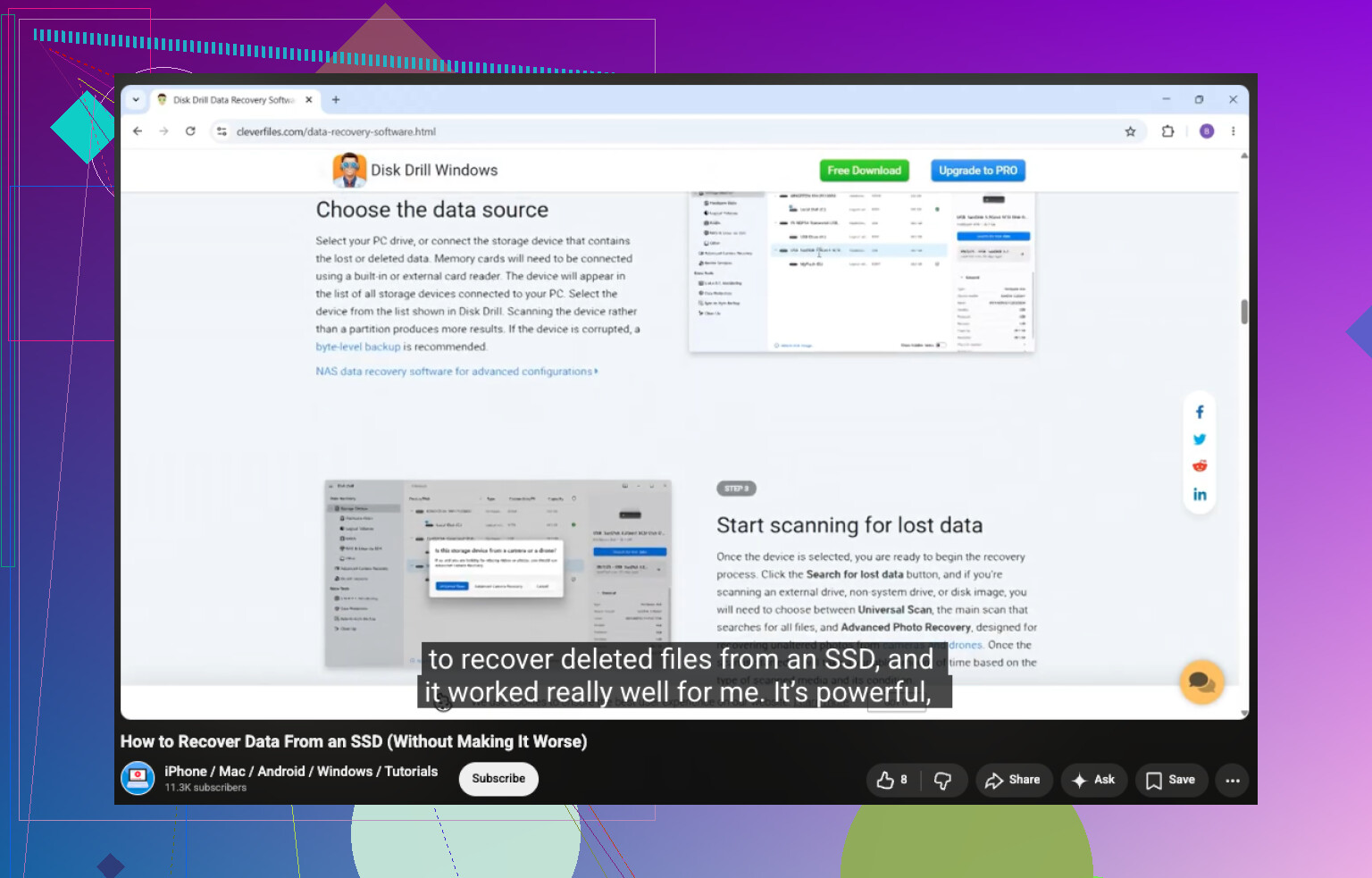
Also, if you’re looking for more on SSD recovery in plain english, this is a decent watch: how to recover data from SSD step by step
Short version: RAW is the sympton, not the disease. Save data first, fix the file system second, and if the drive keeps doing this, don’t trust it agian.
One thing I’d add to what @sognonotturno, @mike34, and @mikeappsreviewer covered is this: sometimes a drive shows RAW because Windows cannot read the volume dirty bit or backup boot sector properly, but the partition itself is still mostly intact. That’s why I’m not fully in the “never inspect anything before recovery” camp. I would avoid repair attempts, yes, but I would check whether the volume ID, capacity, and partition alignment still look normal with a read-only tool.
My rule is pretty simple:
- if the drive is clicking, freezing, disconnecting, or crawling, treat it like hardware trouble
- if it is stable and reports the right size, treat it like logical corruption first
That distinction matters because people waste time chasing NTFS fixes on drives that are physically flaking out.
Also, not every RAW case deserves a full reformat afterward. If this happened once after a bad unplug and the drive passes SMART, a full erase plus reuse might be fine for temporary storage. But if this is the second time it has gone RAW, I’d retire it for anything important. A drive that loses its file system twice is already telling you something.
About Disk Drill since it keeps coming up:
Pros
- easy to use for RAW partitions
- previews recoverable files well
- can scan by file signatures when NTFS metadata is wrecked
- byte-to-byte backup option is actually useful
Cons
- deep scans can take forever on large drives
- recovered filenames/folder structure are not always preserved if metadata is too damaged
- not ideal if the drive is actively dying and you keep rescanning the original instead of an image
- paid recovery tier is the real use case
So yes, Disk Drill is a reasonable pick, especially if you want something less fiddly than lower-level tools.
Short version: RAW is usually corruption, controller weirdness, or failing hardware. There is no safe in-place RAW to NTFS conversion that keeps files. Recover first, then recreate NTFS. If the drive repeats the stunt, stop trusting it.
The replies cover recovery tools, but I’d check existing backups frist. If your files already exist elsewhere, skip recovery scans and restore them onto a seperate, healthy drive.
Check your cloud storage, backup drive, and original computer. Open several files from each backup, then compare folders for missing items before erasing anything.
This approach avoids repairing the RAW drive or paying for recovery software. It depends on having a complete backup. If files are missing, keep the RAW drive untouched while you decide how to recover them.
If that drive was ever plugged into a Mac, or you turned on any kind of encryption, half this thread stops applying. A volume formatted as APFS or HFS+ shows up as RAW on Windows even when it’s perfectly healthy, because Windows just doesn’t speak that file system. Same story with BitLocker or a third party encryption tool. In that case the fix isn’t recovery or format, it’s reading it on the right OS or unlocking it with the key. So before anyone touches a recovery scan, answer one question: what machine and what format did this drive live on originally?
Assuming it really is a damaged NTFS volume, the enclosure point @sognonotturno made is the one I’d chase hardest. Those USB-SATA bridges fail way more than the drives inside them, and when they go flaky they corrupt the volume on the way out. Pulling the bare drive and hooking it straight to SATA or a known-good adapter has rescued more ‘RAW’ disks than any software step. If it mounts clean once it’s off the bridge, you dodged the whole recovery dance.
On CHKDSK, I’ll go a bit further than @mikeappsreviewer. People keep reaching for chkdsk /f on a RAW volume and it just bounces them with ‘the type of the file system is RAW, CHKDSK is not available.’ It literally can’t run on RAW, so stop trying and move on. That error confuses beginners into thinking the drive is extra broken when it’s just chkdsk refusing the job.
If you do end up scanning, the thing I like about Disk Drill that nobody flagged yet is you can pause a scan and pick it back up later. On a big drive a deep scan runs for hours, and being able to stop without throwing away all that progress is genuinely handy when you can’t babysit it. You can find more background on the whole process here: how to convert RAW to NTFS.
My honest take: figure out the format and the hardware first, recover only if the files aren’t anywhere else, and if this is the second RAW event on the same drive, don’t bother converting anything. Format it, use it for junk you don’t care about, and buy something you can actually trust.