My hard drive partition suddenly changed to RAW after a restart, and now I can’t open it or access my files. Disk Management shows the RAW partition, and Windows keeps asking me to format the drive. I need help figuring out what caused this and the safest way to repair the RAW partition without losing my data.
A RAW partition hit me once, and yeah, it looked bad at first. Windows acted like the drive was empty or broken, but my files were still sitting there. The problem was simpler than it looked. Windows no longer understood the file system, so it had no clean way to read what was on the partition.
This usually happens after something goes sideways. I’ve seen it after a hard shutdown, a power cut, unplugging an external drive too fast, file system damage, bad sectors, malware, or a messed up partition table. Different cause, same rule for me. Do not format the partition before you pull your data off it.
What I’d do, in order:
- Stop writing anything to the drive.
- Get the important files out first.
- Fix the partition, or wipe and rebuild it.
- Put your recovered files back after the drive is stable.
Get the files off first
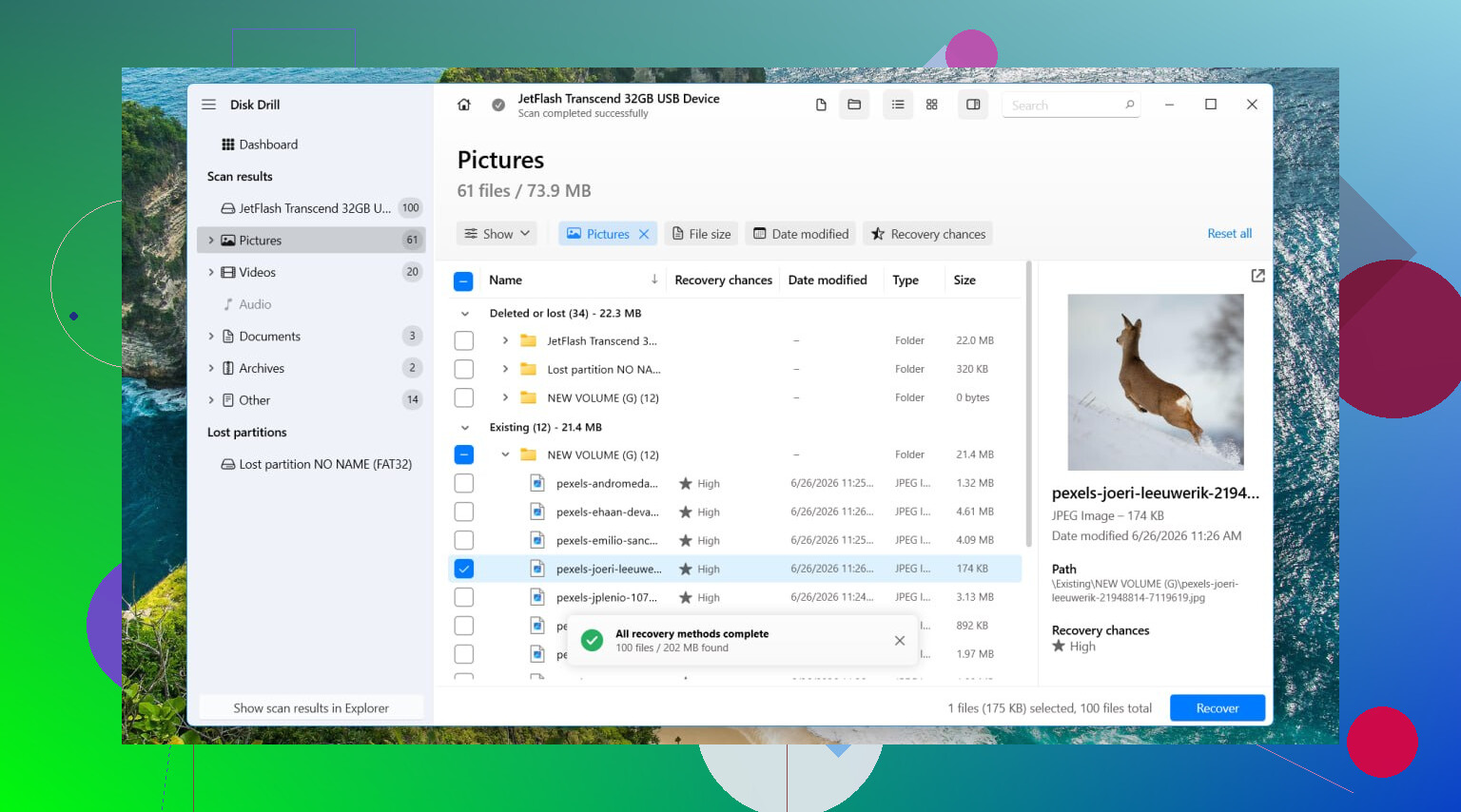
I’d start with Disk Drill. I used it on a RAW volume before, and it worked because it scans the storage directly instead of depending only on the broken file system. So even when Windows throws the “format this drive” message, it still has a shot at finding your files.
Here’s the order I followed:
- Install Disk Drill on a different drive. Not the damaged one.
- Open it and pick the affected disk or RAW partition.
- Click Search for Lost Data.
- If it’s an external drive, Disk Drill might ask which recovery mode to use. I’d pick Universal Scan in almost all cases. If you’re pulling video off a camera or drone card, Advanced Camera Recovery tends to do better.
- Let the scan finish. Don’t rush it.
- Open Review found items.
- Preview a few files. I always do this before recovering anything, saves time.
- Select what you need and hit Recover.
- Save the recovered data to another drive. Do not send it back to the RAW partition.
If the drive feels flaky, freezes, drops off, or reads slow in a weird way, I’d make a full byte-for-byte image first and scan the image instead. I learned this one late.
Then deal with the partition
After your files are safe, I’d try TestDisk if the goal is to bring the partition back without rebuilding from scratch.
Steps I’d use:
- Download TestDisk and extract it.
- Run testdisk_win.
- Choose Create.
- Pick the affected disk.
- Keep the partition table type TestDisk detects.
- Open Analyse, then run Quick Search.
- If it misses the partition, run Deeper Search.
- If the lost partition shows up, select it and choose Write.
- Restart the PC.
Sometimes this works cleanly. Sometimes it doesn’t. If it fails, or if you don’t care about restoring the old layout, I’d stop fighting it and recreate the partition.
If restoration fails, rebuild it
This part is simpler.
- Open Disk Management.
- Delete the RAW partition if needed.
- Create a New Simple Volume.
- Format it as NTFS, or whatever file system you need.
- Copy the recovered files back.
One thing I would skip
I would not run CHKDSK on a RAW partition first. Windows often refuses anyway. And if a repair tool does manage to write changes, you’re letting it alter the file system before your files are safe. I don’t like doing it in that order. Recovery first felt safer every time I dealt with this.
When I’d stop and hand it off
If the drive starts clicking, disappears at random, fails to show up reliably, or doesn’t appear in Disk Management at all, I’d quit messing with it. Those signs point more toward hardware trouble than simple file system damage. Keeping it powered on over and over made things worse for me once. If the data matters, this is where I’d go to a recovery shop instead of trying more software.
21 Likes
RAW means Windows sees the partition entry, but it no longer recognizes the file system on it. So the partition is not always ‘empty’. It is often damaged metadata.
Common causes:
- Bad shutdown or restart during writes.
- USB drive unplugged too fast.
- Corrupt NTFS boot sector or MFT.
- Bad sectors.
- SATA or USB cable errors.
- Failing drive.
I agree with @mikeappsreviewer on one big point. Do not format first. I disagree a bit on waiting too long to check drive health. If SMART stats already show reallocated sectors, pending sectors, or read errors, stop doing normal scans on the source drive and clone it first. A weak disk gets worse fast.
What I would do:
-
Check SMART.
Use CrystalDiskInfo or smartctl. If health looks bad, clone the disk to another disk with HDDSuperClone or ddrescue. -
Check the partition structure.
Open TestDisk and press P on the found partition to see if your folders list correctly before writing changes. A lot of people skip this and make it worse. -
If files matter more than repair, recover data first.
Disk Drill is fine for RAW partition recovery because it reads the disk directly and often finds files even when Windows shows RAW. Save output to a differnt drive. -
If the partition table is fine but NTFS is broken, try boot sector repair in TestDisk after recovery. Keep notes on every change you make.
-
If nothing stable comes back, wipe, repartition, and format.
Also, do a quick hardware sanity check. Swap the SATA cable. Try another USB enclosure. I have seen ‘RAW’ caused by a bad adapter, which is dumb but real.
For a simple guide on RAW partition file recovery and repair, this helps:
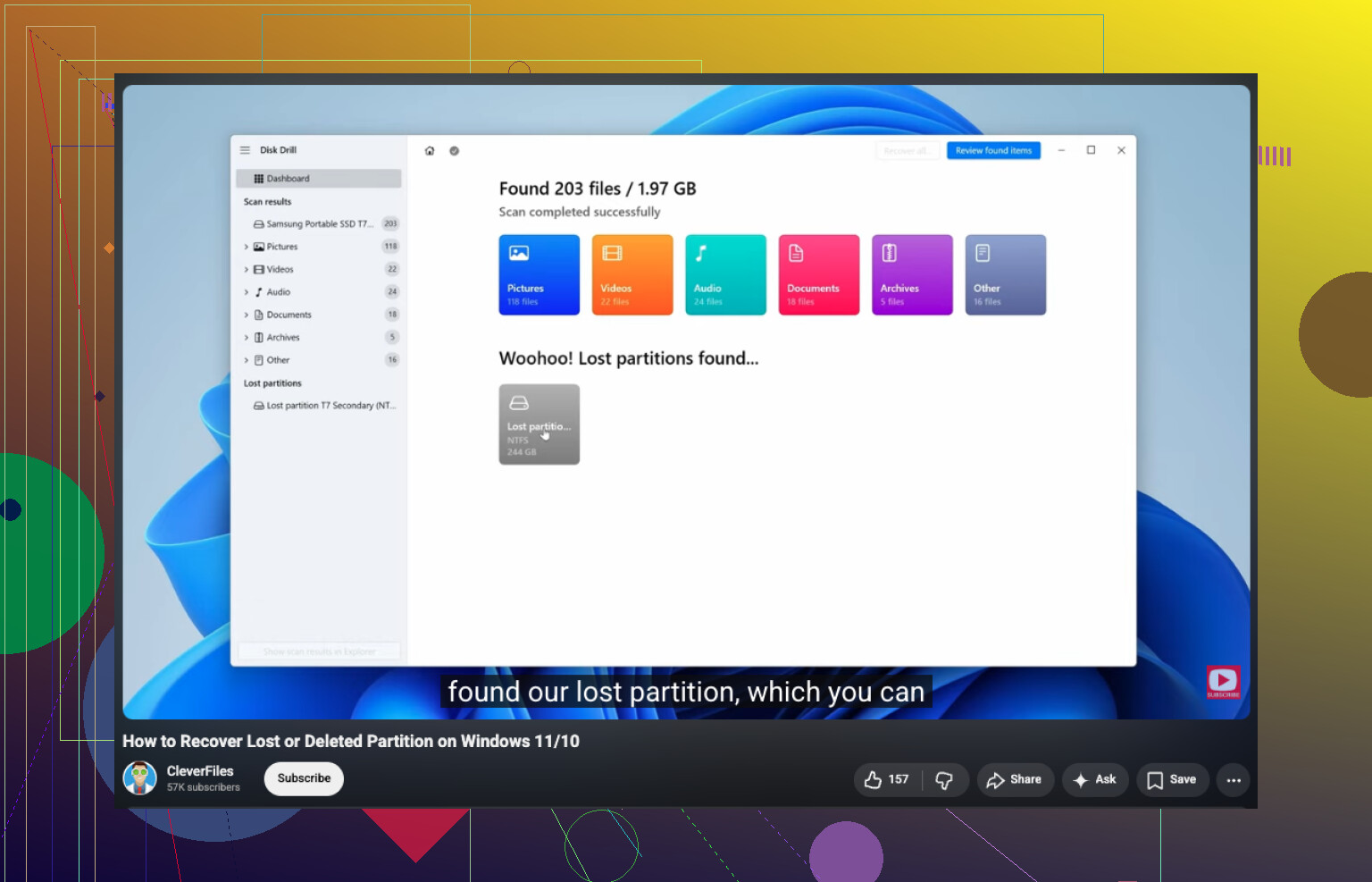
how to recover a lost partition and restore RAW drive access
One more thing. CHKDSK on RAW is usless in most cases, and on damaged NTFS it is risky before recovery. Data first, fixes second.
RAW usually means Windows can still see the partition, but the file system metadata got trashed badly enough that it no longer knows whether it was NTFS, exFAT, etc. So yeah, the “format this drive” popup is Windows basically shrugging.
I agree with @mikeappsreviewer and @sognonotturno on not formatting first, but I’d add one thing before any big scan: check whether the partition size suddenly looks wrong. If the size is 0, tiny, or unallocated-looking in weird ways, that can point more to partition table damage than simple file system corruption. Different fix path.
Also, don’t ignore the boring stuff. I’ve seen RAW caused by a junk USB bridge, bad cable, and one flaky dock. Same drive plugged directly into SATA read fine. Annoying, but real.
My order would be:
- Try the drive on another port, cable, enclosure, or PC.
- Check SMART if possible.
- If the hardware seems stable, recover files first with something like Disk Drill. It’s solid for RAW partition recovery because it scans the disk content directly instead of trusting Windows.
- Only after data is safe, decide whether to repair the structure or just recreate the partition.
One small disagreement with the usual advice: if this is a non-critical partition and you already have backups, don’t spend 8 hours “repairing” it out of principle. Nuke it, repartition, format, restore backup, move on with life.
If you want more examples of this exact mess, this thread has decent RAW external hard drive recovery advice from Reddit.
And yeah, CHKDSK on RAW is mostly a waste of time. Sometimes less “fixing” = less damage.