My external hard drive shows “The parameter is incorrect” every time I try to open it in Windows. It was working before, but now I can’t access my files. I’m looking for safe ways to fix the external drive error without losing data.
If the drive still shows up in Windows, don't rush into formatting it or running CHKDSK right away. That error can look worse than it is. A lot of the time the files are still on the drive, but Windows can't read the file system properly.
Start with the boring stuff first, because sometimes it really is just a connection problem:
- Swap the USB cable.
- Plug the drive straight into a USB port instead of using a hub.
- Try it on another computer.
- Check Disk Management and see whether the drive appears with the right size.
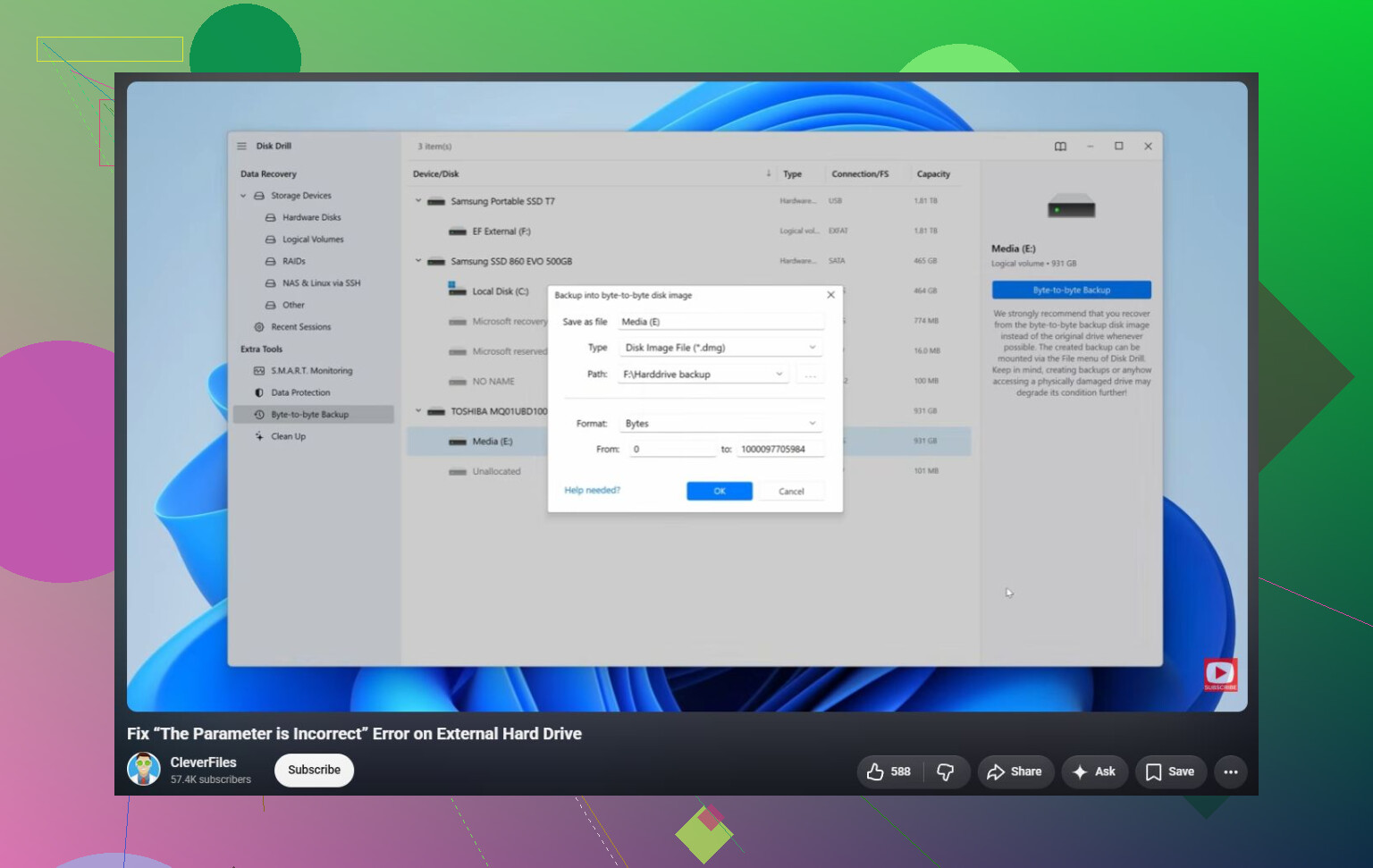
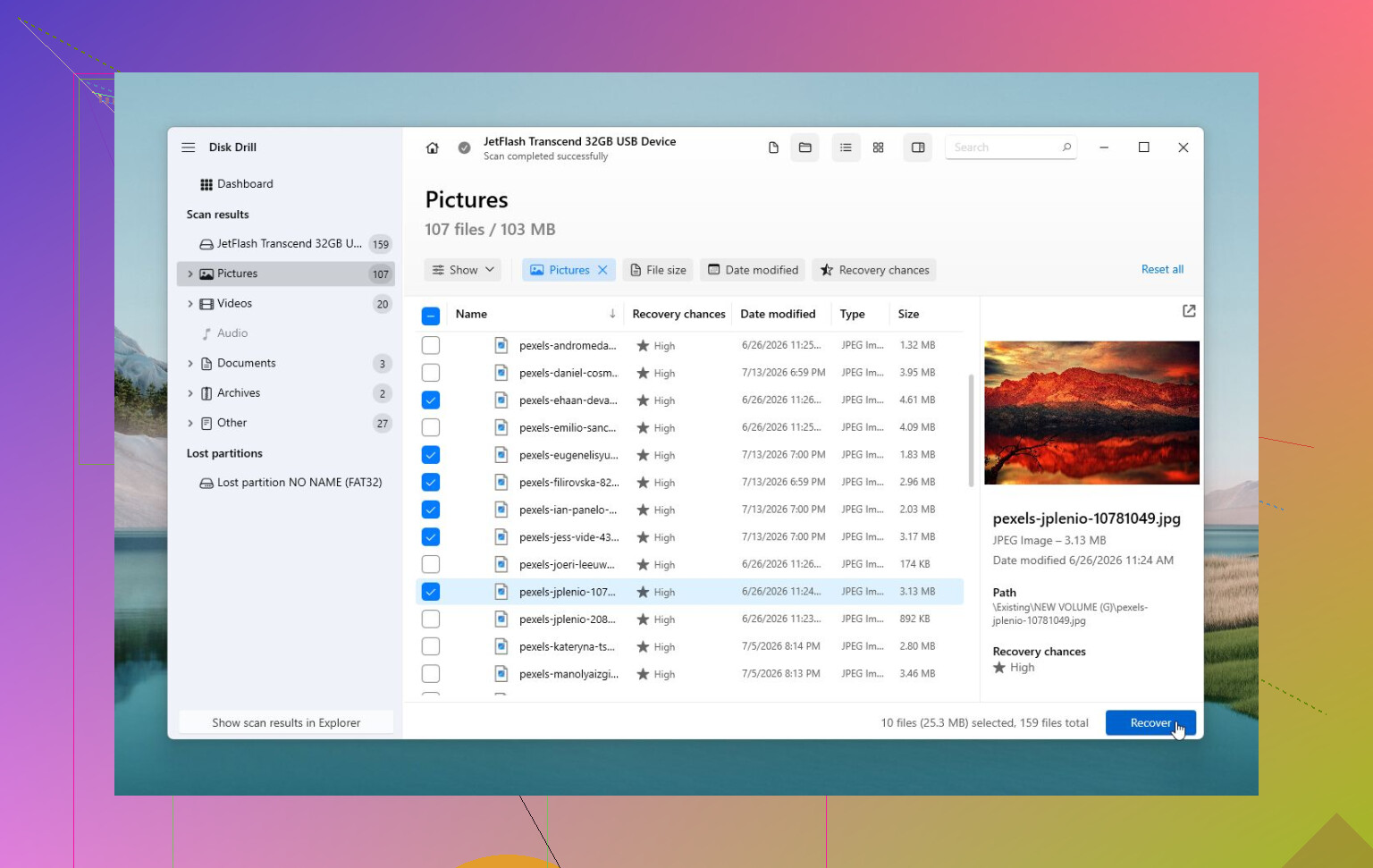
If Windows can still detect the drive, recover the files before trying to repair anything. CHKDSK and formatting can both make things harder if the file system is damaged or the drive is starting to fail. For recovery, Disk Drill is a reasonable option since it can often scan drives even when Windows throws “The parameter is incorrect.” If the drive is acting flaky, make an image of it first and scan the image instead of the physical drive.
After the important files are copied somewhere safe, then it makes sense to try fixing the drive:
- Use
chkdsk X: /rif Windows still recognizes the file system. - If the partition shows as RAW, or CHKDSK refuses to run, try TestDisk. It can sometimes repair partition damage without wiping the drive.
- If recovery is done and repair tools don't help, a quick format can clear up logical file system corruption by creating a new file system.
There’s also one weird Windows-related thing worth checking. If this started right after changing regional settings, make sure the decimal separator is set to a period (.). It’s uncommon, but it can cause this error on some setups.
If the drive clicks, drops offline, disappears from Disk Management, or SMART tools show a lot of reallocated or pending sectors, stop using it. That points more toward hardware failure, and continuing to scan or repair it can make recovery harder. In that case, a professional recovery service is the safer route.
11 Likes
Do not format the drive, and do not save recovered files back onto that same external disk. That second mistake gets overlooked a lot. If the file system is scrambled, every write to the drive can overwrite something you still want back.
I agree with @mikeappsreviewer that CHKDSK should not be the first move, especially if the files matter. My order would be: confirm the drive shows the correct capacity in Disk Management, check whether it stays connected for more than a few minutes, then copy or recover data to another drive. If you use Disk Drill or any similar recovery tool, point the output folder to your internal SSD or another external drive, never the problem drive.
A small thing people miss: try assigning a different drive letter in Disk Management if the disk appears healthy but won’t open from File Explorer. Sometimes Windows gets weird with stale drive letters, network mappings, or card readers. That won’t fix real corruption, but it’s quick and low-risk. If Disk Management shows RAW, unallocated space, the wrong size, or the drive keeps disconnecting, stop treating it like a Windows glitch. At that point the safest “fix” is getting the data off first, then wiping or replacing the drive after you know the files are safe.
A flaky USB bridge can make Windows blame the file system when the disk inside may be the real problem, or the enclosure may be the problem. That “parameter is incorrect” message is vague. It does not automatically mean the files are gone, and it does not automatically mean CHKDSK is the magic button.
The missing detail I’d check before touching repair tools is whether Windows is logging USB or disk resets. Open Event Viewer, go to Windows Logs > System, and look around the time you plug the drive in or try to open it. If you see repeated Disk, Ntfs, storahci, USBSTOR, or “reset to device” type errors, treat the drive as unstable. In that case, running a long scan directly against the drive can make it worse simply because it keeps the drive busy for hours.
For a 3.5 inch external drive, the power adapter matters more than people think. A weak power brick can let the drive spin up, appear in Explorer, then fail the moment Windows tries to read directory data. Same with cheap front-panel USB ports. Plug it into a rear motherboard port if it is a desktop. If it has its own power supply, try the correct replacement power supply only if you can match voltage, polarity, and enough amperage. Do not randomly swap laptop chargers into it.
For a 2.5 inch portable drive, cable and power are still suspects, but the enclosure board is often built into the drive now. If it is an older SATA drive inside a removable USB case, testing the bare drive through another known-good SATA adapter or dock can separate “bad enclosure” from “bad disk.” If it is one of the portable drives with USB soldered directly to the drive board, that option may not exist without more serious work.
I’d be a little more cautious than the usual “just run CHKDSK after recovery” advice too. CHKDSK is fine when the drive is healthy and the only issue is a small file system mess. It is not fine when the drive is dropping out, clicking, showing the wrong capacity, or throwing read errors. It can delete damaged directory entries, move things into found folders, or leave you with a drive that mounts but has missing filenames. That may be acceptable if the data is replaceable. It is a bad first move if the files matter.
A safer order would be:
- Confirm the drive shows the correct size in Disk Management.
- Check whether it stays connected without disappearing.
- Look at SMART health with something like CrystalDiskInfo if the drive exposes SMART over USB.
- If anything looks unstable, clone or image the drive before trying repairs.
- Recover files from the image or from the drive to a different disk.
- Only then try CHKDSK, TestDisk, or formatting.
Disk Drill can be part of step 5, but the important part is not the brand name. The important part is the target location. Recovered files need to go to your internal drive or another external drive. If the problem drive is large and failing, imaging it first is usually better than letting any recovery app hammer the original disk over and over.
There is a boring Windows-side check too: if the drive has BitLocker or came from another machine, make sure Windows is not failing before the unlock/mount step. Sometimes people see access errors after a password prompt fails, after a volume was unplugged while locked, or after a drive letter collision. Disk Management can tell you more than File Explorer here. Explorer just says “parameter is incorrect” and gives up.
If you only need one folder urgently and the drive still mounts sometimes, copy the most important files first instead of trying to copy the whole disk in one go. Don’t start with a huge media folder if the tax documents, project files, or family photos are the thing you actually care about. Failing drives often get worse during the “I’ll just copy everything” attempt.
After the data is safe, I’d wipe the drive and test it before trusting it again. A quick format only proves Windows can create a file system. It does not prove the disk is reliable. Run a full surface test or the manufacturer’s diagnostic. If it fails, disconnects, or shows pending/reallocated sectors, retire it. An external drive that has already done this once is not a drive I’d keep as the only copy of anything important.
The file system it was last used with matters. If this drive was plugged into a TV, DVR, NAS, Mac, or router, Windows may be seeing the disk but choking on the volume format, so check Disk Management before assuming it is damaged. Don’t initialize or format it from the popup, because that’s the point where a fix turns into a recovery job.