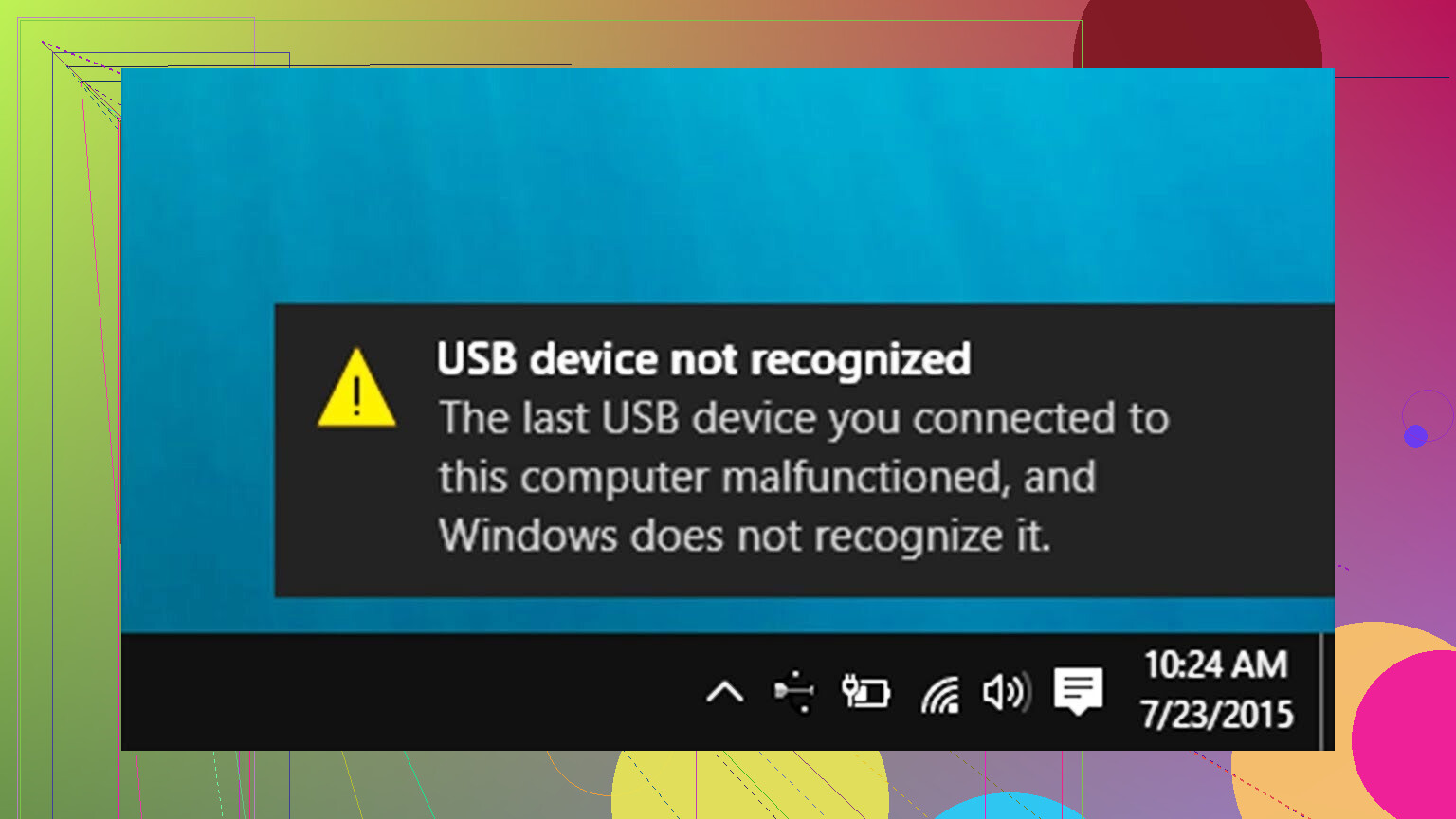
My Windows PC keeps popping up a ‘USB device not recognized’ message every few seconds, even when I’m not actively using any USB drives. I’ve tried unplugging and replugging my mouse, keyboard, and external drive, but the notification still keeps appearing and disappearing. It’s really distracting and I’m worried there might be a hardware or driver issue. What could be causing this and how can I fix it so the error stops popping up?
Had almost this exact problem on my Windows 11 desktop. Constant USB connect / disconnect sound every few minutes, nothing plugged in, nothing showing up, drove me nuts.
Here is what finally stopped it for me:
- Clean up USB stuff in Device Manager
What I did:
- Right-click Start
- Open Device Manager
- Scroll down to ‘Universal Serial Bus controllers’
Inside there, I removed anything with a yellow warning icon:
- Right-click every entry with a warning
- Hit Uninstall device
- Do not worry too much, Windows reloads the drivers after reboot
Then I went further:
- At the top, click View
- Turn on ‘Show hidden devices’
- In ‘Universal Serial Bus controllers’, remove everything that was greyed out
- Right-click, Uninstall device on all the faded / ghost entries
Then I rebooted. The random USB chime stopped after that.
- Check the ports physically
On a different machine I had the sound loop because a USB tip broke off and got stuck inside the port.
What I checked:
- Every USB port with a flashlight
- Look for bent pins, broken plastic, tiny metal piece stuck in there, dust clumps
One time a tiny bit of a cheap USB dongle was jammed in the back port. Windows kept trying to talk to it as if it was a half-dead device. Pulled it out with tweezers, sound stopped instantly.
Do not jam metal tools in there with the PC powered on. I shut mine down and pulled the power first.
- Extra reading if it gets weird
If the Device Manager cleanup does nothing, there are some decent troubleshooting posts about USB and flaky hardware detection over on:
https://discussion.7datarecovery.com/
Search for USB, connect sound, or device not recognized. I picked up a few tricks there when I was stuck.
- The “power drain” reset
This one felt dumb but it helped once when nothing else made sense.
What I did:
- Fully shut down Windows
- Not restart, full shutdown
- Unplug the power cable from the wall or PSU switch
- Hold the PC power button for about 30 seconds
- Plug it back in and start it
From what I saw, this resets the USB controller state on some boards. On mine, the ghost connect sound was gone after doing that plus the Device Manager cleanup.
If I had to pick an order to try:
- Device Manager cleanup
- Physical port check
- Power drain reset
- Dig through threads on discussion.7datarecovery.com for edge cases
That combination has fixed the random USB sound issue on two different Windows 11 systems for me.
30 Likes
USB “device not recognized” on repeat usually comes from one of these:
- A flaky USB device
- A USB hub or front panel issue
- USB power / driver problems
- A motherboard USB controller starting to fail
Since you already unplugged stuff and @mikeappsreviewer covered Device Manager cleanup, I would look at some other angles.
- Rule out a bad device or hub
- Unplug everything USB except keyboard and mouse.
- If the pop up stops, add your devices back one by one.
- If you use a cheap USB hub or front panel ports, skip those and plug directly into rear motherboard ports.
Those hubs cause constant connect / disconnect a lot.
- Turn off USB “selective suspend”
Windows power saving tends to mess with USB.
- Press Win + R, type powercfg.cpl, hit Enter.
- Click “Change plan settings” next to your active plan.
- Click “Change advanced power settings”.
- Expand “USB settings”.
- Set “USB selective suspend setting” to Disabled for both battery and plugged in.
- Apply and reboot.
If the popups stop, it was power management messing with the controller.
- Stop Windows from turning off USB to save power
- In Device Manager, expand “Universal Serial Bus controllers”.
- For each “USB Root Hub” and each “Generic USB Hub”, right click, Properties.
- Go to “Power Management”.
- Uncheck “Allow the computer to turn off this device to save power”.
- Do the same for your main keyboard and mouse under “Keyboards” and “Mice”.
This helps with random disconnects on mice, keyboards, webcams.
- Check Event Viewer for USB errors
This is the part people skip.
- Press Win + X, pick “Event Viewer”.
- Go to Windows Logs → System.
- On the right, click “Filter Current Log”.
- Look for Source “Kernel-PnP”, “USBHUB”, “usbhub3”, “usbxhci”.
You often see repeating errors like:
- “Device Descriptor Request Failed”
- “Port reset failed”
If the same Port number keeps showing, you know which physical port is noisy. Avoid that port or disable it in BIOS if it is damaged.
- BIOS and chipset update
I slightly disagree with only poking Device Manager like @mikeappsreviewer. If the issue is at controller level, old firmware keeps the problem alive.
- Check your motherboard or laptop vendor page.
- Install latest chipset drivers and USB drivers.
- Update BIOS if there is a USB or stability fix listed.
This solves a lot of periodic “device not recognized” loops on some AMD and Intel boards.
- Test in another OS
If you have a spare USB stick, put a Linux live distro on it and boot from it.
- Do not install, just run live session.
- See if the USB connect sound or error repeats there.
If Linux is quiet while Windows screams, it is almost always a driver or Windows corruption issue.
If both have the same problem, start suspecting hardware, like the USB controller or a shorted port.
- Check for slight overcurrent
If your external drive or hub pulls a lot of power, Windows can drop it.
- Try the drive with its own power supply if it has one.
- If you use a hub, use a powered hub instead of a passive one.
- Avoid plugging multiple hungry devices into one unpowered hub.
If none of the above help and the issue started after a forced shutdown or power cut, I would run a system integrity check:
- Open Command Prompt as admin.
- Run:
sfc /scannow - When it finishes, run:
DISM /Online /Cleanup-Image /RestoreHealth
Then reboot.
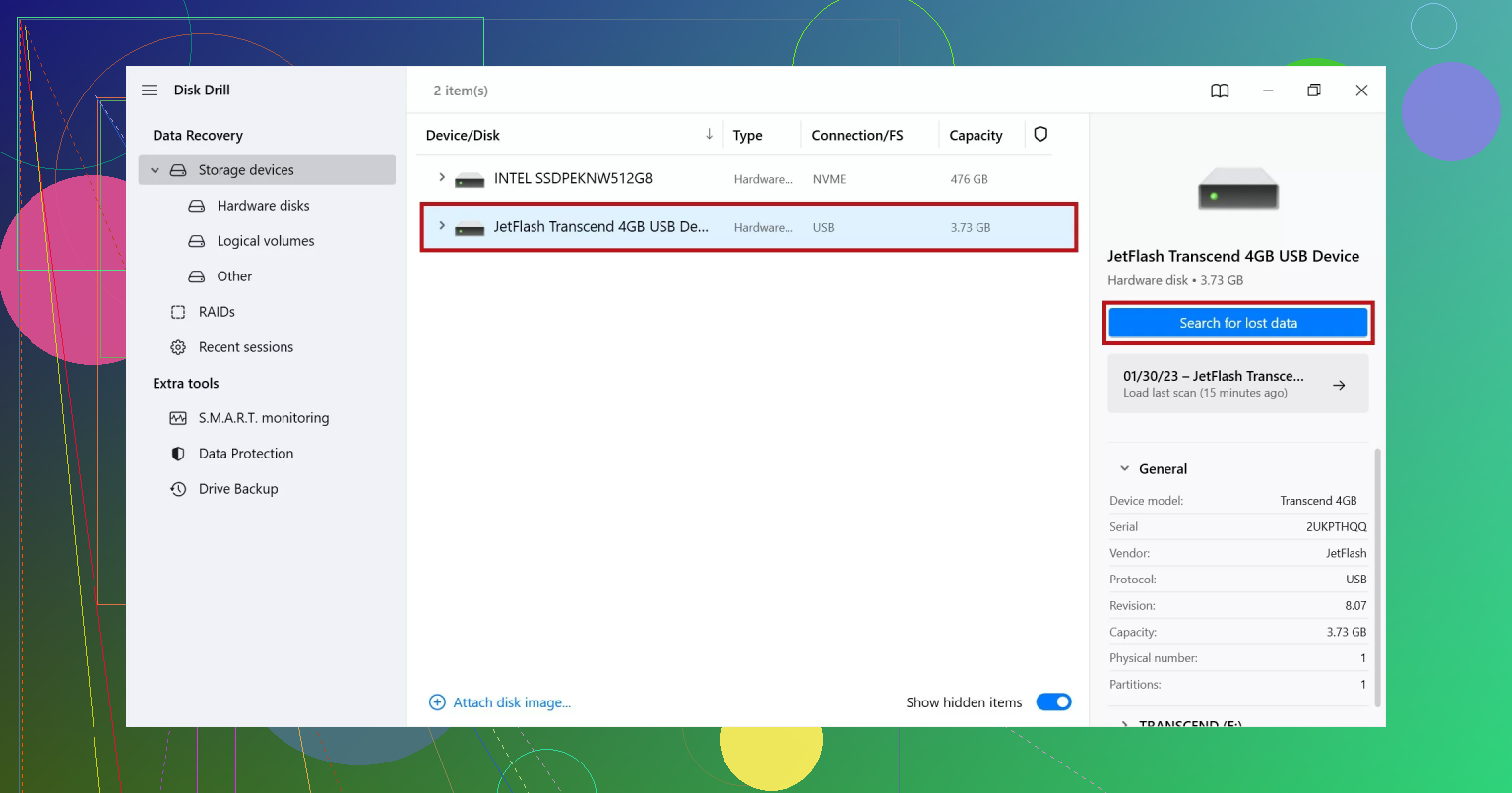
If your problem involves a USB drive that now connects, shows as present, but appears empty or Windows says it needs formatting, the data on it might be damaged, not gone. In that case, a data recovery tool like Disk Drill is useful for scanning the USB drive and recovering files before you reformat.
For step by step help on fixing a USB drive that connects but shows no content, and on recovering files from it, check this guide video:
How to fix a USB drive that connects but shows no files and recover your data safely
That video walks through checking the drive in Disk Management, assigning a drive letter, scanning it with Disk Drill, then restoring files before you try any destructive fixes.
If after all of this you still see “USB device not recognized” every few seconds with nothing obvious plugged in, the odds point to a failing USB controller or a shorted port on the board. In that case, a cheap PCIe USB card is often faster and cheaper than chasing a dying onboard controller.
Yeah, that endless “USB device not recognized” spam is one of those things that makes you question your life choices.
Since @mikeappsreviewer and @andarilhonoturno already covered the obvious stuff like Device Manager cleanup, power options, BIOS, and physical port inspection, here are a few different angles to hit that don’t rehash their steps.
1. Check for a ghost internal USB device
A lot of PCs have internal USB devices:
- Card readers
- Wi‑Fi/Bluetooth modules
- AIO cooler controllers
- Front panel USB card readers in cheap cases
When one of those half-dies, Windows acts like something is constantly being plugged and unplugged, even with nothing in the external ports.
What to try:
- Shut down the PC and unplug power.
- Open the case.
- Follow the front panel USB cables and any “mystery” USB header cables going to the motherboard.
- Temporarily unplug:
- Front panel USB card readers
- Extra USB brackets
- RGB / AIO / fan controllers that use USB headers
Boot with those disconnected and see if the popups stop.
If they do, plug them back in one at a time until the problem returns. The guilty internal device is usually a $5 card reader.
2. Front panel vs rear ports test (properly)
Yeah, everyone says “try another port,” but do it in a more systematic way:
- Test only the rear motherboard ports first.
- Disable or disconnect the front panel USB header/cable from the board completely for a while.
Front panel wiring gets yanked, twisted, and sometimes shorted against the case.
If the error stops with the front panel unplugged, you just found your culprit.
Replacing the front I/O is cheaper than a motherboard, or you can simply stop using it.
3. Look specifically for USB overcurrent issues
Windows often throws subtle overcurrent errors instead of clear messages:
- Check Event Viewer again, but filter for “USBHUB” or “usbxhci” events that mention:
- “Overcurrent on port”
- “Port reset failed due to power surge”
If you see that:
- Avoid using that physical port at all.
- Check the motherboard manual to see which ports share power rails.
- Plug high power devices (external HDDs, USB audio interfaces) into separate ports, not via a dumb hub.
A powered USB hub can help if the root issue is too much draw from the motherboard ports.
4. Turn off Fast Startup
This one I don’t fully agree with ignoring, because it actually causes weird USB states:
- Control Panel → Power Options → “Choose what the power buttons do”
- Click “Change settings that are currently unavailable”
- Uncheck “Turn on fast startup (recommended)”
- Save and reboot
Fast Startup keeps the USB controller in a semi-hibernated state. If that state is already messed up, you get constant connect/disconnect cycles even after normal reboots.
5. Check for third‑party USB filter drivers
Stuff like phone suites, virtual machines, security tools, or motherboard utilities sometimes install USB “filter” drivers that mess things up.
- In Device Manager:
- Under “Universal Serial Bus controllers,” open each USB controller’s Properties.
- On the “Driver” tab, look for anything that is clearly not from Microsoft, Intel, AMD, or your chipset vendor.
Also, in “Programs and Features,” look for:
- Old Samsung / LG / Huawei / iTunes phone drivers
- VirtualBox / VMware USB filter packs
- Random motherboard tuning suites you no longer use
Uninstall those, reboot, and see if the ghost device errors calm down.
6. Check for a flaky USB-related service or software
Some vendor tools constantly probe USB ports:
- RGB control software
- AIO/cooler control apps
- OEM “device support” tools
Try a clean boot:
- Press Win + R →
msconfig - Go to “Services” → check “Hide all Microsoft services”
- Disable everything non-essential
- In “Startup,” open Task Manager and disable third‑party stuff
- Reboot
If the USB spam stops, enable stuff in chunks until it comes back. Then you know what software is poking the controller to death.
7. If you suspect the USB drive itself
You mentioned external drives. If one of them:
- Connects, maybe appears in Explorer or Disk Management
- But shows as empty or asks to be formatted
- Or keeps dropping out after a few seconds
Then the problem can be partly on the drive side, not just the port.
In that case:
- Do not keep unplugging/replugging, that just makes it worse.
- Use a data recovery tool like Disk Drill to scan the USB drive and pull your files off before doing anything destructive like reformatting.
Disk Drill is pretty straightforward for recovering files from flakey USB sticks and external drives, and it can often see data even when Windows is screaming that the drive “needs to be formatted.”
8. When the motherboard is just dying
If:
- You’ve tried rear-only ports
- Front panel disconnected
- No devices or hubs plugged in except basic KB/mouse
- Fast Startup off, power settings cleaned, drivers and BIOS updated like @andarilhonoturno said
- Clean boot shows the issue even with almost no software running
then the hard truth is: the USB controller on the board may be degrading.
At that point, it’s usually not worth more time:
- Get a cheap PCIe USB expansion card
- Plug your stuff into that instead
- Disable the noisy ports in BIOS if possible
That completely sidesteps a failing onboard controller without replacing the whole motherboard.
Extra for Mac users hitting something similar
If you ever run into the “USB flash drive not showing up on Mac” version of this nightmare, there is a solid step‑by‑step guide on checking Finder preferences, Disk Utility, resetting SMC and NVRAM, and dealing with corrupt partitions here:
USB flash drive not detected on Mac: how to make it appear again
Same logic as on Windows: fix recognition first, then use something like Disk Drill to recover files before you reformat anything.
If you want to narrow it down quickly, my order for your situation specifically:
- Completely disconnect front panel USB from the motherboard and test only rear ports.
- Open the case and unplug any internal USB card reader / controller cables.
- Turn off Fast Startup and do a clean boot.
- If it still happens, strongly suspect the motherboard’s USB controller and try a PCIe USB card.
Short version: if their Device Manager, power tweaks and port checks did not solve it, you are probably dealing with a “ghost” USB device on an internal header, a borderline power / EMI issue, or a half‑corrupted USB drive confusing Windows.
I will skip what @andarilhonoturno, @ombrasilente and @mikeappsreviewer already did well and focus on angles they mostly did not touch.
1. Suspect internal USB headers, not only external ports
People keep staring at the rear ports while the real villain is plugged directly into the motherboard:
Typical culprits:
- Cheap built‑in card reader in the case
- RGB or fan controller that uses an internal USB header
- AIO cooler USB cable
- Front‑panel “extra” USB 2.0 bracket
Quick test:
- Power off the PC and pull the power cord.
- Open the case.
- Unplug every cable from the USB 2.0 and USB 3.x headers on the board.
- Boot with only keyboard and mouse on rear ports.
If the “USB device not recognized” spam suddenly stops, plug those internal USB devices back in one at a time until the problem returns. When it does, you just found the rotten component. Replacing a 10 dollar card reader is cheaper than replacing a motherboard.
This is one area I think gets underplayed. People reset BIOS and reinstall drivers but leave a dying internal module attached.
2. Grounding and power strip weirdness
This is more “real world” and less in the manual:
- Plug the PC directly into the wall for a test, no power strip or UPS.
- If your case uses a front USB cable that runs next to AC cables, reroute it so it is not bundled with power leads.
- If you can, try the PC on another outlet in a different room.
No, this is not voodoo. Noisy power or bad ground can cause flaky USB behavior, especially with external drives and front ports.
3. Turn OFF some of the “auto helper” USB software
Slight disagreement with the idea that drivers alone are the whole story. On a lot of gaming and OEM systems the extra vendor tools waste more time than they save.
Temporarily uninstall or disable:
- RGB / lighting control apps
- Motherboard “tuning centers” that watch ports
- Phone sync suites that hook USB
- Anything that mentions “USB filter” or “device monitor”
Do a clean boot with only core drivers and see if the behavior changes. If it quiets down, turn those tools back on in small batches until the noise returns.
4. If the USB drive appears but looks empty or asks to format
From your description, there is a chance one of your drives is not just disconnecting but is also logically damaged.
Signs:
- Windows pops “You need to format the disk before you can use it”
- The drive mounts but appears with no files
- It disappears during copy, then reappears with the dreaded “device not recognized”
In that situation, stop poking it with repeated replugging or built‑in “repair” tools right away. Before you try to fix the volume or format anything, recover what you can.
Using Disk Drill here actually makes sense:
Pros:
- Very straightforward GUI for USB drives
- Good at detecting lost partitions and recovering files from “RAW” or unformatted USB media
- Lets you preview many file types before recovery, helpful for checking if your data is still intact
- Runs on both HDD‑style externals and tiny USB sticks that Windows keeps misreading
Cons:
- Deep scans are slow on large drives
- The free version has recovery limits, so it is not ideal if you need to pull tons of data for free
- Like any software recovery, it cannot fix physical hardware failures; if the controller is dying, no tool will magically repair that
Use Disk Drill (or a similar tool) to pull important data off that misbehaving USB drive first. Once your files are safe, you can experiment with reformatting the drive, running bad‑sector checks, or simply replacing it if errors keep coming back.
Competitor‑style approaches mentioned earlier by @andarilhonoturno, @ombrasilente and @mikeappsreviewer lean heavily toward system cleanup and driver reset, which is excellent for OS‑level problems. The gap they leave is: “what if the data on that flaky USB device is already at risk?” That is where a dedicated recovery tool fits in.
5. If everything else fails, isolate the controller
Last resort before replacing the board:
- Disable the problem USB controller or ports in BIOS if your board allows it.
- Install a simple PCIe USB card and plug your devices into that card only.
If the error messages vanish when you avoid the onboard controller, you have basically confirmed the motherboard USB is deteriorating. At that point, there is no amount of driver magic that will “heal” the silicon.
If you post back with whether internal headers are disconnected, what Event Viewer says for USBHUB / usbxhci, and whether any USB drive is now RAW or asking to be formatted, the next step can be dialed in very precisely.
Try isolating the exact device instead of changing every USB setting.
Open Device Manager. Click View, then Devices by connection. Keep the window open while the warning repeats. Watch for an entry appearing and disappearing, often “Unknown USB Device.”
Right-click that entry, open Properties, then check Location. Windows should list its USB port or hub number. Disable only that device.
If the alert stops, you found the source. Re-enable it, then test nearby ports or trace the matching internal cable. This takes 5 minutes and avoids random driver changes. Its also easy to reverse if you pick the wrong entry.
Jumping straight to a failing controller and a PCIe card, like a few replies land on, skips the cheapest suspect in the whole thread: the cable. A marginal or frayed USB cable throws the exact ‘device not recognized’ loop people are describing, and swapping ports or nuking drivers in Device Manager won’t touch it. I’ve seen a half-broken micro-USB cable on an external drive reconnect every couple of seconds while the drive itself was perfectly fine on a different lead. Before opening the case, try a known-good cable on whatever you plug in most.
The @0xhacker6 approach of Devices by connection is the right instinct, and honestly it beats the shotgun driver-uninstall method from earlier. My only tweak is that the ghost device sometimes vanishes too fast to click. If it’s flickering that quick, filter the System log in Event Viewer for Kernel-PnP and let it run for a minute. The repeating entries will show you the same VID/PID or port over and over, which points at one device or one physical port instead of ‘USB is dying.’ That’s a lot more honest than guessing.
On the Disk Drill mentions: fair to bring up, but keep it in its lane. It only matters if one of your drives is coming up RAW or asking to format, in which case yes, pull the files before you touch anything. It does nothing for the disconnect spam itself. If nothing you own is showing as empty or unformatted, that whole branch doesn’t apply to you, so don’t get sidetracked into recovery mode when the actual problem is a bad cable or a loose front-panel header.