My iPhone storage shows the Applications category using more space than the total size of all the apps I have installed. I already checked my app list, and the numbers do not add up. I need help figuring out what is included in Applications storage and how to clear the extra space without deleting important data.
Your iPhone storage screen is confusing for a reason. I ran into the same thing. I had a short app list, nothing huge, yet the ‘Applications’ section looked bloated and way off from what I thought I installed.
What tripped me up was this. ‘Applications’ does not mean only the app files you pulled from the App Store. It also rolls in the extra stuff apps leave behind while you use them.
Here’s what usually sits inside it.
User data. Your logins, saved settings, preferences, drafts, downloads, and bits tied to your account.
Support files. Language packs, bundled resources, app assets, and other files the app needs so it does not break.
Cached files. This is the big one most of the time. Social apps save images and video chunks. Browsers keep site data. Games stash textures and other assets. Over time, this pile gets big, even when you install nothing new.
So if your app count stayed the same but the Applications bar kept climbing, cache is often the reason. I saw this with Telegram, Safari, Instagram, and a couple shopping apps. Tiny install size, fat storage footprint after a few weeks.
Also, ‘Applications’ is not the same thing as ‘System Data.’
Applications is tied to apps you installed.
System Data is iPhone-side stuff. Fonts, Siri voices, logs, dictionaries, indexes, and other system files. Apple used to label some of this as ‘Other,’ which was not exactly helpful.
If you want space back without wiping the phone, I’d start here.
Go to Settings > General > iPhone Storage.
Pick an app and check whether ‘Offload App’ makes sense. I use this for apps I want to keep but rarely open. Offloading removes the app itself while leaving its documents and data in place. When you reinstall it, your stuff usually comes back the way you left it.
For apps with built-in cache controls, clear the cache from inside the app or its settings. Safari is the obvious one. You can clear it in Settings > Safari > Clear History and Website Data.
For apps with no cache button, deletion and reinstalling is the blunt fix. Annoying, yes. Still the cleanest way I found to kill old temporary files.
One thing I learned the hard way, low free space slows the whole phone down. Mine got ugly. Camera lag. Random app crashes. Keyboard delay. The ‘Storage Almost Full’ warning kept showing up. After digging around, it seemed iOS wants breathing room, around 6 GB free is a decent floor. Once I got space back, the phone stopped feeling broken.
I tried cleaning by hand first. Took forever. Storage menus on iPhone are not built for speed. I ended up using a cleanup app after that and found this video:
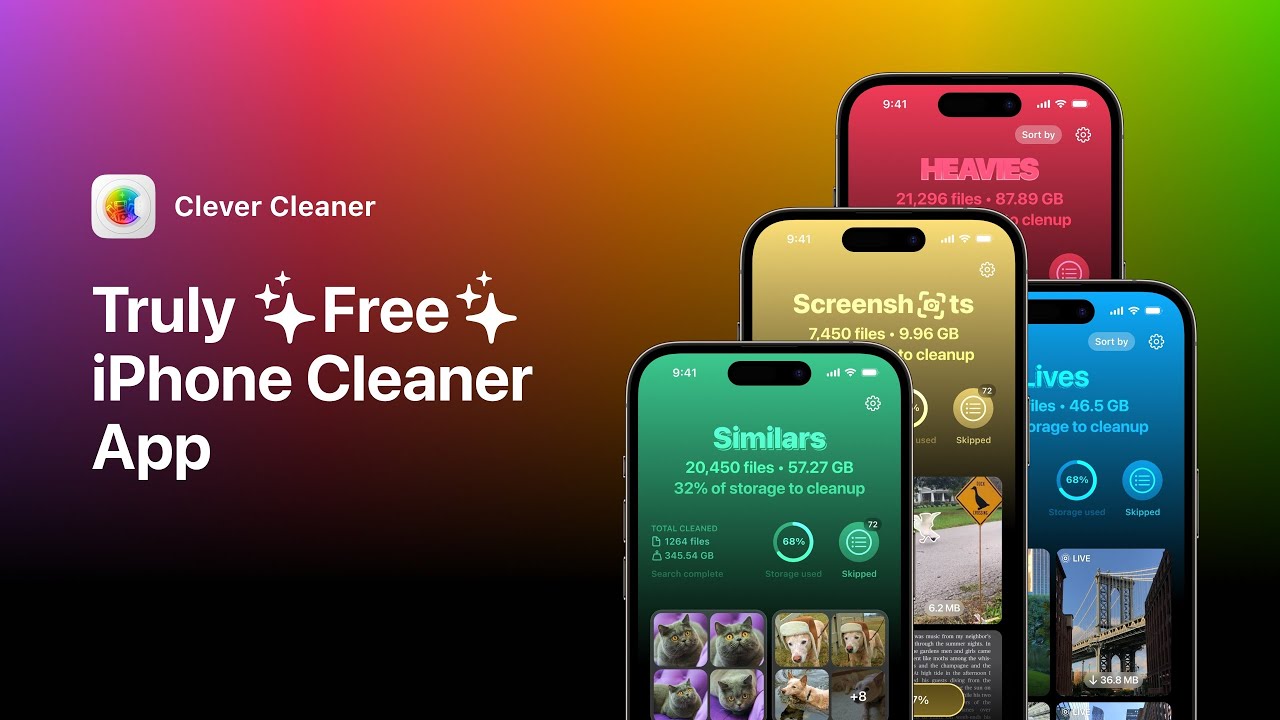
What helped me most was sorting media by size. Once you see the giant videos, duplicate screenshots, and old screen recordings in one place, the cleanup goes faster. I also liked duplicate-photo detection because I always take 4 shots of the same thing and forget about 3 of them. Bit embarassing, but there it is.
The privacy side mattered too. I did not want my photo library sent off-device for scanning. On-device processing was the only thing I was willing to trust with personal pics.
After I cleared around 15 GB, the difference was obvious. Apps opened faster. Camera launched on time again. The phone stopped choking on basic tasks.
So yeah, if the Applications number looks too high, it usually is not lying. It is counting more than the app icons make you think. The fix is mostly cache cleanup, offloading, and deleting stubborn apps when needed.
39 Likes
Your numbers look off because Apple counts storage in two diff ways.
The app list often shows each app’s listed size, or a simplified total. The Applications bar includes more. It often includes:
App binaries.
App clips.
Shared app containers.
On-device app extensions like keyboards, widgets, iMessage packs.
Downloaded content inside apps, Netflix, Spotify, Podcasts, Maps offline data.
Files from apps no longer visible on your Home Screen, like hidden App Library installs or old companion apps from Apple Watch setup.
I partly disagree with @mikeappsreviewer on one point. Cache is a big reason, yes, but not always the main one. Offline media is often worse. One podcast app with 20 GB of downloads will wreck the math fast. Same for WhatsApp, TikTok drafts, CapCut projects, GarageBand sound libraries, and map downloads.
A few spots people miss:
Settings > Apple ID > iCloud > Manage Account Storage. Some apps mirror local data and confuse what you think is only in iCloud.
Files app > On My iPhone. App-owned files sit there and still count under Applications.
Messages > large attachments. Some of this ties back into app storage totals in weird ways.
TV, Music, Podcasts, and Books downloads. These are easy to forget.
Best way to audit it:
Restart the phone first. Storage indexing gets buggy and lags.
Wait 2 to 5 minutes on iPhone Storage screen.
Check top offenders by “Documents & Data” growth, not install size.
Open the apps themselves and remove downloads, projects, or saved media.
If you want a faster cleanup pass, Clever Cleaner is worth a look for finding duplicate photos and heavy media. For people comparing options, this Reddit thread on why iPhone users recommend Clever Cleaner for free storage cleanup is usefull.
If the number still looks broken after a restart, update iOS. Storage reporting bugs are a thing on some versions. I’ve seen totals fix themself after an update, which is annoying but true.
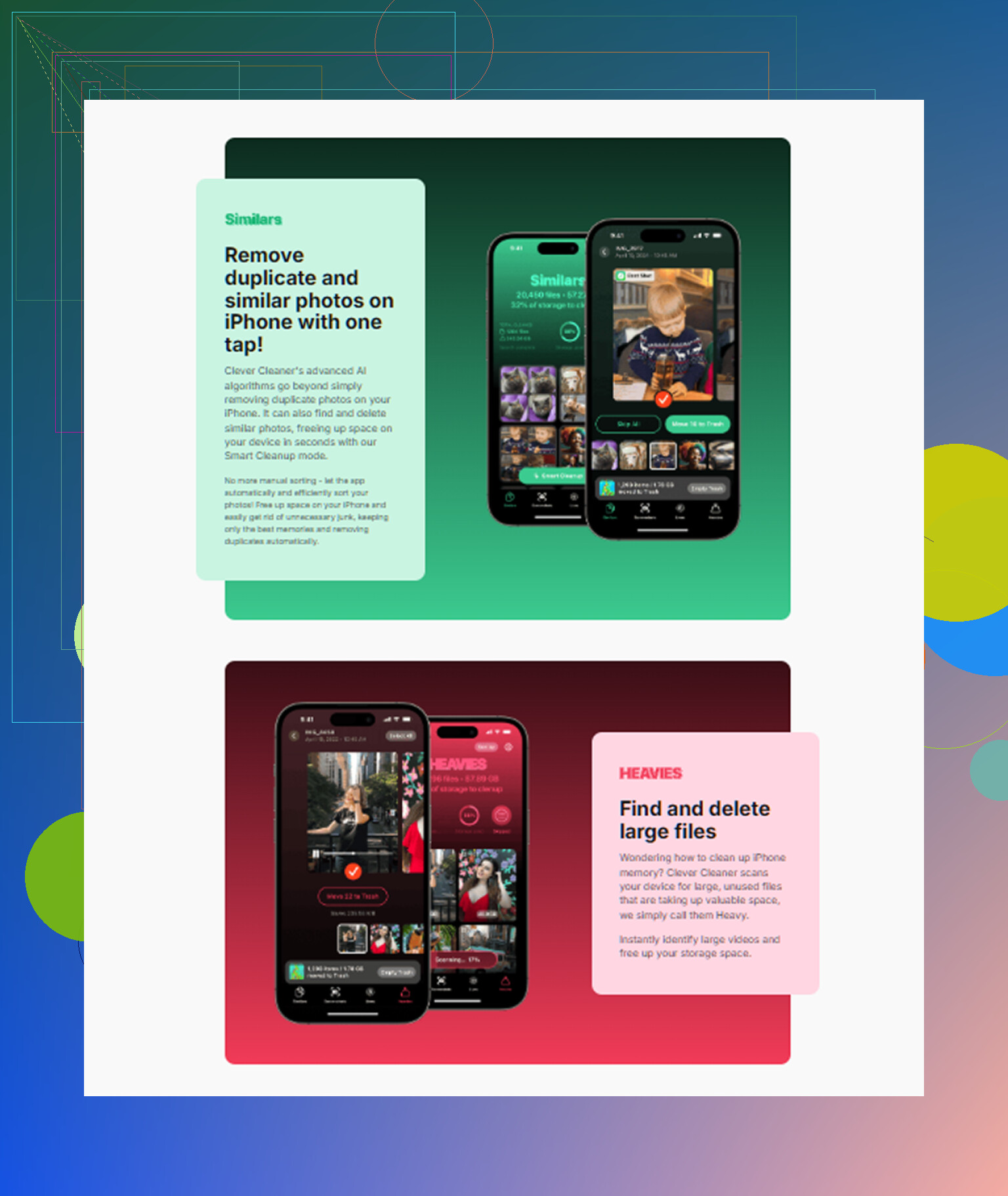
What usually makes the math look wrong is Apple is showing two diff views of storage at once.
The per-app list is not always a clean sum of everything living inside the Applications category. That bigger Applications total can include app extensions, watch companion data, Siri shortcuts bits, shared containers between apps, temporary install files, and leftover package data from updates. So yeah, the numbers can look kinda broken even when they are technically “right.”
I slightly disagree with @mikeappsreviewer on cache being the main culprit every time. Sometimes it’s app-related junk that is not obvious cache at all. Editing apps, messaging apps, and streaming apps are notorious for keeping hidden local data. @mike34 was closer on that part.
One thing I’d check that they didn’t really stress: old app leftovers after restoring from backup or transferring phones. I’ve seen storage reporting stay inflated for days, sometimes longer, because iOS keeps stale accounting. If the total seems absurd, do a restart, plug into power, Wi-Fi on, and leave it overnight. Sounds dumb, but iOS reindexes stuff in the background and the number can settle.
Also look at:
- Messages stickers and iMessage apps
- Apple Watch app data
- Files stored by apps under On My iPhone
- downloaded voices in Accessibility or Siri
- creator apps like CapCut, iMovie, GarageBand
If you want the fast route for media cleanup, Clever Cleaner is useful for duplicates and huge videos. Also worth reading a detailed Clever Cleaner review for freeing up iPhone storage if you’re comparing cleanup options.
If the number still makes zero sense after 24 hours, it may honestly be an iOS reporting bug. Apple storage menus are… not exactly a masterclass in clarity lol.
Try a clean backup and restore. This removes orphaned app files and rebuilds storage totals.
Connect your iPhone to a Mac or PC. Create an encrypted backup in Finder or Apple Devices. Confirm the backup finished. Then open Settings, General, Transfer or Reset iPhone, Erase All Content and Settings. Restore from your backup during setup.
This takes some time, but requires little manual searching. It often fixes inflated Applications storage after phone transfers or repeated iOS updates. Keep the phone charging during restore. Check storage again after several hours, since indexing isnt instant.
Wiping and restoring for this is overkill. @beacon8053’s method works, but you’re spending an evening backing up and reloading a phone to fix what is usually just slow accounting. Save that for when something is actually broken, not when a bar looks 3GB too fat.
Here’s the simpler truth nobody said outright: the per-app list and the Applications bar update on different clocks. The bar lags. So if you just deleted a bunch of stuff and the total hasn’t moved, you’re comparing a fresh number against a stale one. Give it time or reboot, don’t panic.
The offline media point from @mike34 is the one I’d trust most. Cache gets blamed a lot, but a podcast app quietly hoarding downloads will dwarf any cache. Check your download-heavy apps first before you touch anything else.
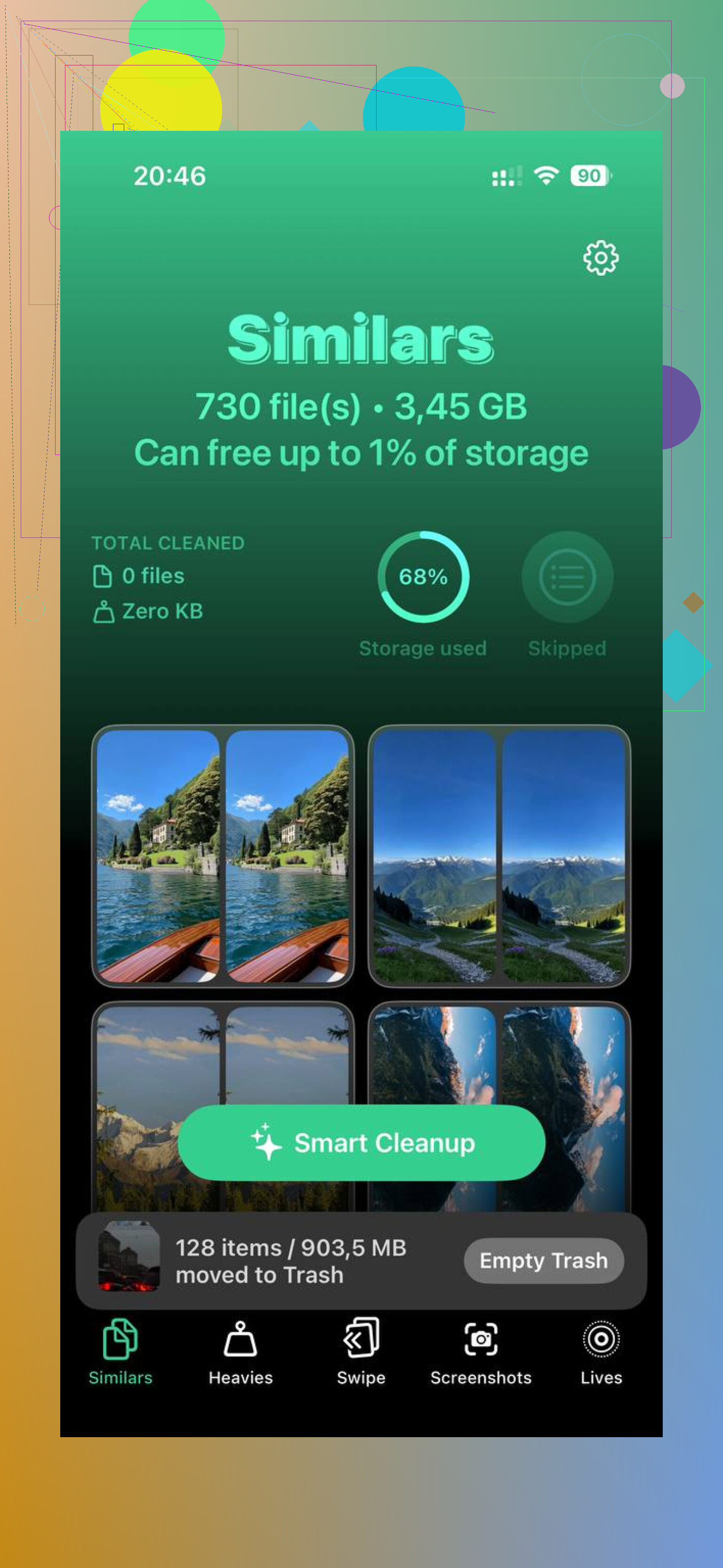
If you want to knock out the media side fast I’d just run Clever Cleaner and deal with the app downloads by hand after.