Protecting Your Dropbox Files: A Straightforward Guide
In today’s digital era, safeguarding personal files online is no longer a luxury—it’s essential. Hackers are becoming more sophisticated, and even with platforms like Dropbox offering reasonable security, nothing’s immune to potential breaches. This makes implementing an extra layer of protection, such as encrypting your files, absolutely essential. Let’s dive into how you can take control of your data’s security.
The Reality of Dropbox Security
Let me lay it out for you—I’ve got both good news and bad news. Which one do you want first? Oh wait, I’ll start with the bad—Dropbox does not feature built-in password protection for individual folders. That’s right. Although you can manage sharing permissions (decide who gets to view or edit), you can’t slap a password on a specific folder to keep it off-limits.
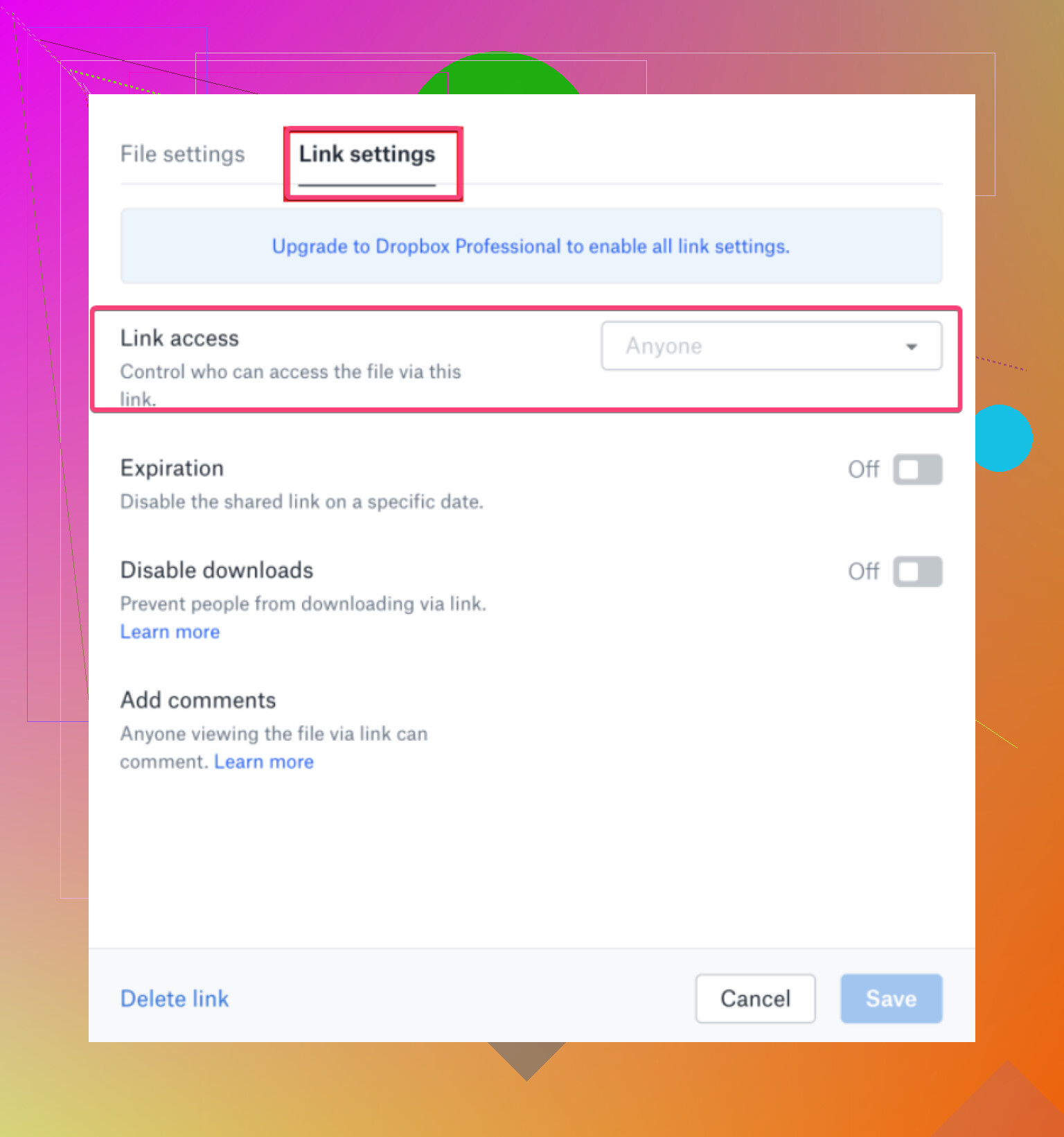
Now, for the good part: Yes, you can bring in extra protection! A simple solution exists, courtesy of third-party tools like CloudMounter.
The Power of CloudMounter: Encrypt and Secure
So, what’s the deal with CloudMounter? Glad you asked. This tool is a secure encryption application that not only locks up your files but does so in a seamless way you’ll totally appreciate. Essentially, it mounts your Dropbox account to act as a regular folder on your computer. Cool, right? You work with your files on your local disk as usual, but—here’s the magic—they remain encrypted during the process.
What’s even better? CloudMounter isn’t just a one-trick pony. It works with a wide range of cloud storage providers, including Google Drive, Amazon S3, and more. Perfect if you’re juggling multiple platforms!
Step-by-Step Guide: Encrypt Dropbox Folders with CloudMounter
Here’s the no-nonsense breakdown for locking your sensitive Dropbox folders using CloudMounter:
- Launch CloudMounter: Download and install the app. Once it’s open, select Dropbox in the ‘new connection’ dialog.
- Link Your Account: Connect to your Dropbox account. A guided setup will pop up, so just follow the screens as instructed.
- Add Encryption: Find your newly listed Dropbox folder in CloudMounter. Right-click the item and choose the ‘Encrypt’ option.
- Set Your Password: Create a password that only you will know. Options allow you to encrypt filenames, adjust settings, or even save your key to the keychain if needed.
- Hit ‘Encrypt’: Your files are now shielded and safe. Enjoy peace of mind!
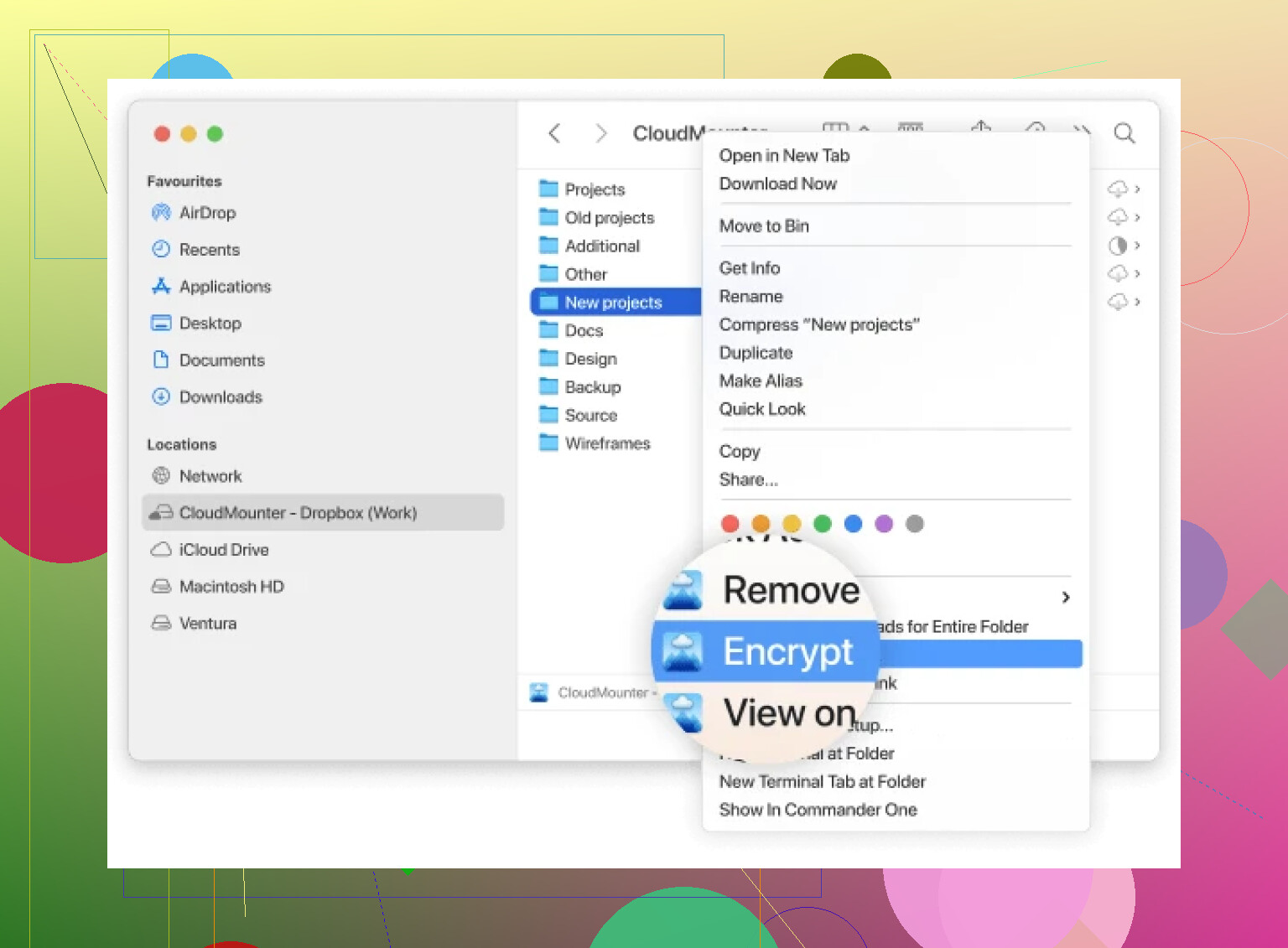
Congratulations! Simple as that. You now have added a sturdy lock to what was previously unprotected.
Do you still have lingering “how-do-I” or “what-now” questions? Drop them in the comments, and I’ll gladly help out! 